Using Windows
Use the Lexmark Service Center to check the ink levels of the cartridges.
1 Do one of the following:
• In Windows Vista, click .
• In Windows XP and earlier, click Start.
2 Click All Programs or Programs, and then select the printer program folder from the list.
3 Select Lexmark Service Center.
4 If you have not yet downloaded the Lexmark Service Center, download it.
5 Check the ink levels of the cartridges on the Printer Maintenance page.
Install a new cartridge if necessary.
Using Macintosh
1 From the Finder desktop, double click the printer folder.
2 Double-click the printer utility icon.
The Lexmark Printer Utility appears.
3 If an exclamation point (!) appears on a print cartridge, then the ink level is low. Install a new cartridge if necessary.
Wiping the print cartridge nozzles and contacts
1 Remove the print cartridge(s).
2 Dampen a clean, lint-free cloth with water, and then place the cloth on a flat surface.
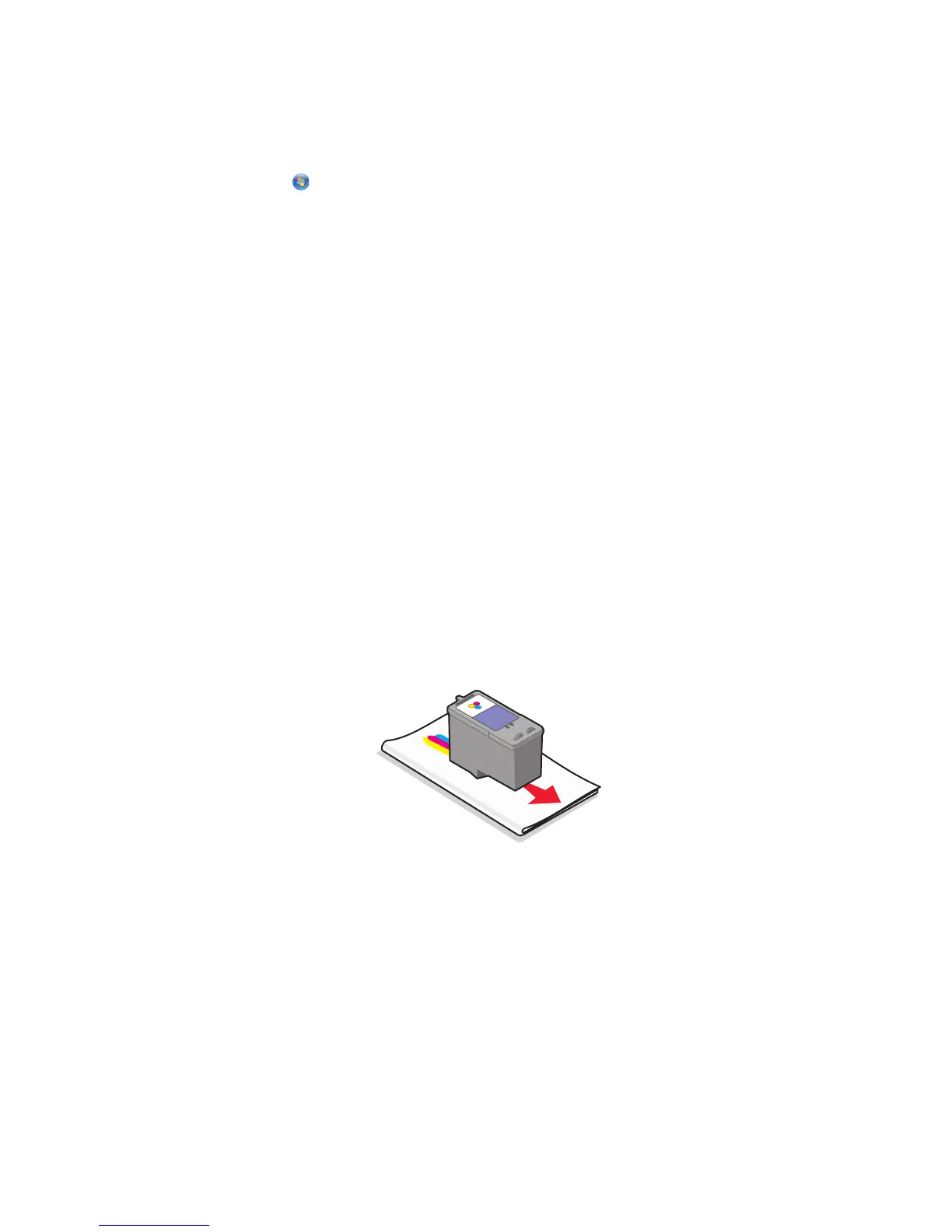
3 Gently hold the nozzles against the cloth for about three seconds, and then wipe in the direction shown.
100



 To Next Page