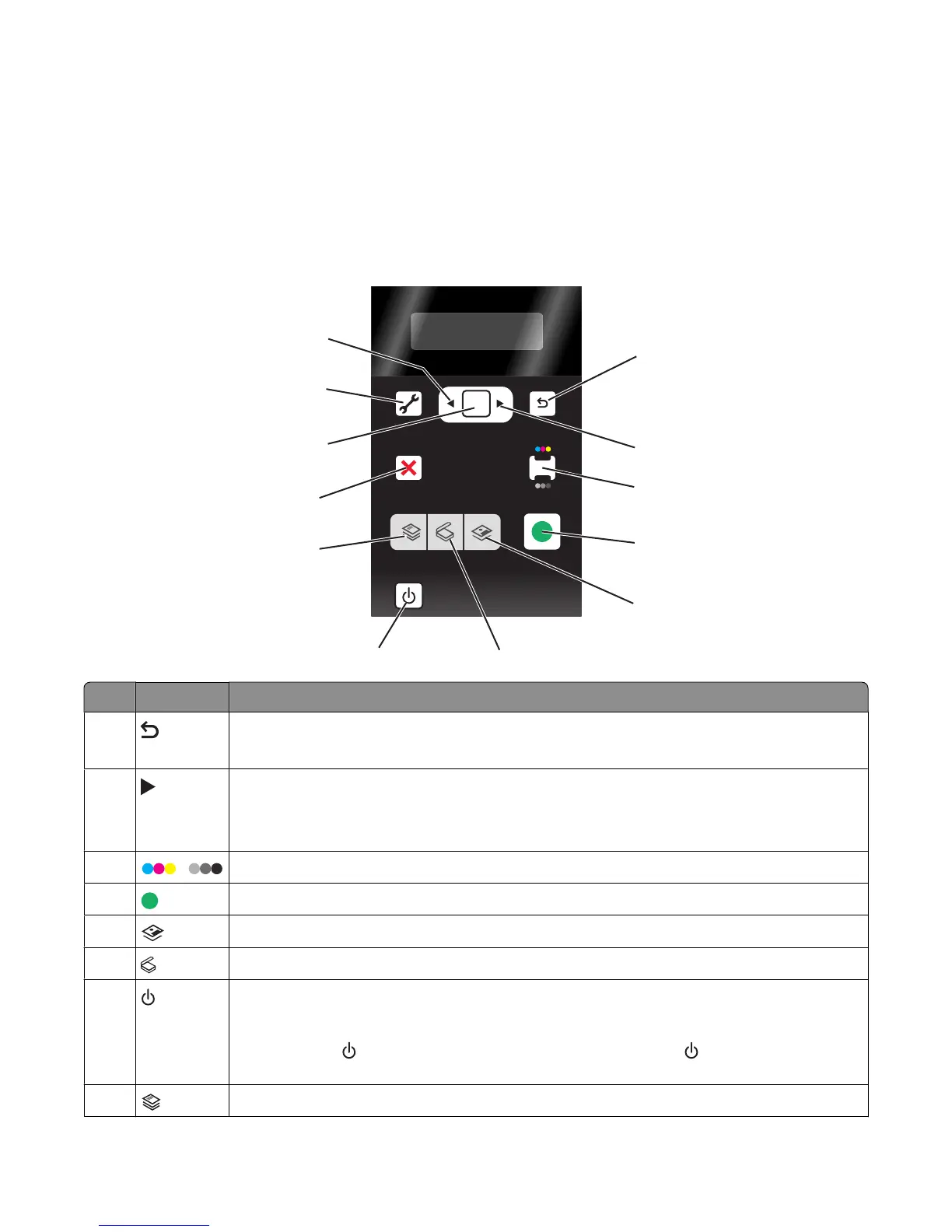
Using the printer control panel buttons and menus
Using the printer control panel
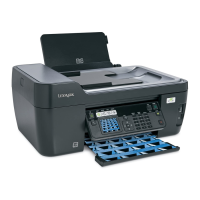
The printer control panel contains:
• Power on/off button
• Two-line display that shows the printer status, messages, and menus
• 11 buttons
OK
COPY
SCAN
PHOTO START
ON
1
3
4
5
6
7
8
9
12
11
2
10
Press To
1
• Return to the previous screen.
• Exit from one menu level to a higher one.
2
• Increase a number.
• Move the cursor one place to the right.
• Scroll through menus or settings on the display.
3
/
Switch to color mode or black-and-white mode.
4
Start a print, scan, or copy job, depending on which mode is selected.
5
Access the photo menu and print photos.
6
Access the scan menu and scan documents.
7
• Turn the printer on and off.
• Switch to Power Saver mode.
Note: Press
to switch to Power Saver mode. Press and hold for two seconds to turn
off the printer.
8
Access the copy menu and make copies.
22



 To Next Page