Ordering paper and other supplies
To purchase supplies or to locate a dealer near you, visit our Web site at www.lexmark.com.
For best results when printing photos or other high-quality images, use Lexmark Photo Paper or Lexmark PerfectFinish
Photo Paper and Lexmark print cartridges.
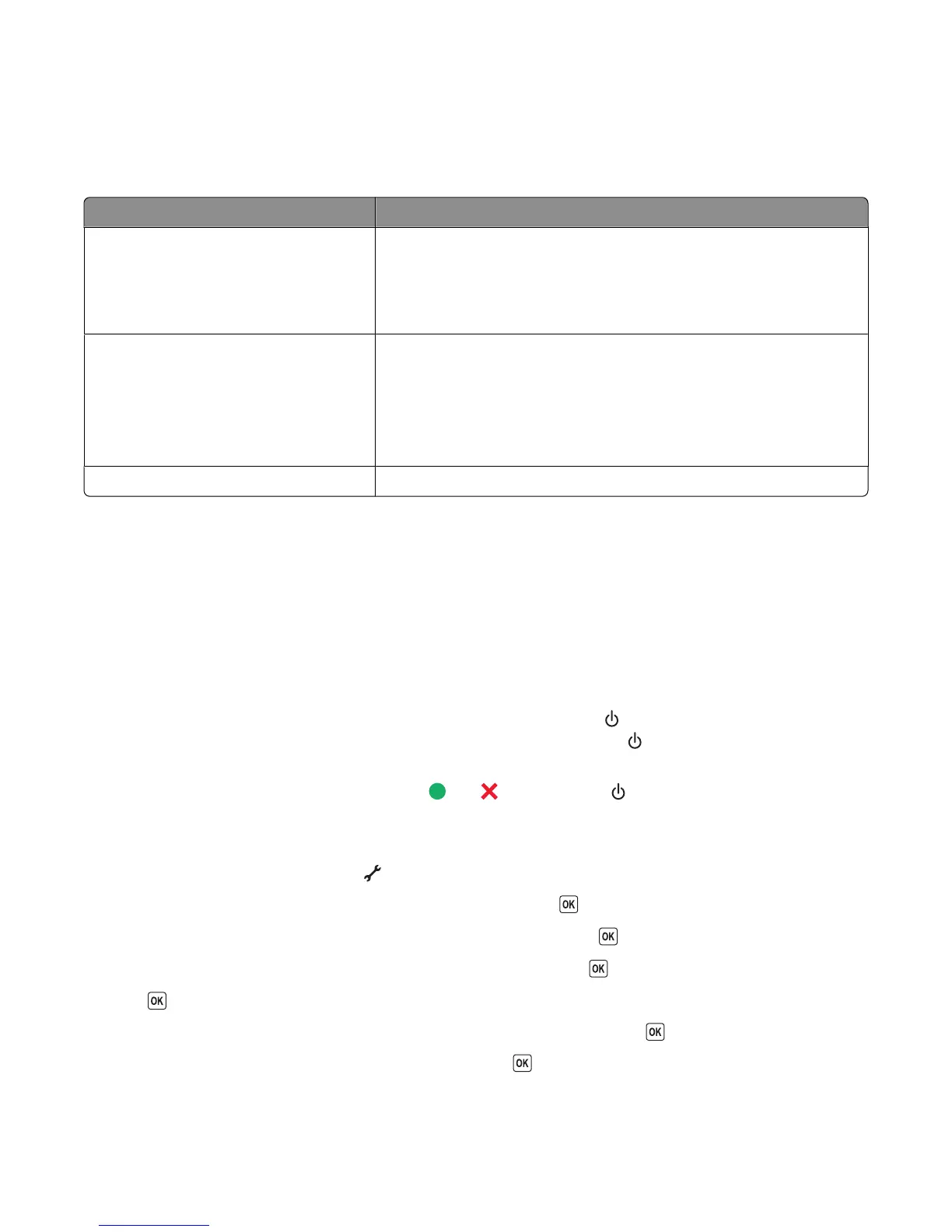
Item Description
Lexmark Photo Paper
• Letter
• A4
• 4 x 6 in.
• 10 x 15 cm
Lexmark PerfectFinish Photo Paper
• Letter
• A4
• 4 x 6 in.
• 10 x 15 cm
• L
USB cable Part number 1021294
Resetting to factory settings
Resetting all settings
You can reset your printer to the original settings without using the printer menus.
Note: Resetting to factory default settings will delete all the printer settings you have previously selected.
1 Turn off the printer.
Note: Make sure the printer is not in Power Saver mode. Press and hold
for 2 seconds to turn off the printer.
If you have set the Power Saver timeout in the Setup menu, press and hold according to the time you set in
the menu.
2 From the printer control panel, press and hold and , and then press to turn the printer on.
Resetting menu settings
1 From the printer control panel, press .
2 Press the arrow buttons until Defaults appears, and then press .
3 Press the arrow buttons until Set Defaults appears, and then press .
4 Press the arrow buttons until Use Factory appears, and then press .
5 Press again.
6 When prompted, press the arrow buttons to select a language, and then press .
7 Press the arrow buttons to select a country, and then press .
Initial Setup Complete appears on the display.
103



 To Next Page