EasyManua.ls Logo

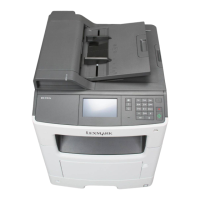
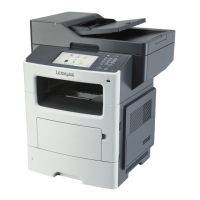
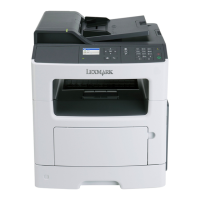
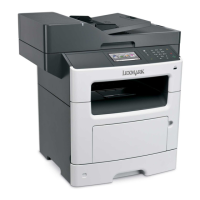
Lexmark MX410 Series - User Manual

Lexmark MX410 Series
325 pages
Print Icon
To Next Page IconTo Next Page
Loading...
MX410 and MX510 Series
User's Guide
September 2014 www.lexmark.com
Machine type(s):
7015
Model(s):
470, 630, 670, 675

Table of Contents

Questions and Answers

  • S
    Sandy ReynoldsSep 13, 2025
    What to do if Lexmark Printer displays 'Change [paper source] to [custom string]'?
    • C
      Charlene WilsonSep 13, 2025
      If your Lexmark Printer prompts you to change the paper source, load the correct size and type of paper in the tray. Then, verify that the paper size and type settings are specified in the Paper menu on the printer control panel, and select 'Finished changing paper'. You can also cancel the print job.
  • B
    Brittany FernandezSep 12, 2025
    What to do if Lexmark MX410 displays 'Scanner disabled by admin'?
    • A
      Alicia HillSep 12, 2025
      If your Lexmark Printer's scanner is disabled by the administrator, print without the scanner or contact your system support person.
  • T
    Trevor SolisSep 12, 2025
    What to do if Lexmark MX410 Printer had to restart?
    • J
      Jennifer SimmonsSep 12, 2025
      If your Lexmark Printer had to restart and the last job may be incomplete, touch the screen to clear the message and continue printing.
  • C
    Carrie ThompsonSep 10, 2025
    What to do if Lexmark MX410 Printer displays 'Not enough free space in flash memory for resources'?
    • J
      Janice CamposSep 10, 2025
      If your Lexmark Printer displays 'Not enough free space in flash memory for resources', select 'Continue' on the printer control panel to clear the message and continue printing. Alternatively, delete fonts, macros, and other data stored in the flash memory, or upgrade to a larger capacity flash memory card.
  • N
    nmortonSep 9, 2025
    How to resolve Lexmark MX410 'Network [x] software error'?
    • R
      Rebecca WilsonSep 9, 2025
      To resolve a 'Network [x] software error' on your Lexmark Printer, select 'Continue' on the printer control panel to continue printing. If the issue persists, turn the printer off, wait 10 seconds, and then turn it back on. You may also need to update the network firmware in the printer or print server.
  • P
    Phillip BoyerSep 8, 2025
    What to do if Lexmark MX410 Printer memory is full, cannot send faxes?
    • J
      John HaneySep 8, 2025
      If your Lexmark Printer indicates 'Memory full, cannot send faxes', select 'Continue' on the printer control panel to clear the message and cancel the fax job. You can also reduce the fax resolution or the number of pages in the fax before resending.
  • R
    Rebecca RileyAug 23, 2025
    How to fix Lexmark Printer error reading USB drive?
    • J
      Joe LopezAug 23, 2025
      This error occurs when an unsupported USB device is inserted into the Lexmark Printer. To resolve this, remove the unsupported USB device and replace it with a supported one.
  • J
    John FrenchSep 6, 2025
    What to do if Lexmark MX410 Printer displays 'Disk must be formatted for use in this device'?
    • R
      robertwardSep 6, 2025
      If your Lexmark Printer displays 'Disk must be formatted for use in this device', select 'Format disk' from the printer control panel to format the printer hard disk and clear the message.
  • A
    Amy RussellSep 5, 2025
    What to do if Lexmark MX410 Printer displays 'Defective flash detected'?
    • R
      Robert DanielSep 5, 2025
      If your Lexmark Printer detects a defective flash, replace the defective flash memory card. Alternatively, select 'Continue' on the printer control panel to ignore the message and continue printing, or cancel the current print job.
  • K
    kimberlyromeroSep 4, 2025
    What to do if Lexmark Printer displays 'Replace defective imaging unit'?
    • E
      eringriffinSep 4, 2025
      If your Lexmark Printer displays 'Replace defective imaging unit', you should replace the defective imaging unit to clear the message.

Lexmark MX410 Series Specifications

General IconGeneral
Print TechnologyLaser
FunctionsPrint, Copy, Scan, Fax
Print Speed (Black)40 ppm
Print Resolution1200 x 1200 dpi
Processor Speed800 MHz
Memory256 MB
ConnectivityUSB, Ethernet, Wi-Fi
Paper Capacity250 sheets
Scan Resolution600 x 600 dpi
Fax Speed33.6 Kbps
Maximum Paper SizeLegal
Supported Media SizesA4, A5, A6, Letter, Legal
Scanner TypeFlatbed
Weight14.0 kg

Related product manuals