EasyManua.ls Logo

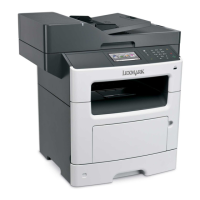
Lexmark MX417 Series - User Manual

Lexmark MX417 Series
321 pages
Print Icon
To Next Page IconTo Next Page
Loading...
MX410, MX417, MX510, and MX511
Series
User's Guide
March 2017 www.lexmark.com
Machine type(s):
7015
Model(s):
470, 630, 670, 675

Table of Contents

Questions and Answers

  • C
    Carlos OlsenAug 28, 2025
    How to replace defective imaging unit on Lexmark All in One Printer?
    • D
      dale44Aug 29, 2025
      To resolve this issue with your Lexmark All in One Printer, replace the defective imaging unit. If you do not have a replacement imaging unit, visit www.lexmark.com for ordering information.
  • P
    plittleAug 28, 2025
    What to do when Lexmark All in One Printer displays 'Maintenance kit low'?
    • W
      Wendy PattersonAug 28, 2025
      Your Lexmark All in One Printer indicates that the maintenance kit is low. If necessary, select Continue to clear the message and continue printing.
  • M
    Mark WilsonAug 27, 2025
    What to do when Lexmark All in One Printer says 'Imaging unit very low'?
    • A
      Andrea PrinceAug 28, 2025
      Your Lexmark All in One Printer indicates that the imaging unit is very low and may need replacement soon. Select Continue on the printer control panel to clear the message and continue printing.
  • H
    Heather NguyenSep 7, 2025
    What to do if Lexmark Printer had to restart?
    • G
      Gary WillisSep 7, 2025
      If your Lexmark Printer had to restart and the last job may be incomplete, touch the screen to clear the message and continue printing.
  • A
    Autumn WarrenSep 10, 2025
    What to do if Lexmark MX417 displays 'Fax server 'To Format' not set up'?
    • L
      Laura SchmidtSep 10, 2025
      If your Lexmark Printer displays 'Fax server 'To Format' not set up', select 'Continue' on the printer control panel to clear the message. Then, complete the Fax Server setup.
  • M
    Melissa BrockSep 13, 2025
    How to load manual feeder on Lexmark All in One Printer?
    • D
      Daniel ScottSep 13, 2025
      To solve this problem with your Lexmark All in One Printer, load the multipurpose feeder with the correct size of paper. Depending on your printer model, you can also touch Continue or press to clear the message and continue printing, or cancel the current job.
  • C
    Cheryl WileySep 18, 2025
    Why does my Lexmark All in One Printer say 'Error reading USB drive'?
    • L
      Laura JonesSep 18, 2025
      The Lexmark All in One Printer displays this message because an unsupported USB device is inserted. Remove the USB device, and then insert a supported one.
  • A
    Ashley FernandezAug 26, 2025
    How to clear 'Imaging unit low' message on Lexmark All in One Printer?
    • K
      Katie GibbsAug 26, 2025
      Your Lexmark All in One Printer indicates that the imaging unit is low. You may need to order a new imaging unit. If you wish to continue printing, select Continue on the printer control panel to clear the message.
  • A
    Amber ReedAug 26, 2025
    How to replace imaging unit on Lexmark All in One Printer when 0 pages remain?
    • L
      Latoya PerezAug 26, 2025
      To resolve this issue on your Lexmark All in One Printer, replace the imaging unit to continue printing. If you do not have a replacement imaging unit, visit www.lexmark.com for ordering information.
  • M
    Michael RobertsAug 25, 2025
    How to clear 'Cartridge low' message on Lexmark All in One Printer?
    • M
      Matthew BennettAug 26, 2025
      Your Lexmark All in One Printer indicates that the toner cartridge is low. You may need to order a new toner cartridge. If you wish to continue printing, select Continue on the printer control panel to clear the message.

Lexmark MX417 Series Specifications

General IconGeneral
Print TechnologyLaser
FunctionalityPrint, Copy, Scan, Fax
Print Speed (Black)40 ppm
Print Resolution1200 x 1200 dpi
Monthly Duty Cycle80, 000 pages
Wi-FiOptional
Operating Systems SupportedWindows, macOS, Linux
Duplex PrintingYes
Scan Resolution600 x 600 dpi
Copy Speed (Letter, Black)40 cpm
Fax Speed33.6 Kbps
Fax Transmission Speed3 seconds per page
Standard Paper Capacity250 pages
Maximum Paper Size8.5 x 14 inches
ConnectivityEthernet, USB
Scanner TypeFlatbed
Mobile PrintingGoogle Cloud Print

Related product manuals