EasyManua.ls Logo

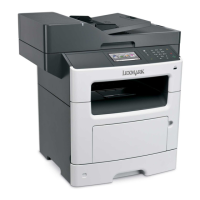
Lexmark MX417 Series - User Manual

Lexmark MX417 Series
321 pages
Print Icon
To Next Page IconTo Next Page
Loading...
MX410, MX417, MX510, and MX511
Series
User's Guide
March 2017 www.lexmark.com
Machine type(s):
7015
Model(s):
470, 630, 670, 675

Table of Contents

Questions and Answers

  • A
    Ashley FernandezAug 26, 2025
    How to clear 'Imaging unit low' message on Lexmark All in One Printer?
    • K
      Katie GibbsAug 26, 2025
      Your Lexmark All in One Printer indicates that the imaging unit is low. You may need to order a new imaging unit. If you wish to continue printing, select Continue on the printer control panel to clear the message.
  • A
    Amber ReedAug 26, 2025
    How to replace imaging unit on Lexmark All in One Printer when 0 pages remain?
    • L
      Latoya PerezAug 26, 2025
      To resolve this issue on your Lexmark All in One Printer, replace the imaging unit to continue printing. If you do not have a replacement imaging unit, visit www.lexmark.com for ordering information.
  • M
    Michael RobertsAug 25, 2025
    How to clear 'Cartridge low' message on Lexmark All in One Printer?
    • M
      Matthew BennettAug 26, 2025
      Your Lexmark All in One Printer indicates that the toner cartridge is low. You may need to order a new toner cartridge. If you wish to continue printing, select Continue on the printer control panel to clear the message.
  • R
    rwardAug 25, 2025
    What to do if my Lexmark All in One Printer has a scanner jam?
    • H
      Heather WilliamsAug 25, 2025
      To fix a scanner jam on your Lexmark All in One Printer, remove the jammed paper from the scanner.
  • P
    Paula GraySep 4, 2025
    What to do if Lexmark MX417 Printer displays 'Replace defective imaging unit'?
    • K
      Kenneth MillerSep 4, 2025
      If your Lexmark Printer displays 'Replace defective imaging unit', you should replace the defective imaging unit to clear the message.
  • W
    williamschristineSep 7, 2025
    What to do if Lexmark MX417 Printer displays 'Scanner disabled by admin'?
    • T
      Thomas RichardSep 8, 2025
      If your Lexmark Printer's scanner is disabled by the administrator, print without the scanner or contact your system support person.
  • H
    Heather NguyenSep 7, 2025
    What to do if Lexmark Printer had to restart?
    • G
      Gary WillisSep 7, 2025
      If your Lexmark Printer had to restart and the last job may be incomplete, touch the screen to clear the message and continue printing.
  • T
    Taylor WarnerSep 7, 2025
    What to do if Lexmark MX417 displays 'Not enough free space in flash memory for resources'?
    • R
      Richard Wang DDSSep 7, 2025
      If your Lexmark Printer displays 'Not enough free space in flash memory for resources', select 'Continue' on the printer control panel to clear the message and continue printing. Alternatively, delete fonts, macros, and other data stored in the flash memory, or upgrade to a larger capacity flash memory card.
  • N
    Nicholas WoodardSep 6, 2025
    How to resolve Lexmark MX417 'Network [x] software error'?
    • D
      Dalton FoxSep 6, 2025
      To resolve a 'Network [x] software error' on your Lexmark Printer, select 'Continue' on the printer control panel to continue printing. If the issue persists, turn the printer off, wait 10 seconds, and then turn it back on. You may also need to update the network firmware in the printer or print server.
  • J
    Jill BakerSep 6, 2025
    What to do if Lexmark Printer memory is full, cannot send faxes?
    • S
      shepherdpamelaSep 6, 2025
      If your Lexmark Printer indicates 'Memory full, cannot send faxes', select 'Continue' on the printer control panel to clear the message and cancel the fax job. You can also reduce the fax resolution or the number of pages in the fax before resending.

Lexmark MX417 Series Specifications

General IconGeneral
Print TechnologyLaser
FunctionalityPrint, Copy, Scan, Fax
Print Speed (Black)40 ppm
Print Resolution1200 x 1200 dpi
Monthly Duty Cycle80, 000 pages
Wi-FiOptional
Operating Systems SupportedWindows, macOS, Linux
Duplex PrintingYes
Scan Resolution600 x 600 dpi
Copy Speed (Letter, Black)40 cpm
Fax Speed33.6 Kbps
Fax Transmission Speed3 seconds per page
Standard Paper Capacity250 pages
Maximum Paper Size8.5 x 14 inches
ConnectivityEthernet, USB
Scanner TypeFlatbed
Mobile PrintingGoogle Cloud Print

Related product manuals