EasyManua.ls Logo

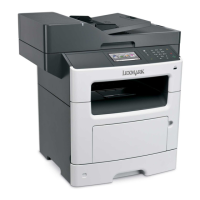
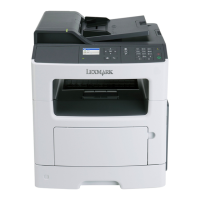
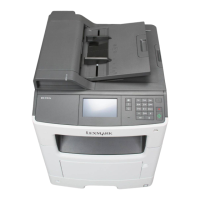
Lexmark MX417 Series - User Manual

Lexmark MX417 Series
321 pages
Print Icon
To Next Page IconTo Next Page
Loading...
MX410, MX417, MX510, and MX511
Series
User's Guide
March 2017 www.lexmark.com
Machine type(s):
7015
Model(s):
470, 630, 670, 675

Table of Contents

Questions and Answers

  • W
    William MaysSep 5, 2025
    What to do if Lexmark Printer displays 'Insufficient memory to support Resource Save feature'?
    • R
      Ricky WarrenSep 5, 2025
      If your Lexmark Printer shows 'Insufficient memory to support Resource Save feature', install additional printer memory. Or, select 'Continue' on the printer control panel to disable Resource Save, clear the message, and continue printing.
  • D
    Deborah MccannSep 5, 2025
    What to do if Lexmark Printer displays 'Disk must be formatted for use in this device'?
    • U
      ulopezSep 5, 2025
      If your Lexmark Printer displays 'Disk must be formatted for use in this device', select 'Format disk' from the printer control panel to format the printer hard disk and clear the message.
  • A
    austinbridgetSep 4, 2025
    What to do if Lexmark MX417 Printer displays 'Defective flash detected'?
    • B
      bhowardSep 5, 2025
      If your Lexmark Printer detects a defective flash, replace the defective flash memory card. Alternatively, select 'Continue' on the printer control panel to ignore the message and continue printing, or cancel the current print job.
  • A
    Austin WilliamsAug 25, 2025
    How to replace cartridge on Lexmark All in One Printer when 0 pages remain?
    • A
      Andrew FoxAug 25, 2025
      To resolve this issue with your Lexmark All in One Printer, replace the toner cartridge. If you don't have a replacement, further guidance can be found online at www.lexmark.com.
  • J
    John OsborneSep 4, 2025
    Why Lexmark MX417 shows 'Complex page, some data may not have printed'?
    • C
      cwalkerSep 4, 2025
      If your Lexmark Printer displays 'Complex page, some data may not have printed', you can select 'Continue' on the printer control panel to ignore the message and continue printing. Alternatively, you can cancel the current print job or install additional printer memory.
  • M
    Mary LindseySep 3, 2025
    How to fix Lexmark Printer 'Non-Lexmark [supply type]' error?
    • B
      Barbara BrownSep 3, 2025
      To resolve the 'Non-Lexmark' error on your Lexmark Printer, remove the third-party supply or part and install a genuine Lexmark supply or part.
  • A
    Anthony HernandezSep 3, 2025
    What to do if Lexmark Printer displays 'Imaging unit very low'?
    • J
      Joseph MooreSep 3, 2025
      If your Lexmark Printer indicates 'Imaging unit very low', you may need to replace the imaging unit very soon. If necessary, select 'Continue' on the printer control panel to clear the message and continue printing.
  • F
    fjonesSep 2, 2025
    What to do if Lexmark Printer displays 'Cartridge very low'?
    • C
      Crystal MeyersSep 3, 2025
      If your Lexmark Printer warns that the 'Cartridge very low', you may need to replace the toner cartridge very soon. If necessary, select 'Continue' on the printer control panel to clear the message and continue printing.
  • A
    Angel CastroSep 2, 2025
    What to do if Lexmark Printer displays 'Imaging unit nearly low'?
    • K
      Kevin WolfSep 2, 2025
      If your Lexmark Printer shows 'Imaging unit nearly low', select 'Continue' on the printer control panel to clear the message and continue printing, if necessary.
  • T
    Timothy EdwardsSep 1, 2025
    What to do if Lexmark Printer says 'Cartridge nearly low'?
    • R
      Rebecca MartinSep 1, 2025
      If your Lexmark Printer indicates that the 'Cartridge nearly low', select 'Continue' on the printer control panel to clear the message and continue printing, if necessary.

Lexmark MX417 Series Specifications

General IconGeneral
Print TechnologyLaser
FunctionalityPrint, Copy, Scan, Fax
Print Speed (Black)40 ppm
Print Resolution1200 x 1200 dpi
Monthly Duty Cycle80, 000 pages
Wi-FiOptional
Operating Systems SupportedWindows, macOS, Linux
Duplex PrintingYes
Scan Resolution600 x 600 dpi
Copy Speed (Letter, Black)40 cpm
Fax Speed33.6 Kbps
Fax Transmission Speed3 seconds per page
Standard Paper Capacity250 pages
Maximum Paper Size8.5 x 14 inches
ConnectivityEthernet, USB
Scanner TypeFlatbed
Mobile PrintingGoogle Cloud Print

Related product manuals