32
USINGTHEPROJECTOR
SettingChannel
Image shown may differ from your projector.
SavingCurrentlyBroadcastingChannel
UsingtheAutoTuningfunction
Saves a channel which is currently broadcasting. Be sure to activate Auto
Tuning when you move to a new home or change the position of your
projector. When you activate this function, make sure that the antenna is
connected and there are channels broadcasting signals.
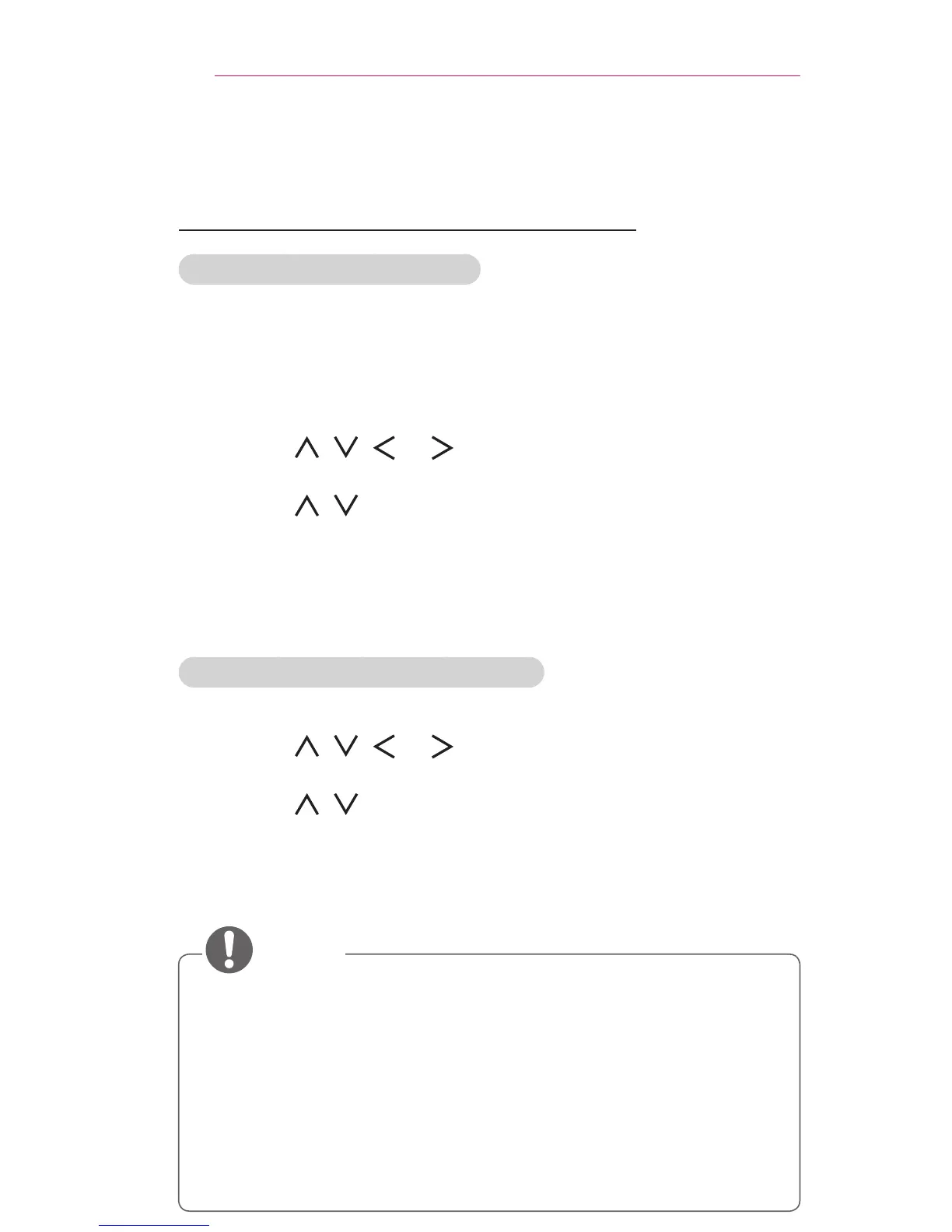
1 Press the SETTINGS button.
2 Press the , , , or button to select CHANNEL and press
the OK button.
3 Press the , button to select AutoTuning and press the OK
button.
4 Select Start to start auto tuning. The projector scans and saves
available channels automatically.
5 When you are nished, press the SETTINGS button.
SavingorDeletingChannelsManually
1 Press the SETTINGS button.
2 Press the , , , or button to select CHANNEL and press
the OK button.
3 Press the , button to select ManualTuning and press the OK
button.
4 Scroll through the channel types, and then add or delete channels.
5 When you are nished, press the SETTINGS button.
• If LockSystem is turned on, a pop-up window will appear asking for
password.
• You can store up to 1000 channels. The number of channels
that you can store differs depending on the broadcasting signal
environment.
• AutoTuning memorizes the channels that are currently being
broadcast.
• The channels are stored in the order of DTV, TV, Cable DTV and Cable TV.


 To Next Page