LS9 User Guide
Libre Wireless Technologies User Guide : LS9 / LS9AD, Ver. 5.3 Page 72 of 75
Libre Confidential
3 Install Marvell Windows USB Driver in your PC / Laptop.
See section 7.3 for procedure on installing Marvell Windows USB Driver
4 Install Android Composite ADB Driver.
See section 7.4 for procedure on installing Android Composite ADB
Driver
Step 2. Download LS9 Basic Release Package from Libre Portal
Path: LibreSync
LS_Firmwares
LS9
LS9_Release_9004
Firmwares
If you have already downloaded the 9004 release package ignore this step.
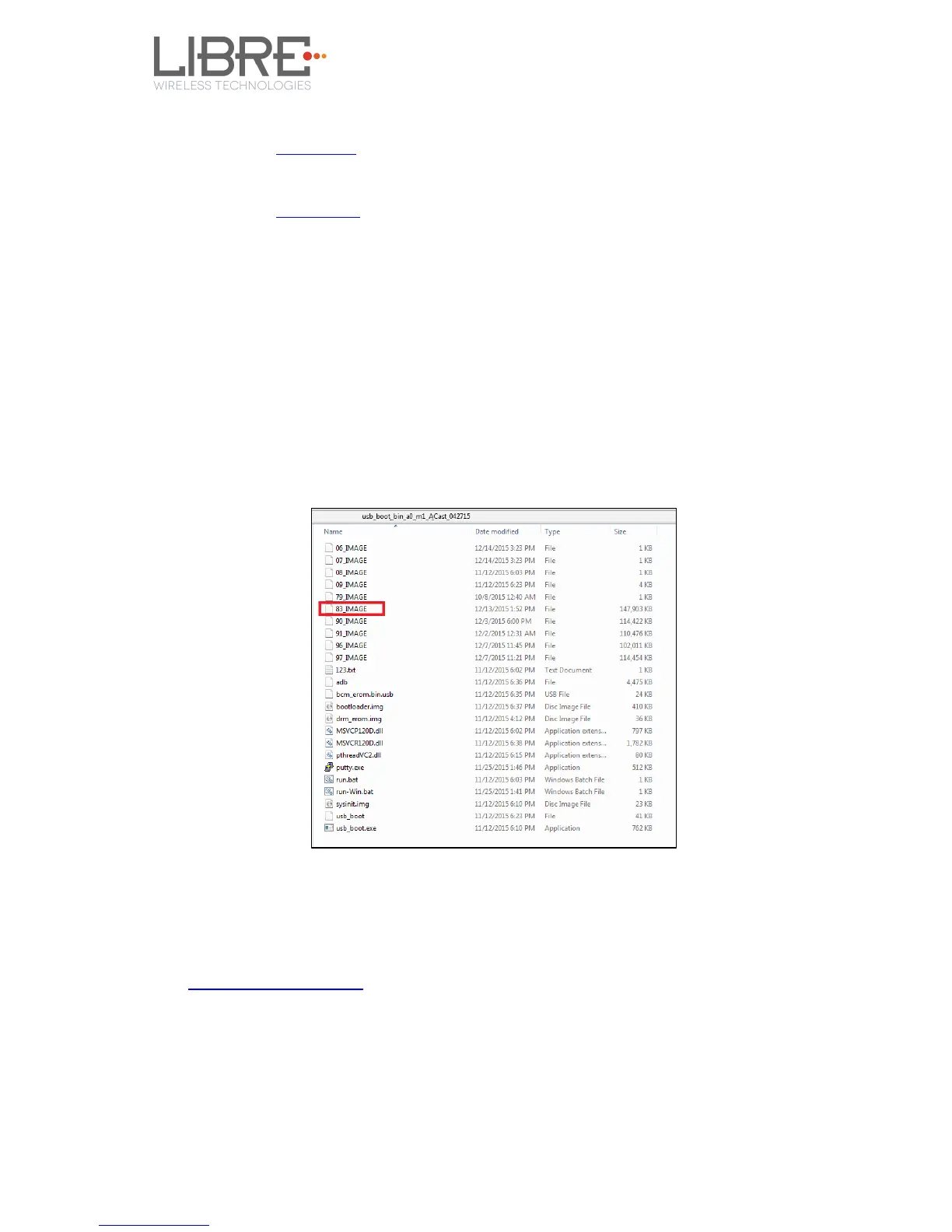
Step 3. Download the latest firmware image (83_IMAGE) from Libre Portal.
Path: LibreSync
LS_Firmwares
LS9
Step 4. Copy the latest firmware image (83_IMAGE) into the Basic Release
Package folder
Figure 3.1-1: LS9 Firmware Folder Structure
Step 5. Connect the Laptop to LS9 EVK with the USB type A to Type A connector
Step 6. Download and install PuTTY Application
http://www.putty.org/
Step 7. Connect the power adapter to power source but do not switch ON the
power yet
Step 8. Press and hold the USB-Boot button, and simultaneously connect the USB
cable and Power ON the EVK.



 To Next Page