LifeSize Icon Video System Guide 10
Placing a Call
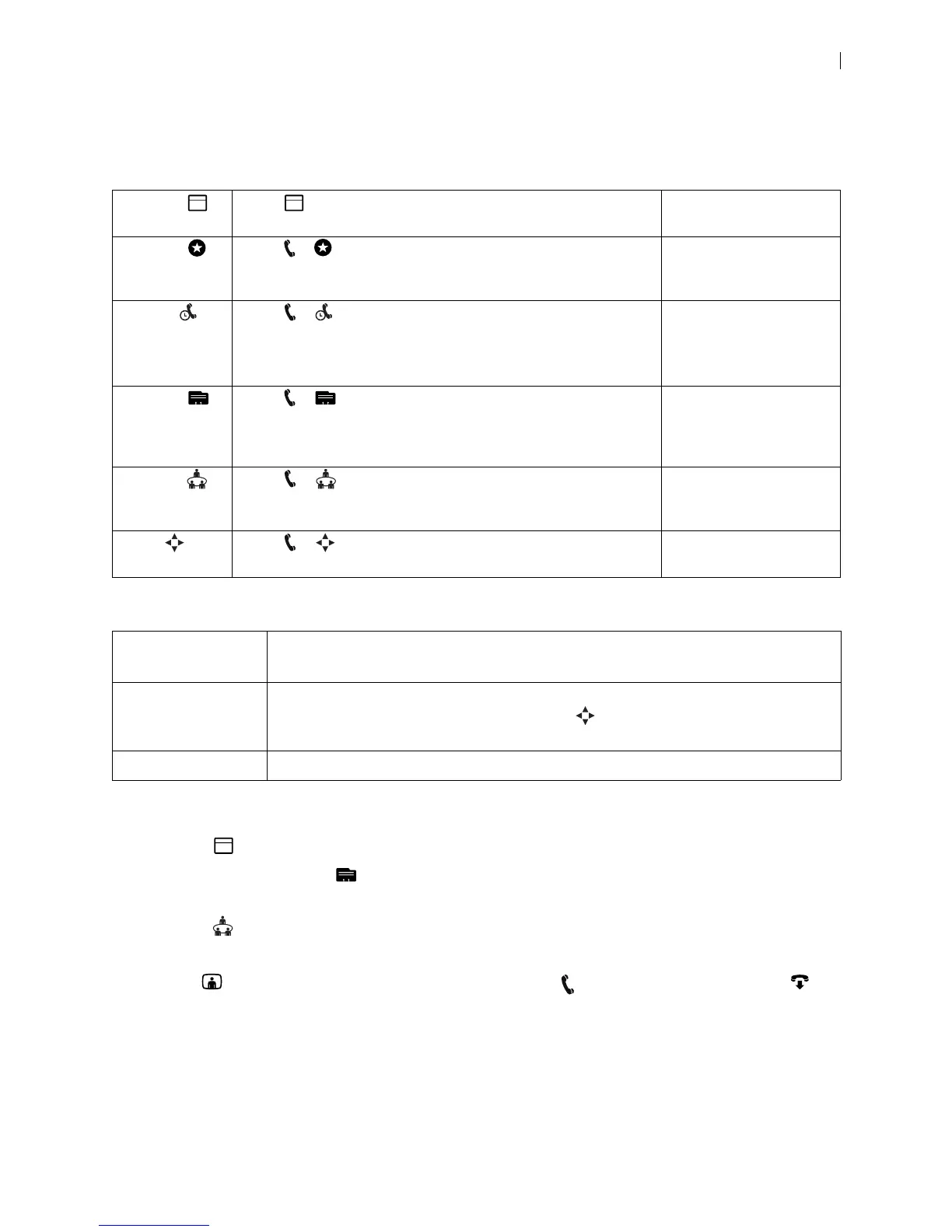
Place a call using one of the following methods.
When you select an entry in Favorites, Recents, or Directory, calling options can include:
Available calling options also depend on the applications configured in your environment:
• Schedule appears only when LifeSize UVC Manager manages your video system.
• Entries appear in Directory only when your video system is integrated with a directory server or
managed by LifeSize UVC Manager.
• Meetings appears only when your video system is integrated with a LifeSize Bridge or managed
by LifeSize UVC Manager.
A video icon represents a video call in progress. A voice icon represents a voice call. Select to
end the call.
Schedule Select to show calls scheduled on LifeSize UVC Manager for
your video system. Select an entry in the list to dial the number.
Joining a Call From the
Video System’s Schedule
Favorites Select > to show your Favorites. Select an entry in the list to
dial the number. You can also delete an entry or all entries in
Favorites from this view.
Placing a Call From
Favorites
Recents Select > to show recent calls. Select an entry in the list to
dial the number or add the number to your favorites. You can also
delete an entry or all entries in Recents from this view.
NOTE: Recents is limited to 50 entries.
Placing a Call From
Recents
Directory Select > to show entries in your company directory (or from
LifeSize UVC Manager, if LifeSize UVC Manager manages your
system). Select an entry in the list to dial the number or add the
number to your Favorites.
Placing a Call From the
Directory
Meetings Select > to show available calls scheduled on LifeSize
Bridge (or on LifeSize UVC Manager). Select an entry in the list to
dial the number.
Joining a Meeting
Dialer Select > to enter calling information manually. Specify
alphanumeric characters, call bandwidth, and protocol.
Placing a Call Manually
Dial as Video
Dial as Voice
Available when the original call was a video call.
Dial Now Available when the original call was a voice call.
To initiate a video call, select Advanced Dialing , navigate to advanced dialing options
and select video.
Advanced Dialing Opens the dialer for you to specify alphanumeric characters, call bandwidth, and protocol.
5 5
5


 To Next Page