LifeSize Icon Video System Guide 14
Initiating a Presentation
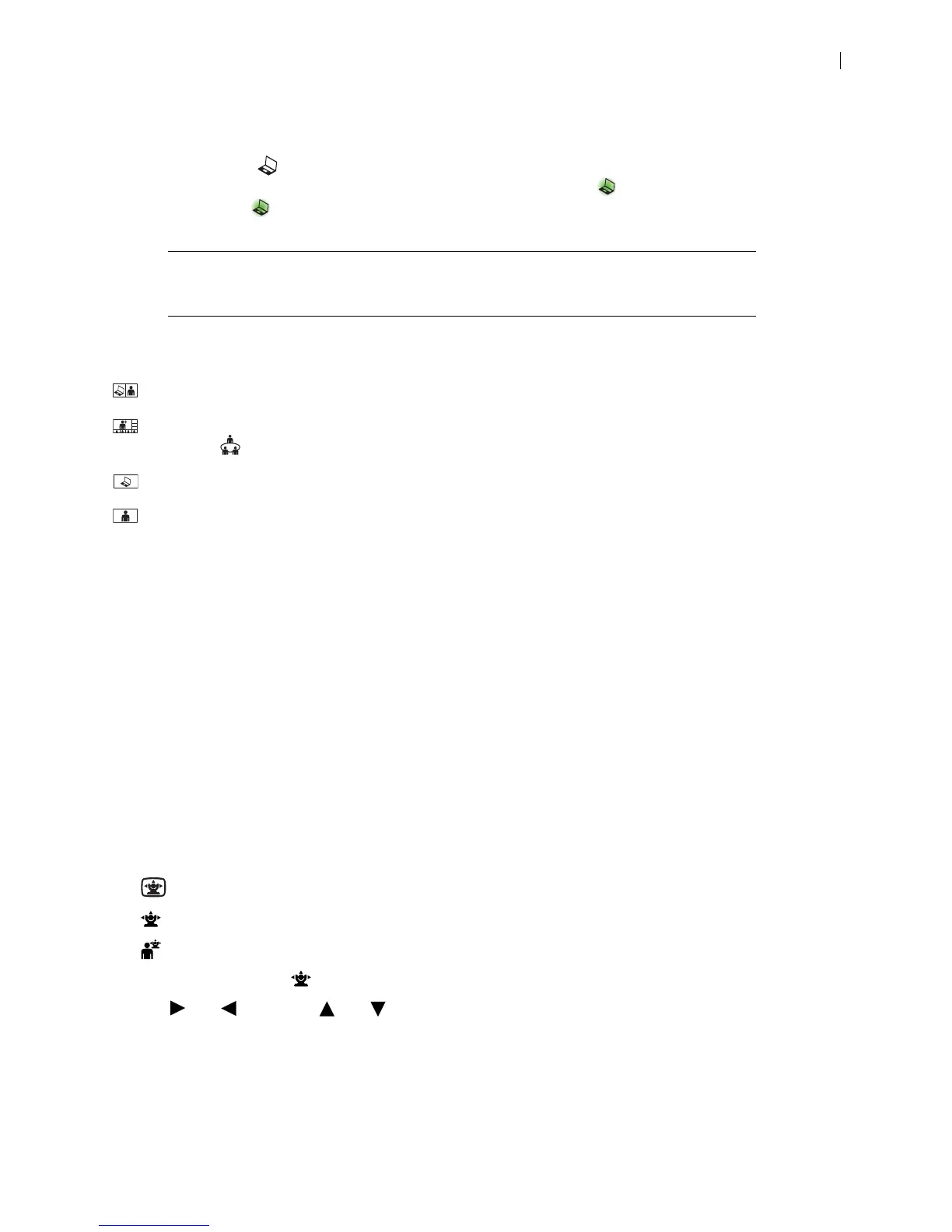
Select Presentation to start a presentation during and before a call. By default, if you connect a laptop
to a video input on the system, a presentation starts automatically and appears. To stop the
presentation, select .
NOTE If your video system is already receiving a presentation, connecting a laptop
does not automatically start a presentation.
Select from the following layout options during a call:
– Presentation input and video from the far end appear side by side.
– Presentation input and video from multiple callers appear. This layout is available with bridge calls
from Meetings .
– Presentation input appears.
– Video from the far end appears.
If the video call does not support presentations simultaneous with video, the video system automatically
swaps the primary and presentation inputs to send the presentation. The near end shows both the camera
and presentation input, and the far end shows only the presentation.
Camera Control
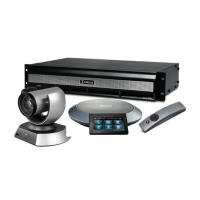
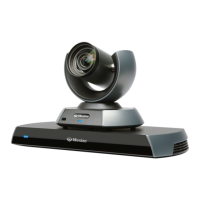
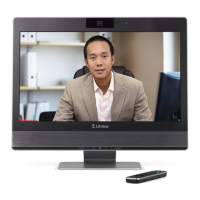
Your LifeSize video system allows you to adjust a camera during and before a call. To prevent far end
users from adjusting the near end camera, your administrator can disable Far Control of Near Camera
(enabled by default) in Preferences > Video. To prevent far end users from using and configuring camera
presets for the near end camera, disable Far Control of Near Camera or Far Set of Camera Presets.
Pan, Tilt, and Zoom
1. Select the camera you want to control:
– Adjust the near end camera anytime the system is not in a call.
– Adjust the near end camera during a call. The near end video appears in the PIP window.
– Adjust the far end camera.
2. To pan and tilt, select to activate the feature.
Tap and to pan and and to tilt. Select Pan/Tilt again to exit.


 To Next Page