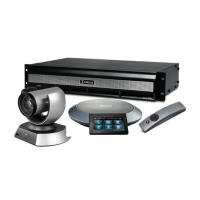
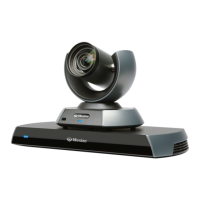
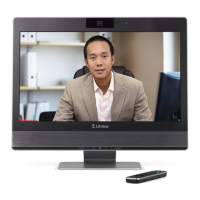
LifeSize Icon Video System Guide 8
Section 2: Using Your LifeSize Icon Video System
When your LifeSize video system is idle, the screen is black. An incoming call, showing a presentation, or
pressing any button on the remote control activates the system. Point the remote control at the IR receiver
(located on both the camera and the codec), not the screen, and tap a button to activate the system.
Additional options include:
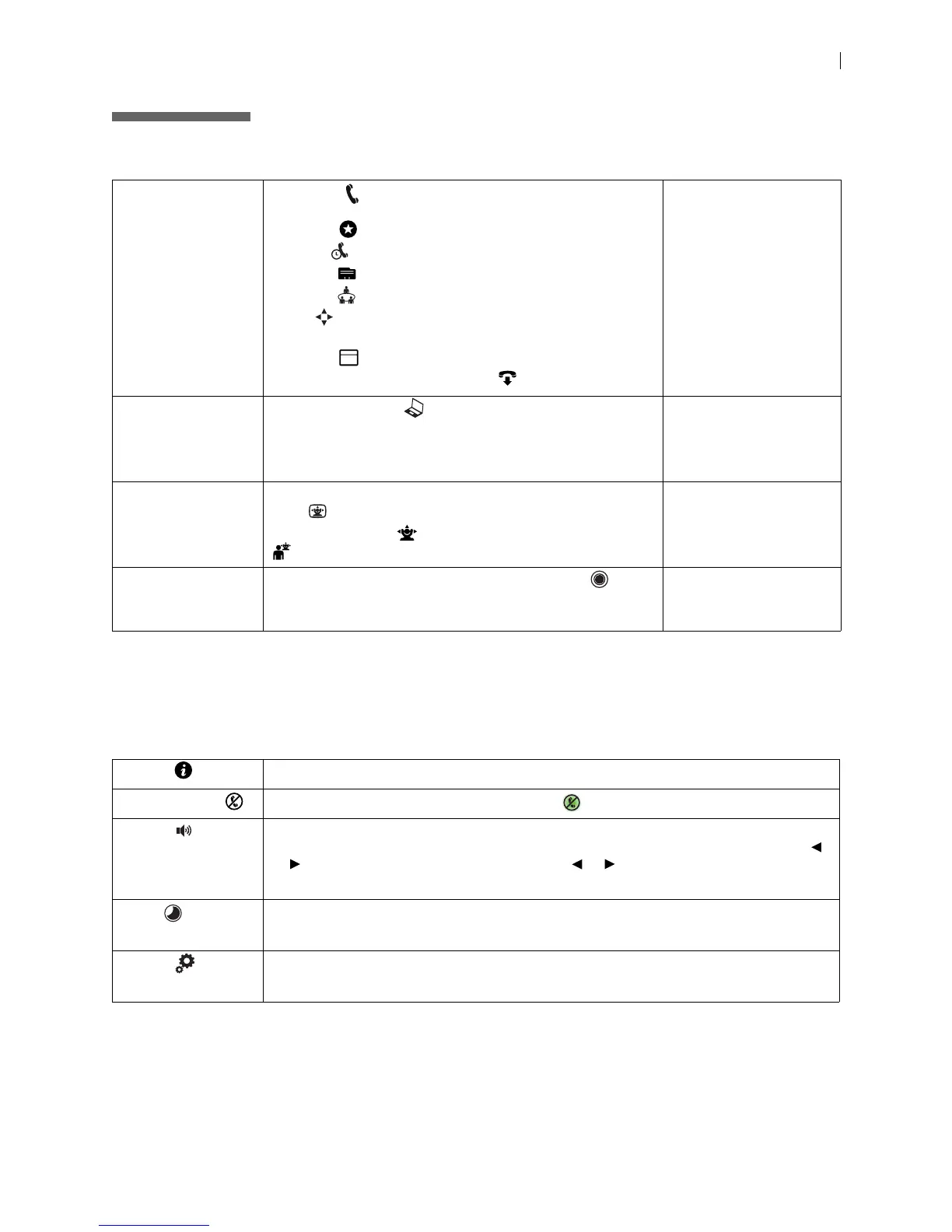
Placing, answering,
and ending a call
Select Call and navigate to one of the available calling
options:
Favorites
Recents
Directory
Meetings
Dialer
To place a call scheduled on LifeSize UVC Manager, select
Schedule and an entry in the list.
Select Answer to answer a call and to end a call.
Placing a Call
Managing Your Video
System In a Call
Initiating a
presentation
Select Presentation to start a presentation.
By default, support for presentations is enabled. If you
connect a laptop to a video input on the system during a call,
a presentation starts automatically.
Initiating a Presentation
Controlling a near
or far end camera
To adjust the near end camera when the system is idle, select
View .
During a call, select
to adjust the near end camera. Select
to adjust the far end camera.
Camera Control
Creating a
recording
With LifeSize UVC Video Center configured, select
to
create a recording. This feature is available only when you are
not in a call.
Recording with LifeSize
UVC Video Center
My Info Shows the system name and numbers that callers use to dial into the video system.
Do Not Disturb Select to reject incoming calls. When enabled, appears.
Volume Opens a volume navigation bar for you to select a volume level from 0 to 100. The level
represents the volume as a percentage. Use the remote control to adjust the level. Tap
or to adjust the level in 1% increments. Press or to rapidly and continuously adjust
the volume.
Sleep Select to put the video system (including camera and display) to sleep.
Read more at Sleep.
System Select to show system status and information.
Read more at System Options.
5


 To Next Page