LifeSize Icon Video System Guide 17
Dual Displays
When you connect a second display, your LifeSize video system automatically configures the second
display and shows the following information, depending on the state of the video system. The icons on the
main screen do not appear on the second display.
Connecting a second display requires a license key. Contact your LifeSize Representative for details.
System Options
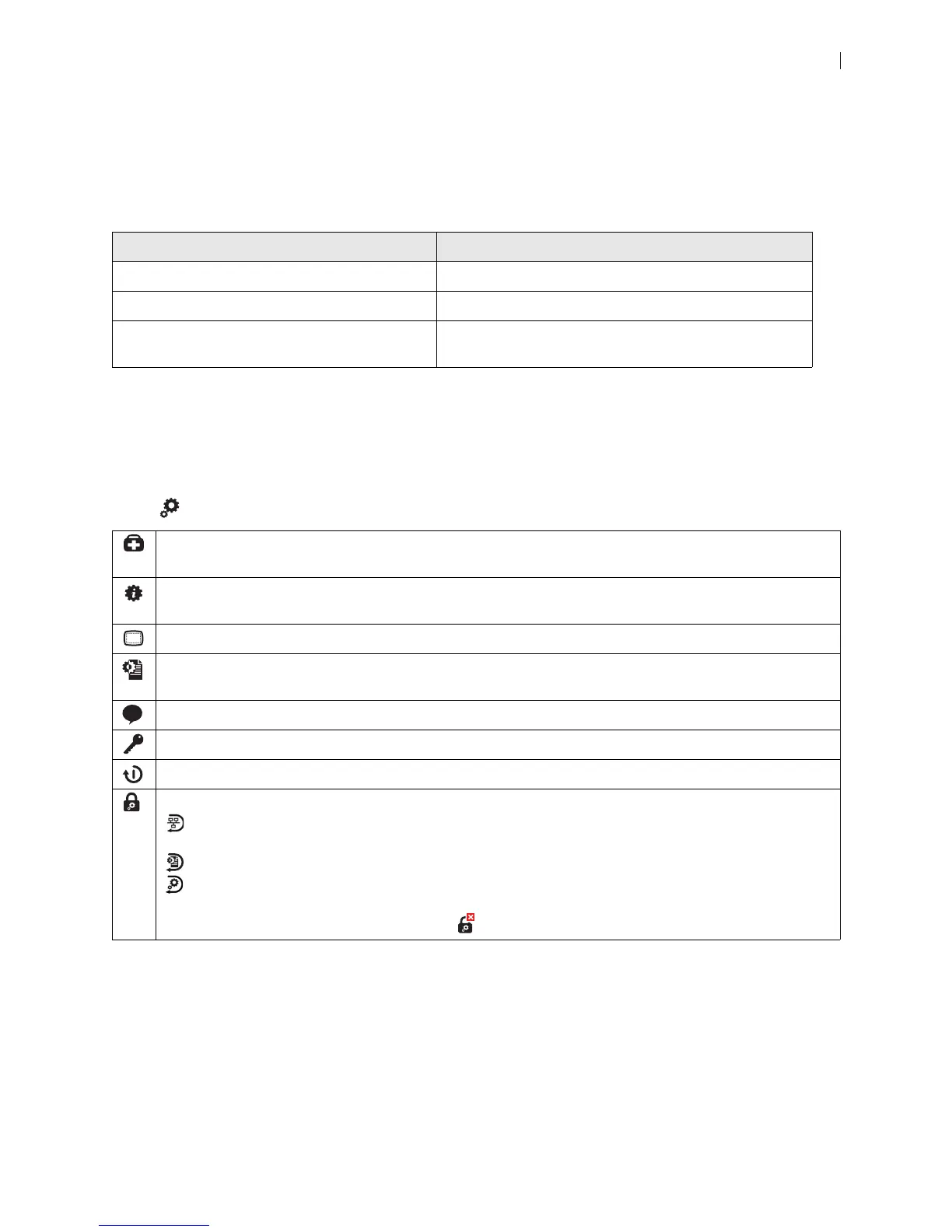
Select to access system options:
When the video system is... The second display shows...
Idle Black
Showing a presentation in or out of a call Presentation input
Showing video from a call with no presentation Video from the call; indicates whether the call is local or
remote in origin
Shows the status of the system, including communications, system inputs and outputs, temperature
sensors, and fan speeds.
Shows detailed system information, including communications, network, system inputs and outputs, and
cameras.
Allows you to configure the safe area of your display.
Shows the system’s IP address for your administrator to configure the system. If the system is not configured
or inoperable, serial port information appears.
Select the language for onscreen text.
Shows licenses applied to the system.
After confirmation, reboots the system.
Provides access to administrative tasks:
– Resets network settings to their default values: enables DHCP, resets the VLAN tag to 0, and enables
HTTP and SSH.
– Resets all settings to their default values and reboots the system.
– Reverts the system to an alternate software version, resetting all preferences to their default values,
and then reboots the system.
This area requires a numeric passcode. Select to log out.


 To Next Page