51
How to add measurement data to the data that has already
been saved under a duct:
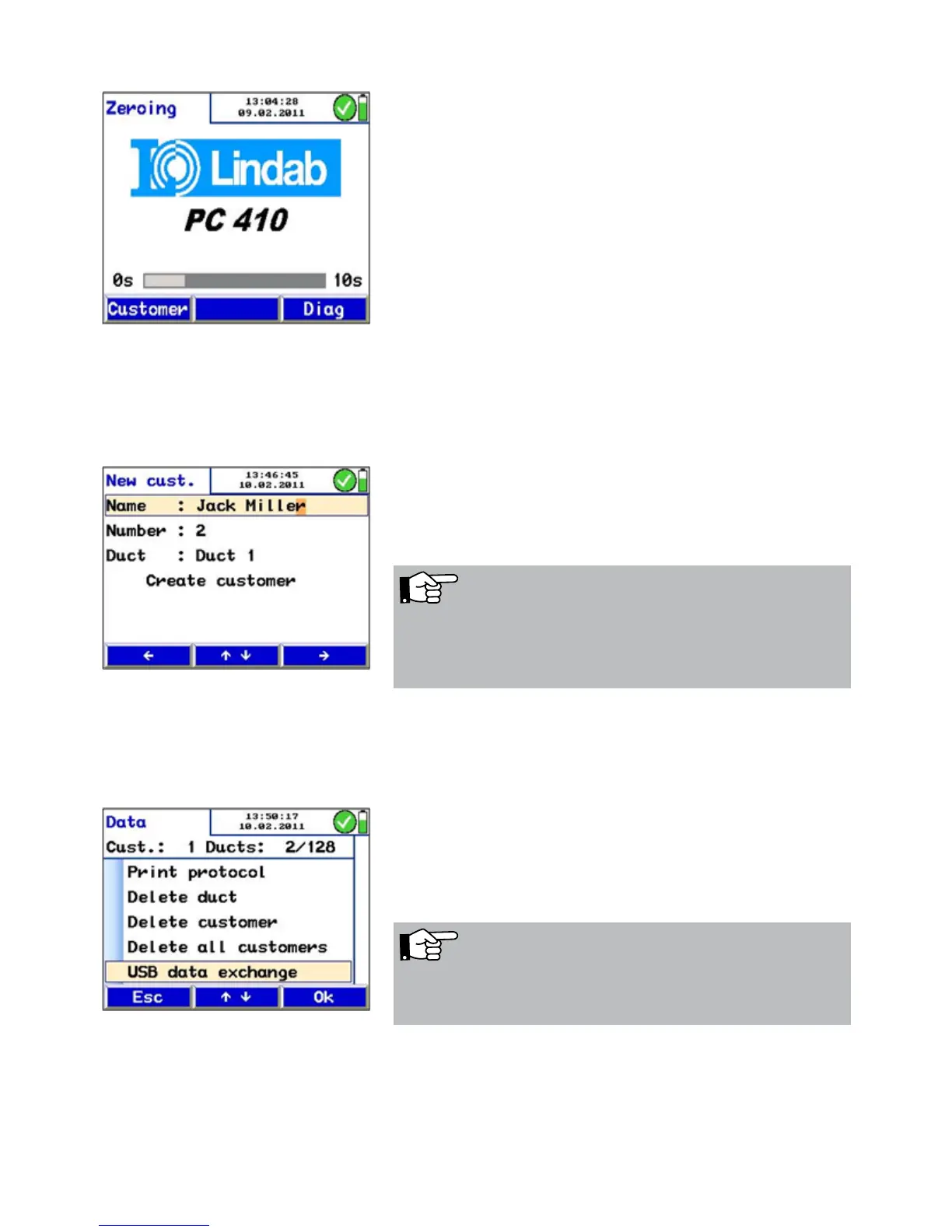
• Press "Customer" directly after switching on the meter,
during the zeroing-phase. Then select the duct, where you
want to add the new data.
In the main menu, the saved data will be marked by a lock
and the new measurements that have not been saved yet, will
be marked by a tick mark.
Save the data as described.
7.1.2 Creating a New Cus-tomer Folder
The user can create new customer folders or new ducts in the
customer menu (see Fehler! Ver-weisquelle konnte nicht
gefunden werden.) or when saving the data. Enter the name,
a customer number and the name of the duct.
Fig. 65: customer option
Fig. 66: Creating a new customer folder
NOTE!
The user can save all together 128 ducts in the meter and
assign them to different customers. The number of ducts
assigned to a customer is arbitrary.
7.2 Option "Data management" In the "Data management" display, the current number of
customer folders and ducts is indi-cated.
Select "Print protocol" to print a report of any saved meas-
urement.
Select "Delete duct" to delete a single duct.
Fig. 67: USB data transfer
Select "Delete customer" to delete the complete customer
folder with all ducts.
Select "Delete all customers" to delete all customer folders.
Select "USB data exchange" to communicate with the com-
puter, see chapter 7.3.
NOTE!
When there is only one duct saved in a customer folder, the
customer folder will be deleted when the duct is deleted.



 To Next Page