14
PAIRING THE WIRELESS WEATHER SENSOR WITH THE DISPLAY CONSOLE
CHANGING BATTERIES AND MANUAL PAIRING
NOTE: The display console does not need to be plugged in, and is rated to last up to 2 years on
battery power alone. However, it can also be powered via the micro USB connection.
Whenever you change the batteries in the console, you will need to manually re-pair it with the
wireless weather sensor. Follow these instructions to manually pair your console with the sensor.
1. Once you insert the batteries and the display console powers on, it should automatically search
for and connect to the wireless weather sensor. If the console does not connect within the rst 15
minutes, refer to the following section, Changing Batteries and Manual Pairing, for instructions on
manual pairing.
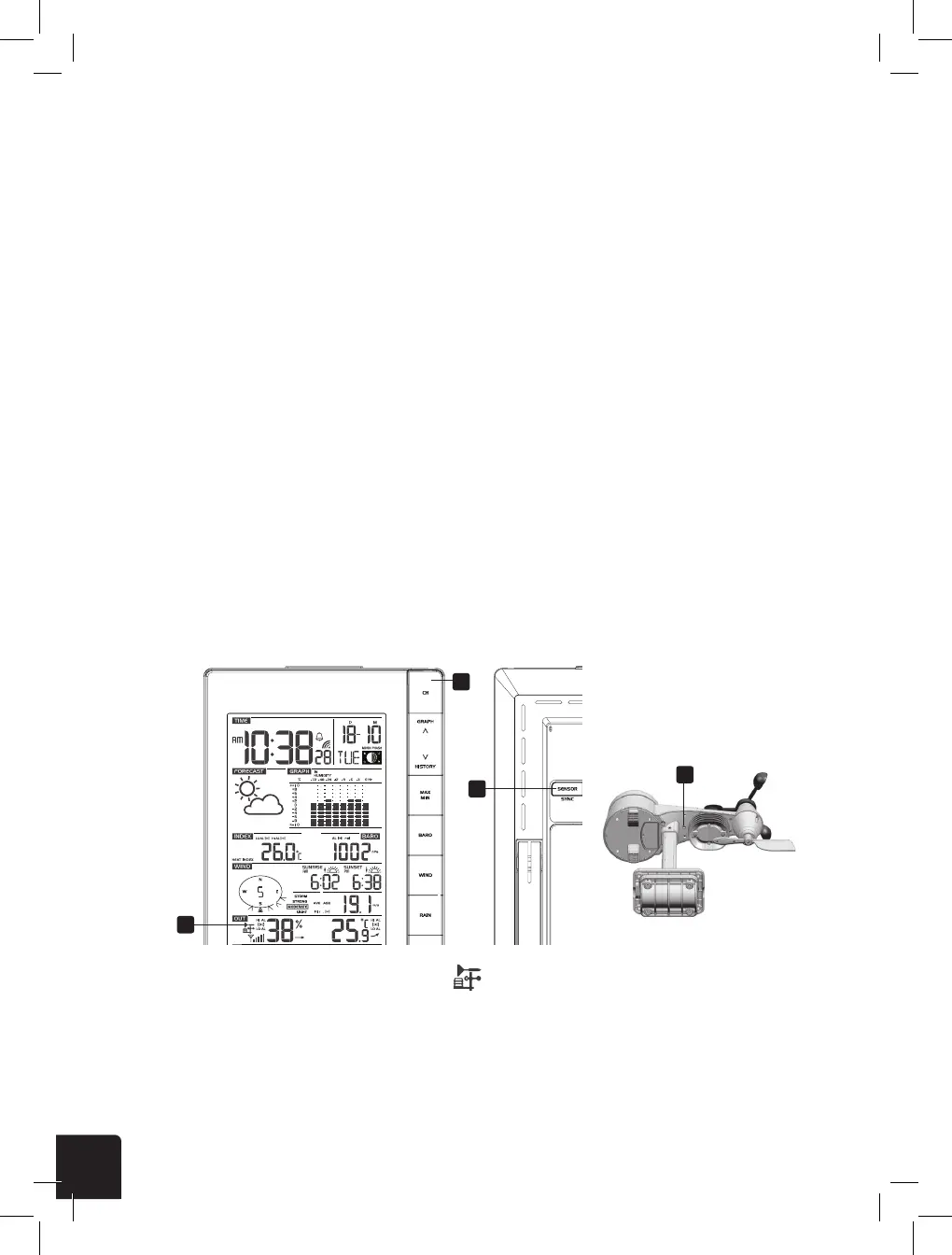
2. You will see the icon of an antenna blinking in the temperature and humidity (outdoor) section of
the display.
3. Once the pairing process completes, the antenna icon will appear solid (not blinking), and the
readings for outdoor temperature and humidity, wind speed, wind direction, and rainfall will
appear in their designated sections of the LCD display.
1. Press the CH button until the antenna icon appears in the temperature and humidity
(outdoor) section of the LCD display.
2. Press the SENSOR/SYNC button at the back of the console.
3. Go outside to where your wireless weather sensor is mounted, and press the RESET key on its
underside. Make sure after pressing the RESET key that the red LED indicator is ashing every 12
seconds.
4. Once the batteries are inserted, the LCD display should power on.
NOTE: If nothing appears on the LCD display after you insert the batteries, use a pin or similar
small object to press the RESET button at the rear.
6
MAIN CONSOLE
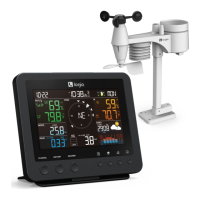
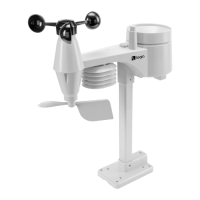
Your main console can pairing up with the wireless 5-in-1 outdoor weather sensor and up to 7
optional wireless hygro-thermo outdoor sensors. (Not included)
Powering up the main console
1. Remove the battery door on the back side of the main unit.
2. Insert 6 new AA batteries and replace the battery door.
3. Once the batteries are inserted, the segments of the LCD will be shown.
NOTE:
If no display appears on the LCD after inserting the batteries, press [ RESET ] key by using a
pointed object.
Pairing of wireless 5-in-1 weather sensor with main console
After insertion of batteries, the main console will automatically search and connect the
wireless 5-in-1 sensor (antenna blinking). Once the connection is successful, antenna mark
and readings for outdoor temperature & humidity, wind speed, wind direction and rainfall will
appear on the display.
Changing batteries and manual pairing of sensor
Whenever you changed the batteries of the wireless 5-in-1 sensor, pairing must be done
manually.
1. Change all the batteries to new ones in the sensor.
2. Press [ CH ] until the
icon appear in the Outdoor section
3. Press [ SENSOR / SYNC ] key.
4. Press [ RESET ] key on the sensor.
NOTE:
Pressing [ RESET ] key at bottom of wireless 5-in-1 sensor will generate a new ID code for
pairing purpose. So you also need to press the [ SENSOR / SYNC ] key on the console to
repairing up the sensor.
Pairing the wireless sensor(s) with the console
The console will automatically search and pair up your wireless sensor(s). You can also press
[SENSOR / SYNC ] key to search the on display channel's sensor manually. Once your sensor
paired up, the sensor signal strength indicator and weather information will appear on your
console display.
SYNC UP PC TIME
This unit is designed to automatically synchronize its calendar and clock when connected to
the computer with PC software "Weather Tool" through USB data cable. Once connected to the
computer, the unit will automatically synchronize the time instantly and 12:00am per day. You
can also press the [ TIME SYNC ] key to sync up PC time instantly.
NOTE:
- The time sync function only work with the PC software "Weather Tool", please make sure the
PC software is open.
- PC Time sync up is according to your current PC time, so please ensure your PC time is
correct. Once the PC time sync up the
icon will appear in the Time section.
- You can also enable or disable auto time sync function by press and hold [ TIME SYNC ] key
for 8 seconds.
1
1
2
3


 To Next Page