30
DATA LOG
Check Data Log Memory
Change Data Interval/Clear Data
The display console automatically stores the weather data in its data logger every 30 minutes by
default. Once you have the PC software loaded on your computer, you can export the data via the PC
software. (See PC software instructions on page 31).
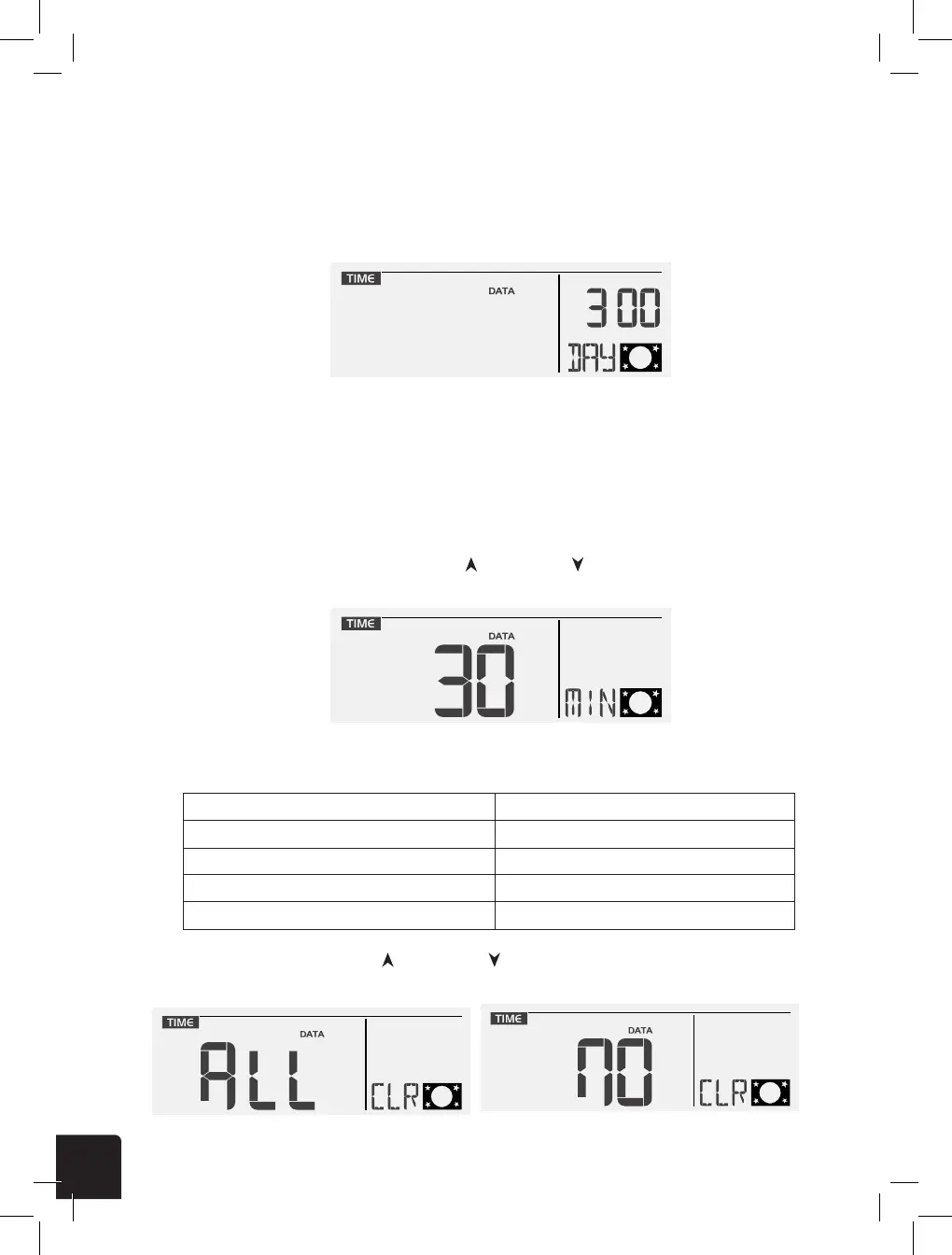
Press the DATA button to briey review the remaining number of days the console is able to record
based on its current free memory available (e.g. 300 DAY). The data log will stop recording new data
once its memory is full.
While in normal operating mode, press and hold the DATA button for two (2) seconds to enter the data
log settings mode.
1. To change the data interval: press the GRAPH/ or HISTORY/ buttons to adjust the
frequency of data recording (every 5/15/30/60 minutes), then press the DATA button again to conrm.
2. To clear data: press the GRAPH/ or HISTORY/ buttons to select ALL (clear all data) or NO
(don’t clear data), then press the DATA button again to conrm and exit the settings menu.
The below table shows the number of days of memory that can be stored in the data logger based on data
recording frequencies:
18
DATA LOG
The console automatically stores the weather data in its data logger (default every 30 minutes),
and user can export these data through the PC software* (*Please consult your local distributor
for the PC software download).
To check data logger memory
Press the [ DATA ] key to briey review the remaining
number of days the console is able to record based on its
current free memory available ( e.g. 300 DAY). The data
logger will stop recording new data once its memory is full.
To change data interval and clear data
In normal mode, press and hold the [ DATA ] key for 2 sec to enter data logger setting mode.
1. To change data interval: Press [ GRAPH / ] or
[ HISTORY / V ] key to select frequency of data
recording (5/15/30/60 minutes), then press [ DATA ]
to conrm.
Below table shown the number of days memory will allow for records:
INTERVAL (minutes) NO. OF DAYS AVAILABLE FOR DATA LOGGING WITH
MEMORY AVAILABLE
5 50
15 150
30 (DEFAULT) 300
60 600
2. To clear data: Press [ GRAPH / ] or [ HISTORY / V ] key to select clear all data or not,
then press [ DATA ] to conrm and exit setting.
All data selected for clear No data selected
NOTE:
- To avoid the wrong time stamp of the data record, please reset the data logger once replace
the batteries in main unit or sensor(s).
- When the data log is almost full, "
" icon keep ashes to remind you to transfer the data
to PC for storage. Otherwise, data logger cannot log any more data when it is full.
18
DATA LOG
The console automatically stores the weather data in its data logger (default every 30 minutes),
and user can export these data through the PC software* (*Please consult your local distributor
for the PC software download).
To check data logger memory
Press the [ DATA ] key to briey review the remaining
number of days the console is able to record based on its
current free memory available ( e.g. 300 DAY). The data
logger will stop recording new data once its memory is full.
To change data interval and clear data
In normal mode, press and hold the [ DATA ] key for 2 sec to enter data logger setting mode.
1. To change data interval: Press [ GRAPH / ] or
[ HISTORY / V ] key to select frequency of data
recording (5/15/30/60 minutes), then press [ DATA ]
to conrm.
Below table shown the number of days memory will allow for records:
INTERVAL (minutes) NO. OF DAYS AVAILABLE FOR DATA LOGGING WITH
MEMORY AVAILABLE
5 50
15 150
30 (DEFAULT) 300
60 600
2. To clear data: Press [ GRAPH / ] or [ HISTORY / V ] key to select clear all data or not,
then press [ DATA ] to conrm and exit setting.
All data selected for clear No data selected
NOTE:
- To avoid the wrong time stamp of the data record, please reset the data logger once replace
the batteries in main unit or sensor(s).
- When the data log is almost full, "
" icon keep ashes to remind you to transfer the data
to PC for storage. Otherwise, data logger cannot log any more data when it is full.
18
DATA LOG
The console automatically stores the weather data in its data logger (default every 30 minutes),
and user can export these data through the PC software* (*Please consult your local distributor
for the PC software download).
To check data logger memory
Press the [ DATA ] key to briey review the remaining
number of days the console is able to record based on its
current free memory available ( e.g. 300 DAY). The data
logger will stop recording new data once its memory is full.
To change data interval and clear data
In normal mode, press and hold the [ DATA ] key for 2 sec to enter data logger setting mode.
1. To change data interval: Press [ GRAPH / ] or
[ HISTORY / V ] key to select frequency of data
recording (5/15/30/60 minutes), then press [ DATA ]
to conrm.
Below table shown the number of days memory will allow for records:
INTERVAL (minutes) NO. OF DAYS AVAILABLE FOR DATA LOGGING WITH
MEMORY AVAILABLE
5 50
15 150
30 (DEFAULT) 300
60 600
2. To clear data: Press [ GRAPH / ] or [ HISTORY / V ] key to select clear all data or not,
then press [ DATA ] to conrm and exit setting.
All data selected for clear No data selected
NOTE:
- To avoid the wrong time stamp of the data record, please reset the data logger once replace
the batteries in main unit or sensor(s).
- When the data log is almost full, "
" icon keep ashes to remind you to transfer the data
to PC for storage. Otherwise, data logger cannot log any more data when it is full.
18
DATA LOG
The console automatically stores the weather data in its data logger (default every 30 minutes),
and user can export these data through the PC software* (*Please consult your local distributor
for the PC software download).
To check data logger memory
Press the [ DATA ] key to briey review the remaining
number of days the console is able to record based on its
current free memory available ( e.g. 300 DAY). The data
logger will stop recording new data once its memory is full.
To change data interval and clear data
In normal mode, press and hold the [ DATA ] key for 2 sec to enter data logger setting mode.
1. To change data interval: Press [ GRAPH / ] or
[ HISTORY / V ] key to select frequency of data
recording (5/15/30/60 minutes), then press [ DATA ]
to conrm.
Below table shown the number of days memory will allow for records:
INTERVAL (minutes) NO. OF DAYS AVAILABLE FOR DATA LOGGING WITH
MEMORY AVAILABLE
5 50
15 150
30 (DEFAULT) 300
60 600
2. To clear data: Press [ GRAPH / ] or [ HISTORY / V ] key to select clear all data or not,
then press [ DATA ] to conrm and exit setting.
All data selected for clear No data selected
NOTE:
- To avoid the wrong time stamp of the data record, please reset the data logger once replace
the batteries in main unit or sensor(s).
- When the data log is almost full, "
" icon keep ashes to remind you to transfer the data
to PC for storage. Otherwise, data logger cannot log any more data when it is full.
Interval (minutes) Number of Days Available for Data Logging
5 50
15 150
30 (default setting) 300
60 600
SPECIFICATIONS
MAIN CONSOLE
Dimensions (W x H x D) 117 x 189 x 31mm (4.6 x 7.5 x 1.2in)
Weight 480g (with batteries)
Battery 6 x AA size 1.5V batteries (alkaline recommended)
Weather data in console Baro, temperature and humidity
Operating temperature range -5˚C ~ 50˚C
Personal computer requirements for PC software
Connection interface USB 2.0
Operation system of your PC
Windows XP, Windows Vista, Windows 7 or latest version
(32-bit / 64-bit)
Hard disk space 50 MB
Display resolution 1360 x 768 (1920 x 1080 recommended)
View or edit export data Microsoft excel or other similar software for PC
Weather Underground upload
requirements
- Should able connect to Internet
- Firewall and anti virus software can set permission for the
PC software
Support sensors
1 Wireless 5-in-1 weather outdoor sensor and up to 7
optional wireless hygro-thermo outdoor sensors
RF frequency
868MHz (EU or UK version), 915MHz (US version),
917MHz (AU version)
RF transmission range 150m
Time display HH: MM: SS
Hour format 12 hour or 24 hour


 To Next Page
 Loading...