Operating the Logger UTRED-16 User Guide 36
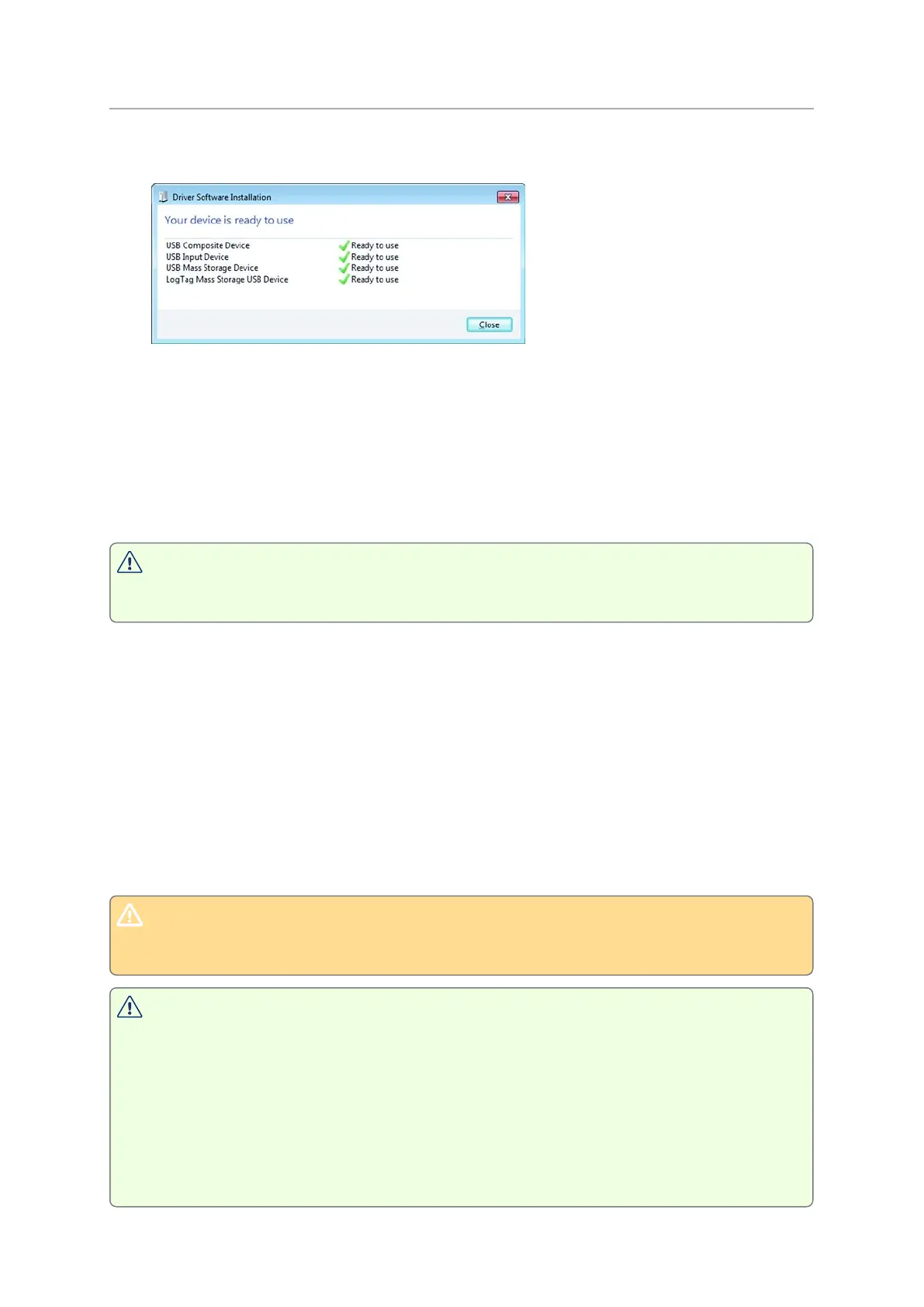
4. USB Composite Device
OSX and Linux
Typically, in these operating systems a new drive will be mounted, from which you can
open the PDF file. You will not be able to configure the UTRED-16 using either of these
operating systems, unless you use virtualization software such as Fusion or VirtualBox to
create a hosted Windows environment. You need to discuss these options with your
network administrator.
While a UTRED-16 is plugged into USB, no temperature readings are taken. The
graph will display a gap and the data list will show --- followed by the # symbol.
Accessing the files
If the logger was configured to generate files, a new drive letter or mounted device will
appear. The device name will be created from the serial number of the UTRED-16. You can
access the files by browsing to the newly created drive and double-clicking the PDF, CSV
or LTD files. For PDF files you need Adobe Acrobat Reader or a similar PDF viewer. To open
the LTD file you need to install the free LogTag
®
Analyzer software. CSV files can be
opened with a text editor, or imported into a spreadsheet program such as Microsoft
®
Excel.
If a logger has only taken pre-start readings, PDF and CSV files will not be
available.
To retain the logger-generated files please copy them to a permanent storage
location on your computer, such as the Documents folder (they are not
automatically copied).
The data on the logger are retained, so each time you plug the UTRED-16 back into
the computer the files are re-generated, until the device is re-configured. Once the
battery is exhausted, the real time clock on the unit stops and dates and times for
the retained data may no longer be accurate.


 To Next Page