35
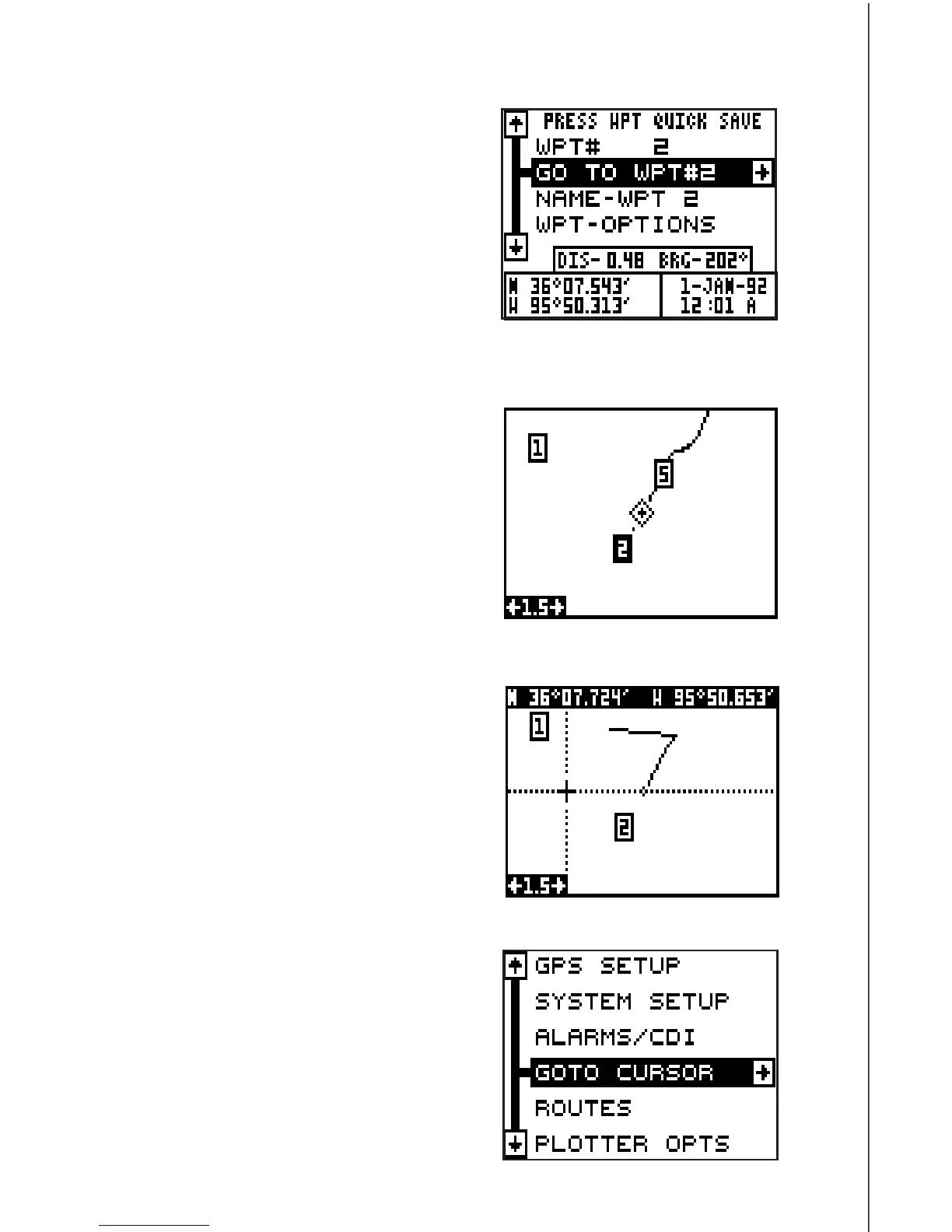
Navigating to a cursor location
The GlobalNav 310 lets you navigation
to a location without storing it in the way-
point database by using the plotter and
cursor. To do this, first switch to the plot-
ter screen. Now move the cursor to the
location that you want to navigate to.
Next, press the MENU key. A new menu
appears on the list: “Go To Cursor”.
Press the right arrow key. The GlobalNav
310 shows nav data to the cursor loca-
tion (shown as “D” on the plotter). See
the screen at the top of the next page.
NAVIGATION
Navigate To a Waypoint
The GlobalNav 310 makes it easy to
navigate to any waypoint. First, press the
WPT key, then press the right or left ar-
row keys until the desired waypoint ap-
pears. Now highlight the “Go To WPT#”
label and press the right arrow key. The
unit immediately returns to the naviga-
tion, plotter, or windows screen and
shows navigation information to the se-
lected location.
In this example, we recalled waypoint
number 2. Switching to a plotter screen
(shown at the top of the next page)
shows our starting location “S”, the re-
called waypoint “2”, and our present po-
sition.



 To Next Page