Piccolo 21 from 82
www.lt-light.com
In example: Edit channel 1 at 004 (in scale 0-255):
a) [CHANNEL] [1] [@][OPTIONS] [0][0][4]
b) [CHANNEL] [1] [@][OPTIONS] [4][ENTER]
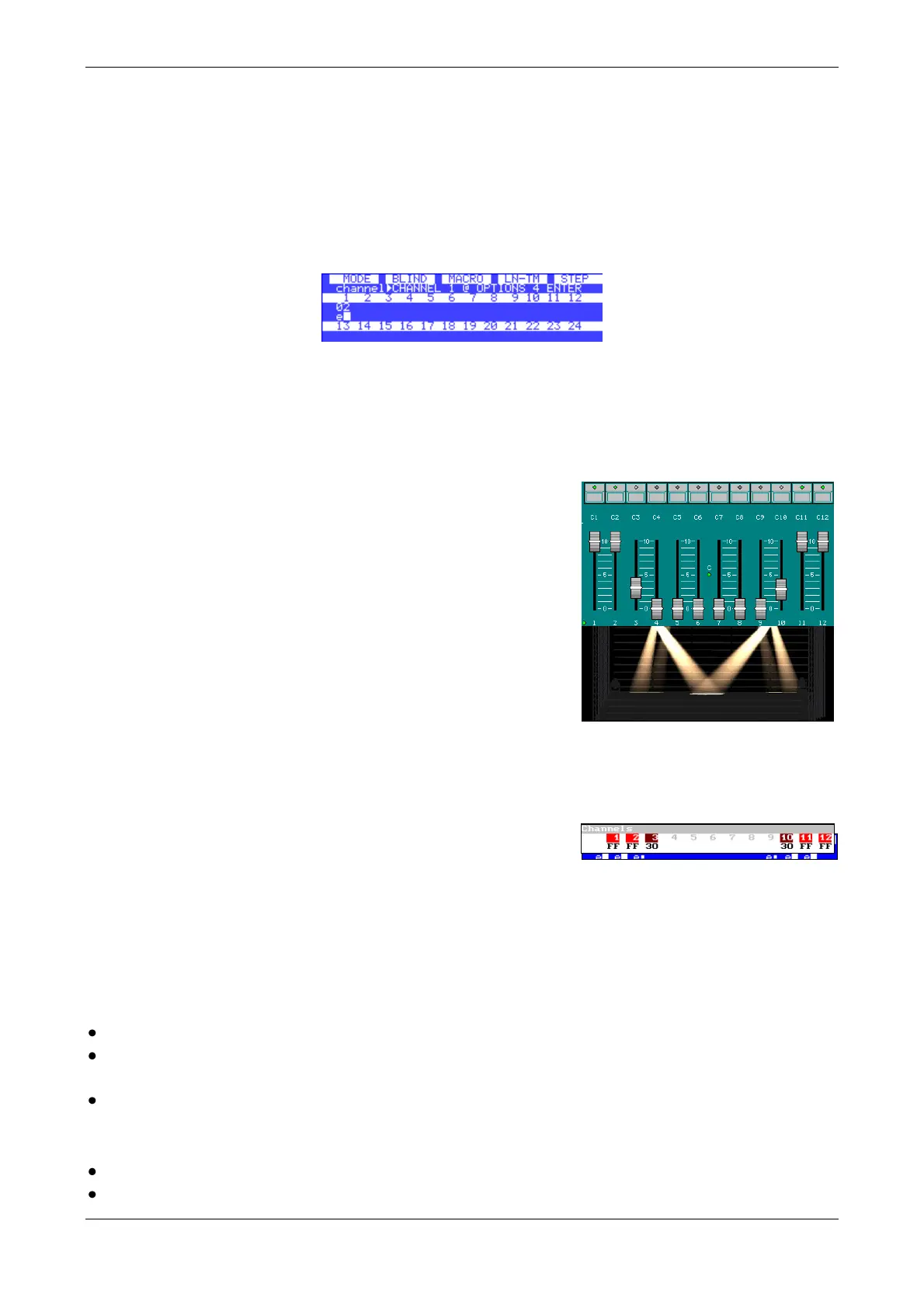
On monitor, display and test screens, you only can see the level in percent (scale 0-100), but you
can be sure that the output level is the edited level. In the previous example, you can see the channel
1 at 02%, but really this channel is at 004 (not at 005 or 006):
This precision edition only is needed in special circumstances, in the control of dmx units that
normally, are not conventional lighting units; they are dmx units for automatic processes, home
automation, media servers control, etc.
13.2.2. EXAMPLE
Edit channels 1, 2, 11 & 12 to 100% and channels 3 & 10 to
30%... First, GM must be at 100% and [BLK.OUT] must be
inactive (LED off).
From the channel faders:
Select the desired channel bank, pressing [CH.MD] if necessary.
Move the faders to the desired positions/levels.
Or, from the keyboard, pressing:
[CHANNEL] [3] [CHANNEL] [1] [0] [@] [3] [0]
[CHANNEL] [1] [THRU] [2] [ENTER] [1] [1] [THRU] [1] [2]
[@][@]
It’s possible to use any of these methods or to mix them.
Channels in edition appear in the monitor (in light red & red) and display (marked as e■ & e▪), with
their levels.
Note: To clear the active scene, move down all faders at 00, or
press [RST][RST]
The channels in red, or marked as e■, are active channel, these channels can be edited using the
keypad or moving the encoder.
Working in MANUAL mode, levels set from the faders appears in a magent field (for monitor) or
with the label ma (for display), and these levels cannot be reseted from keypad.
13.3. CHANNEL EDITING IN THEATRE & MANUAL MODE
Edit a scene from the keyboard and/or from C#.
If desired, store the scene to a group (pg-23) or cue (pg-24), or load this scene directly to a
submaster (pg-23).
Edit a new scene, starting from the previous scene or starting from zero (cleared scene).
13.4. CHANNEL EDITING IN SINGLE MODE
Edit a scene from the keyboard and/or from C# & S#
If desired, store the scene to a group (pg-23) or cue (pg-24).



 To Next Page