Piccolo 79 from 82
www.lt-light.com
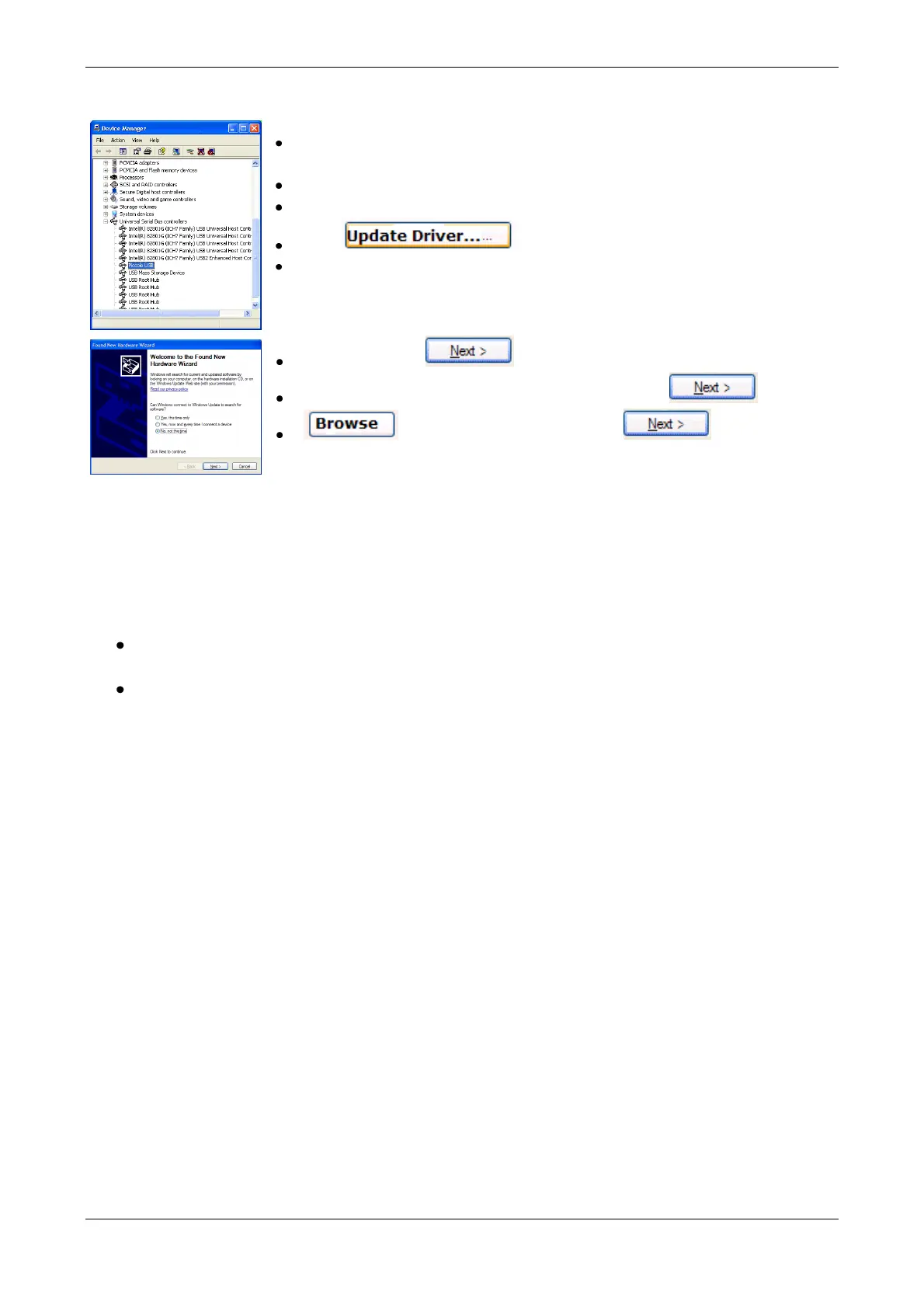
Search the connected device, in example Piccolo USB, into the “Universal Serial
Bus Controllers”
Right click in “Properties”
Click “Driver”
Click
Windows starts the assistance:
“No, no this time”
Seect “Install from a list or specific location (Advanced)”
. Select UsbDriver folder location .
Driver is installed, and computer is ready to update LT devices by USB
Observe that new Driver is installed in a new location:
“Libusb-win32 devices”, not in “Universal Serial Bus Controllers”
Now it’s possible to execute the installer of Piccolo or Piccolo Scan and update the console software. Execute
Piccolo206.exe (or PiccoloScan206.exe) and follow the standard updating process.
With Piccolo connected to the PC: execute the Piccolo (& Peripherals) installation software
from the PC and follow the instructions. (File/Update Console).
If, in any version, a Vinculum update will be needed, this process must be done using the
command File/Update Vinculum by USB-Stick, following the instructions in the screen.



 To Next Page