EasyManua.ls Logo

LTS LTD5304 - User Manual

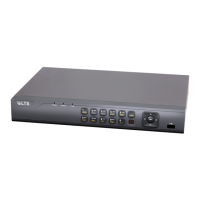
LTS LTD5304
90 pages
Print Icon
To Next Page IconTo Next Page
Loading...
DVR User Manual
For H.264-4-channel Digital Video Recorder
All rights reserved
Question and Answer IconNeed help?

Do you have a question about the LTS LTD5304 and is the answer not in the manual?

Summary

DVR User Manual

Chapter 1 Introduction

1.1 DVR Introduction

Overview of the DVR's technology, design, and core processing capabilities for efficient recording.

1.2 Main Features and Functions

Lists key features including live surveillance, compression format, record media, backup, and network capabilities.

Chapter 2 Panel Functions

2.1 Check Accessories

Instructions for verifying that all necessary accessories are included with the DVR upon receipt.

2.2 Front Panel & Interface Terminals

Details the components, buttons, and connectors located on the front panel of the DVR unit.

2.3 Rear Panel

Details the various ports, connectors, and components situated on the rear panel of the DVR.

2.4 Remote Controller Introduction

Introduces the functionality and basic usage of the remote controller for operating the DVR.

2.4.2 Remote Controller

Identifies and describes the individual buttons and their functions on the remote controller.

Chapter 3 Basic Operation Guide

3.1 How to Start DVR

Step-by-step guide for powering on and initializing the DVR system correctly.

3.2 Main Menu Setting

Guides users on how to access and navigate the main menu and its sub-menus.

3.2.1 Basic Configuration

Details how to configure fundamental DVR settings like video format, time, and DVR name.

3.2.2 Live Configuration

Guides on setting up live display parameters, including channel names, brightness, and contrast.

3.2.3 Record Configuration

Details how to configure recording settings such as resolution, quality, and schedule.

3.2.4 Alarm Configuration

Guides on setting up alarm triggers, detection areas, sensitivity, and responses.

3.2.5 PTZ Configuration

Guides on configuring Pan-Tilt-Zoom (PTZ) camera settings, protocols, and presets.

3.2.6 User Configuration

Guides on managing user accounts, setting passwords, and defining user authorizations.

3.2.7 Network Configuration

Guides on setting up network connectivity, IP addresses, and DDNS services.

3.2.8 Manager Tools

Provides access to system management functions like disk management, updates, and logs.

3.3 Shortcut Menu

Provides quick access to frequently used functions from the live display.

3.3.1 PTZ

Shortcut access to PTZ control functions like zoom, focus, and iris adjustments.

3.3.2 Search

Guides on searching recorded data by time or event type.

Search by Time

Detailed steps for searching recorded events based on a specific date and time.

Search by Event

Detailed steps for searching recorded events based on event type (motion or sensor).

BACKUP&VIEW BACKUP

1. BACKUP

Guides on performing data backup operations by time or event.

2. VIEW BACKUP

Explains how to view backed-up data, including requirements for AVI format playback.

LOCK;UNLOCK

Guides on locking;unlocking recorded files.

Details the process of changing the lock status of recorded video files.

Chapter 4 Remote Surveillance

4.1 Accessing DVR

Guides on connecting to the DVR remotely via LAN or Internet, including setup prerequisites.

4.1.1 Accessing DVR in LAN

Steps to access the DVR through a Local Area Network using IE browser.

4.1.2 Accessing DVR in WAN

Steps to access the DVR over a Wide Area Network (Internet), including ActiveX settings.

4.2 Main Interface

Describes the main interface elements and controls for remote surveillance viewing.

4.2.1 Login

Guides on logging into the remote client interface using username and password.

4.2.2 Snap Picture

Instructions on how to capture a live snapshot image from the remote interface.

4.2.3 Parameter Settings

Configuration options for snapshot parameters, like the number of pictures snapped.

4.2.4 Record

Instructions on how to start and stop recording remotely via the client interface.

4.2.5 Camera Audio

How to manage camera audio settings, including turning it on/off.

4.2.6 DVR Status Panel

Explains the meaning of the status indicator lights visible on the remote interface.

4.3 Remote Playback and Search

Guides on playing back and searching recorded footage remotely.

4.3.1 Remote Playback

Steps for initiating remote playback of recordings and controlling playback functions.

4.3.2 Other Functions

Covers additional remote functions like data backup and file lock/unlock.

4.4 Remote DVR Configuration

Guides on configuring DVR settings remotely through the network client.

4.4.1 Basic Configuration

Guides on remote basic configuration settings like video format and DVR name.

4.4.2 Live Configuration

Guides on remote live configuration settings, including channel display and color adjustments.

4.4.3 Record Configuration

Guides on remote record configuration settings, including schedule and frame rate.

4.4.4 Alarm Configuration

Guides on remote alarm configuration for motion and sensor events.

4.4.5 Network Configuration

Guides on remote network configuration settings.

4.4.6 User Configuration

Guides on remote user configuration for managing user accounts.

4.4.7 Manage Tools

Guides on remote management tools like software update and system information.

4.5 Remote PTZ

Guides on remotely controlling PTZ devices, including configuration and operation.

Chapter 5 Operation with Mouse

5.1 Switch Channel

How to select and switch between camera channels using the mouse.

5.2 Enter Menu List

Instructions on how to access the menu list via a right-click on the screen.

5.2.1 Search

Accessing the search function via the mouse-controlled menu list.

5.2.2 Configuration

Accessing the configuration menu via the mouse-controlled menu list.

5.2.3 PTZ Control

Accessing PTZ control functions via the mouse-controlled menu list.

5.2.4 Stop Record;Start Record

How to start or stop recording using the mouse menu option.

5.3 Fast Reverse and Fast Forward

Explains the mouse controls for fast reverse and fast forward playback.

Chapter 6 Mobile Surveillance

6.1 By Smart Phone with WinCE Operating System

Guides for mobile surveillance on WinCE devices, including setup and connection steps.

6.2 By Smart Phone with Symbian Operating System

Guides for mobile surveillance on Symbian devices, including setup and connection steps.

Chapter 7 Frequently Asked Questions

Q1. Why the DVR cannot start after connected to the power?

Troubleshooting steps for issues preventing the DVR from starting after power connection.

Q2. The power indicator of the DVR is on, but no output. Why?

Troubleshooting for situations where the DVR is powered on but displays no video output.

Q3. Why are no images displayed in part or all of the channels of the DVR?

Troubleshooting steps for issues causing missing video images on specific or all camera channels.

Q4. Cannot find HDD

Troubleshooting steps for when the DVR fails to detect or recognize the installed Hard Disk Drive.

Q5. Cannot record

Troubleshooting steps for issues preventing the DVR from successfully recording video.

Q6. Mouse does not work.

Troubleshooting steps for when the mouse input device is unresponsive or not functioning.

Q7. Cannot download ActiveX control.

Troubleshooting steps for issues related to downloading or installing ActiveX controls for browser access.

Appendix A Standard & Specifications

Appendix B Record Capacity

Appendix C Abbreviation

Summary

DVR User Manual

Chapter 1 Introduction

1.1 DVR Introduction

Overview of the DVR's technology, design, and core processing capabilities for efficient recording.

1.2 Main Features and Functions

Lists key features including live surveillance, compression format, record media, backup, and network capabilities.

Chapter 2 Panel Functions

2.1 Check Accessories

Instructions for verifying that all necessary accessories are included with the DVR upon receipt.

2.2 Front Panel & Interface Terminals

Details the components, buttons, and connectors located on the front panel of the DVR unit.

2.3 Rear Panel

Details the various ports, connectors, and components situated on the rear panel of the DVR.

2.4 Remote Controller Introduction

Introduces the functionality and basic usage of the remote controller for operating the DVR.

2.4.2 Remote Controller

Identifies and describes the individual buttons and their functions on the remote controller.

Chapter 3 Basic Operation Guide

3.1 How to Start DVR

Step-by-step guide for powering on and initializing the DVR system correctly.

3.2 Main Menu Setting

Guides users on how to access and navigate the main menu and its sub-menus.

3.2.1 Basic Configuration

Details how to configure fundamental DVR settings like video format, time, and DVR name.

3.2.2 Live Configuration

Guides on setting up live display parameters, including channel names, brightness, and contrast.

3.2.3 Record Configuration

Details how to configure recording settings such as resolution, quality, and schedule.

3.2.4 Alarm Configuration

Guides on setting up alarm triggers, detection areas, sensitivity, and responses.

3.2.5 PTZ Configuration

Guides on configuring Pan-Tilt-Zoom (PTZ) camera settings, protocols, and presets.

3.2.6 User Configuration

Guides on managing user accounts, setting passwords, and defining user authorizations.

3.2.7 Network Configuration

Guides on setting up network connectivity, IP addresses, and DDNS services.

3.2.8 Manager Tools

Provides access to system management functions like disk management, updates, and logs.

3.3 Shortcut Menu

Provides quick access to frequently used functions from the live display.

3.3.1 PTZ

Shortcut access to PTZ control functions like zoom, focus, and iris adjustments.

3.3.2 Search

Guides on searching recorded data by time or event type.

Search by Time

Detailed steps for searching recorded events based on a specific date and time.

Search by Event

Detailed steps for searching recorded events based on event type (motion or sensor).

BACKUP&VIEW BACKUP

1. BACKUP

Guides on performing data backup operations by time or event.

2. VIEW BACKUP

Explains how to view backed-up data, including requirements for AVI format playback.

LOCK;UNLOCK

Guides on locking;unlocking recorded files.

Details the process of changing the lock status of recorded video files.

Chapter 4 Remote Surveillance

4.1 Accessing DVR

Guides on connecting to the DVR remotely via LAN or Internet, including setup prerequisites.

4.1.1 Accessing DVR in LAN

Steps to access the DVR through a Local Area Network using IE browser.

4.1.2 Accessing DVR in WAN

Steps to access the DVR over a Wide Area Network (Internet), including ActiveX settings.

4.2 Main Interface

Describes the main interface elements and controls for remote surveillance viewing.

4.2.1 Login

Guides on logging into the remote client interface using username and password.

4.2.2 Snap Picture

Instructions on how to capture a live snapshot image from the remote interface.

4.2.3 Parameter Settings

Configuration options for snapshot parameters, like the number of pictures snapped.

4.2.4 Record

Instructions on how to start and stop recording remotely via the client interface.

4.2.5 Camera Audio

How to manage camera audio settings, including turning it on/off.

4.2.6 DVR Status Panel

Explains the meaning of the status indicator lights visible on the remote interface.

4.3 Remote Playback and Search

Guides on playing back and searching recorded footage remotely.

4.3.1 Remote Playback

Steps for initiating remote playback of recordings and controlling playback functions.

4.3.2 Other Functions

Covers additional remote functions like data backup and file lock/unlock.

4.4 Remote DVR Configuration

Guides on configuring DVR settings remotely through the network client.

4.4.1 Basic Configuration

Guides on remote basic configuration settings like video format and DVR name.

4.4.2 Live Configuration

Guides on remote live configuration settings, including channel display and color adjustments.

4.4.3 Record Configuration

Guides on remote record configuration settings, including schedule and frame rate.

4.4.4 Alarm Configuration

Guides on remote alarm configuration for motion and sensor events.

4.4.5 Network Configuration

Guides on remote network configuration settings.

4.4.6 User Configuration

Guides on remote user configuration for managing user accounts.

4.4.7 Manage Tools

Guides on remote management tools like software update and system information.

4.5 Remote PTZ

Guides on remotely controlling PTZ devices, including configuration and operation.

Chapter 5 Operation with Mouse

5.1 Switch Channel

How to select and switch between camera channels using the mouse.

5.2 Enter Menu List

Instructions on how to access the menu list via a right-click on the screen.

5.2.1 Search

Accessing the search function via the mouse-controlled menu list.

5.2.2 Configuration

Accessing the configuration menu via the mouse-controlled menu list.

5.2.3 PTZ Control

Accessing PTZ control functions via the mouse-controlled menu list.

5.2.4 Stop Record;Start Record

How to start or stop recording using the mouse menu option.

5.3 Fast Reverse and Fast Forward

Explains the mouse controls for fast reverse and fast forward playback.

Chapter 6 Mobile Surveillance

6.1 By Smart Phone with WinCE Operating System

Guides for mobile surveillance on WinCE devices, including setup and connection steps.

6.2 By Smart Phone with Symbian Operating System

Guides for mobile surveillance on Symbian devices, including setup and connection steps.

Chapter 7 Frequently Asked Questions

Q1. Why the DVR cannot start after connected to the power?

Troubleshooting steps for issues preventing the DVR from starting after power connection.

Q2. The power indicator of the DVR is on, but no output. Why?

Troubleshooting for situations where the DVR is powered on but displays no video output.

Q3. Why are no images displayed in part or all of the channels of the DVR?

Troubleshooting steps for issues causing missing video images on specific or all camera channels.

Q4. Cannot find HDD

Troubleshooting steps for when the DVR fails to detect or recognize the installed Hard Disk Drive.

Q5. Cannot record

Troubleshooting steps for issues preventing the DVR from successfully recording video.

Q6. Mouse does not work.

Troubleshooting steps for when the mouse input device is unresponsive or not functioning.

Q7. Cannot download ActiveX control.

Troubleshooting steps for issues related to downloading or installing ActiveX controls for browser access.

Appendix A Standard & Specifications

Appendix B Record Capacity

Appendix C Abbreviation

LTS LTD5304 Specifications

General IconGeneral
Video Input Channels4
Video InputBNC
Resolution1920x1080
Storage CapacityUp to 6 TB capacity for each HDD
Hard Drive Support1 SATA HDD
CompressionH.264
Network InterfaceRJ45 10/100Mbps
Power SupplyDC 12V
Audio Input/Output1/1
USB Interface2 × USB 2.0
Operating Temperature-10 °C to +55 °C (14 °F to 131 °F)

Related product manuals