24
Quick Install Guide for Lubecore Timer Interface Dongle
(for Windows™ Operating Systems only):
1. Load the CD into the CD drive
a. In My Computer, double-click the CD drive location to open the CD file.
b. In the CD folder, select the folder that matches the version of Windows installed on
your computer.
i. Use Windows Vista folder for Windows 7,8, and 10.
2. Connecting the Dongle to the computer
a. Connect the USB cable to the port labelled “From PC” on the Dongle, and connect
the other end of that cable to an available USB port on the computer.
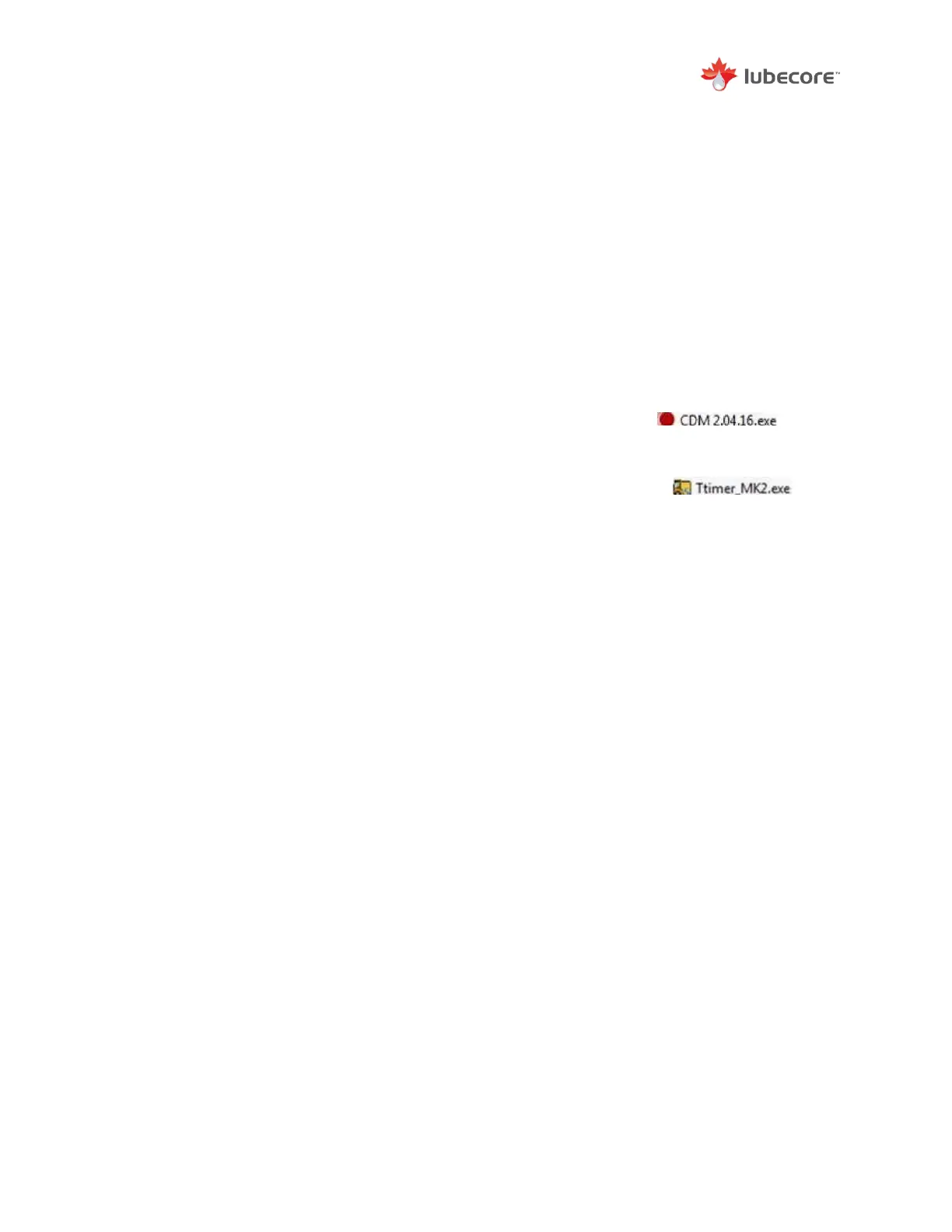
b. Immediately double-click the file called CDM 2.04.16.exe
ii. This will open a small window and will install a driver. Once
installation is complete, it will automatically close the window.
c. Double-click on the Timer Software program Ttimer_MK2.exe
iii. In some cases, there may be a Windows warning. If this
shows up, click YES to proceed.
d. To verify that the installation has taken place properly, check at the top of the C.L.S.
Timer program window for the text “USB Device”. This should say “Device Found” in green font,
and have a flashing green circle next to it. If you don’t see the flashing green circle, contact
Lubecore International for assistance.
3. Daily use of the Timer Software
a. It is helpful to save a copy of the Timer Software onto the computer hard drive so
that the CD doesn’t need to be kept with the computer.
i. Right-click on the Ttimer_MK2.exe file and select Copy from
the list
ii. On the Desktop, right-click and select Paste from the list (don’t
select Paste Shortcut)
The software is now accessible from the Desktop.
4. For further detailed instructions on connection and read-outs of the timers, please refer
to the Timer Manual


 To Next Page