EasyManua.ls Logo

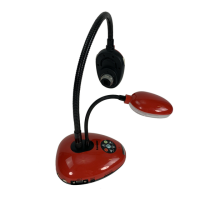
Lumens DC136 - User Manual

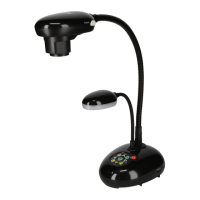
Lumens DC136
14 pages
Print Icon
To Next Page IconTo Next Page
Loading...
To download the latest version of Quick Start
Guide, multilingual user manual, software, or
driver, etc., please visit Lumens
https://www.MyLumens.com/support
DC136
Document Camera
User Manual - English
[Important]

Other manuals for Lumens DC136

Questions and Answers

  • K
    kathy65Aug 8, 2025
    How to fix a mirror image on Lumens DC136 Document Camera video software?
    • J
      josephlisaAug 9, 2025
      If you see a mirror image when using video software with your Lumens Document Camera, use the Lumens Ladibug software to rotate the image to the correct orientation.
  • M
    Michael BradfordAug 14, 2025
    What to do if Lumens Document Camera DC136 cannot operate normally?
    • A
      Anita MoralesAug 14, 2025
      If the Lumens Document Camera DC136 cannot operate normally, it might be due to insufficient power supply from the USB port on the front of your computer. Try connecting the device to a USB port on the rear of the computer or use a USB hub that has its own power adapter.
  • J
    Justin JenkinsAug 18, 2025
    Why does the output screen flicker on my Lumens DC136 Document Camera?
    • A
      Amanda MurrayAug 18, 2025
      If the output screen of your Lumens Document Camera flickers, it may be because the Ladibug software's current frequency is preset to 60 Hz. To fix this, go to the Camera Settings section in the Software Manual and change the power frequency setting to 50 Hz.
  • W
    wlloydAug 25, 2025
    What to do if the preview screen remains still when using Time Lapse on Lumens Document Camera?
    • C
      Calvin MasonAug 25, 2025
      If the preview screen remains still when the Time Lapse function is running on your Lumens Document Camera, it could be due to insufficient bandwidth when connecting via a USB hub. Connect the camera directly to the computer using a USB cable instead of a USB hub.
  • A
    Ashley SandersAug 29, 2025
    What to do if my Lumens DC136 Document Camera is unable to focus?
    • M
      Melissa JensenAug 29, 2025
      If you are experiencing issues with focusing your Lumens Document Camera, the document might be too close to the lens. Move the document further away and then press the [AF] button on both sides of the lens.
  • D
    Dustin WatsonSep 3, 2025
    What to do if there is no screen with Ladibug software for Lumens Document Camera?
    • B
      Brian HawkinsSep 3, 2025
      If you are not getting a screen display with the Ladibug software for your Lumens Document Camera, try the following: * Change the USB cable. * Use a different USB port, preferably one on the back of the computer. * Ensure no other application software has DC136 images open simultaneously.

Lumens DC136 Specifications

General IconGeneral
Frame Rate30 fps
Weight1.5 kg
LampLED
AudioBuilt-in Microphone
FocusAuto/Manual
Light SourceLED
CompatibilityWindows, Mac
Image SensorCMOS
Sensor Size1/2.5"
ConnectivityUSB
Image Rotation0°, 180°
Internal MemoryNo

Related product manuals