EasyManua.ls Logo

Lumens CL510 - User Manual

Lumens CL510
42 pages
Print Icon
To Next Page IconTo Next Page
Loading...
CL510
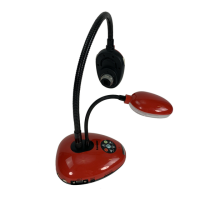
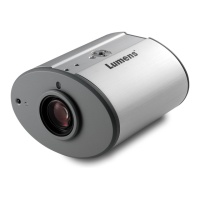
Ceiling Document Camera
User Manual - English
[Important]
To download the latest version of Quick Start
Guide, multilingual user manual, software, or
driver, etc., please visit Lumens
http://www.Mylumens.com/goto.htm

Table of Contents

Other manuals for Lumens CL510

Questions and Answers

  • F
    Frank CannonAug 7, 2025
    What to do if images from Lumens Document Camera CL510 are too bright?
    • B
      Brenda GonzalezAug 7, 2025
      If the images outputted from your Lumens Document Camera CL510 are too bright, dark, or vague, press the [AUTO TUNE] button to automatically adjust to the optimal brightness and focal length.
  • I
    Ian Hess IVAug 10, 2025
    How to fix a Lumens Document Camera when it is unable to focus?
    • L
      Louis MarshallAug 10, 2025
      If you are unable to focus your Lumens Document Camera, it could be that the document is too close. Try pressing [ZOOM -] on the Remote Control, or increase the distance between the document and the lens, and then press [AUTO TUNE]. Also, check the lens for fingerprints or stains. Clean the lens and then use [AUTO TUNE] to focus.
  • J
    Joshua PetersonAug 15, 2025
    What to do if Lumens CL510 is unable to record images?
    • J
      jason63Aug 15, 2025
      If you are unable to record images with your CL510 Lumens Document Camera: 1. Check if the stored data has reached the maximum size of the USB disk or internal memory. 2. Confirm the rotation angle. Recording may not be possible when the image is rotated by 90°/270°.
  • C
    campbelldavidAug 19, 2025
    What to do if CL510 Lumens Document Camera fails to store images?
    • R
      Richard SchmidtSep 12, 2025
      If your CL510 Lumens Document Camera fails to store images or react, check the following: 1. See if the stored data has reached the maximum size of the USB device or internal memory. 2. Make sure if the Capture function is set to Continuous mode or the time for capture is set to be long.
  • J
    Jorge McculloughAug 23, 2025
    How to fix the ActiveX controls installation issues in Lumens CL510?
    • S
      Stephen AllenAug 23, 2025
      To resolve a warning message (“Windows has blocked this software because it can't verify the publisher.”) that appears when installing the ActiveX controls for your Lumens Document Camera, follow these steps to modify security settings and re-install the ActiveX control components: 1. Open the web page, click [Tools] in the function bar, then [Internet Options], then [Security], then [Custom Level]. 2. Select [Download Unsigned ActiveX Controls] and set to [Prompt], then click [OK]. 3. Exit the “Internet Option” setup screen, restart your IE browser, and install the control components according to the instructions on the screen.
  • R
    rhondasmithAug 28, 2025
    What to do if the live image does not display after login to Lumens CL510 Document Camera website?
    • T
      thompsonmeganAug 28, 2025
      If the live image does not display after you login to the website for your Lumens Document Camera: 1. Install the ActiveX control according to the instruction on the screen. 2. If the instruction for installing the ActiveX control does not appear, confirm and remove the old version of ActiveX control components, and then re-install the ActiveX control components.
  • A
    Arthur DorseySep 1, 2025
    How to fix Lumens CL510 Document Camera boot without power signal?
    • D
      Dorothy GaySep 1, 2025
      Ensure that the power cord is securely plugged in to address the issue of your Lumens Document Camera booting without a power signal.

Summary

Copyright Information

Safety Instructions

Precautions

Warning to reduce risk of fire or electric shock, and general handling safety.

FCC Warning

Statement on compliance with FCC rules for digital devices and interference limits.

Package Contents

Product Overview

Relative position of presenter and document

Illustrates the setup for displaying presenter and documents relative to the camera.

Start Using

Remote Control and Setting Menu

Functions of Remote Control

Lists and describes the functions of the remote control buttons alphabetically.

Setting Menu

Details the main menu structure and available settings for device configuration.

Descriptions of Major Functions

Auto Tune

How to use the Auto Tune feature for optimal image brightness and focusing performance.

Capture images

Steps for capturing and saving still images from the document camera.

Record videos

Instructions for recording motion images and videos using the document camera.

Set the time for CL510

Instructions for setting the device's date and time via remote control or web.

Resume factory default settings (Factory Reset)

Steps to restore the device to its original factory default settings and configurations.

DIP Switch Settings

Troubleshooting

Unable to focus

Troubleshooting steps for addressing issues where the camera cannot achieve proper focus.

No image output

Solutions for scenarios where the CL510 fails to produce an image output.

Forget the password

Guidance on what to do if the user forgets the device's login password.

Power Frequency by Country

Lumens CL510 Specifications

General IconGeneral
Frame Rate30 fps
MicrophoneBuilt-in
FocusAuto/Manual
Resolution1920 x 1080
ConnectivityHDMI, USB
LightingLED
Audio Input3.5mm audio jack
Audio Output3.5mm audio jack
CompatibilityWindows, macOS
Sensor Resolution2 megapixels

Related product manuals