English - 19
6.11 I would like to delete the captured/recorded images
1. Press [PLAYBACK] on the Remote Control.
2. Press [], [], [], or [] to select the file you want to delete.
3. Press [DEL] to display a [Delete File] window.
4. Press [] or [] to select [Yes] (The default value is No).
5. Press [ENTER] to delete the selected file.
6. Press [MENU] to exit.
6.12 I would like to automatically delete the stored images
whenever the device is turned off (Auto Erase)
1. Press [MENU] on the Remote Control to enter the setting menu.
2. Press [] or [] to the [Storage] menu.
3. Press [] or [] to [Auto Erase].
4. Press [] or [] to select [On].
5. Press [MENU] to exit.
<Remark> All captured photos will be deleted automatically when
the device is turned off.
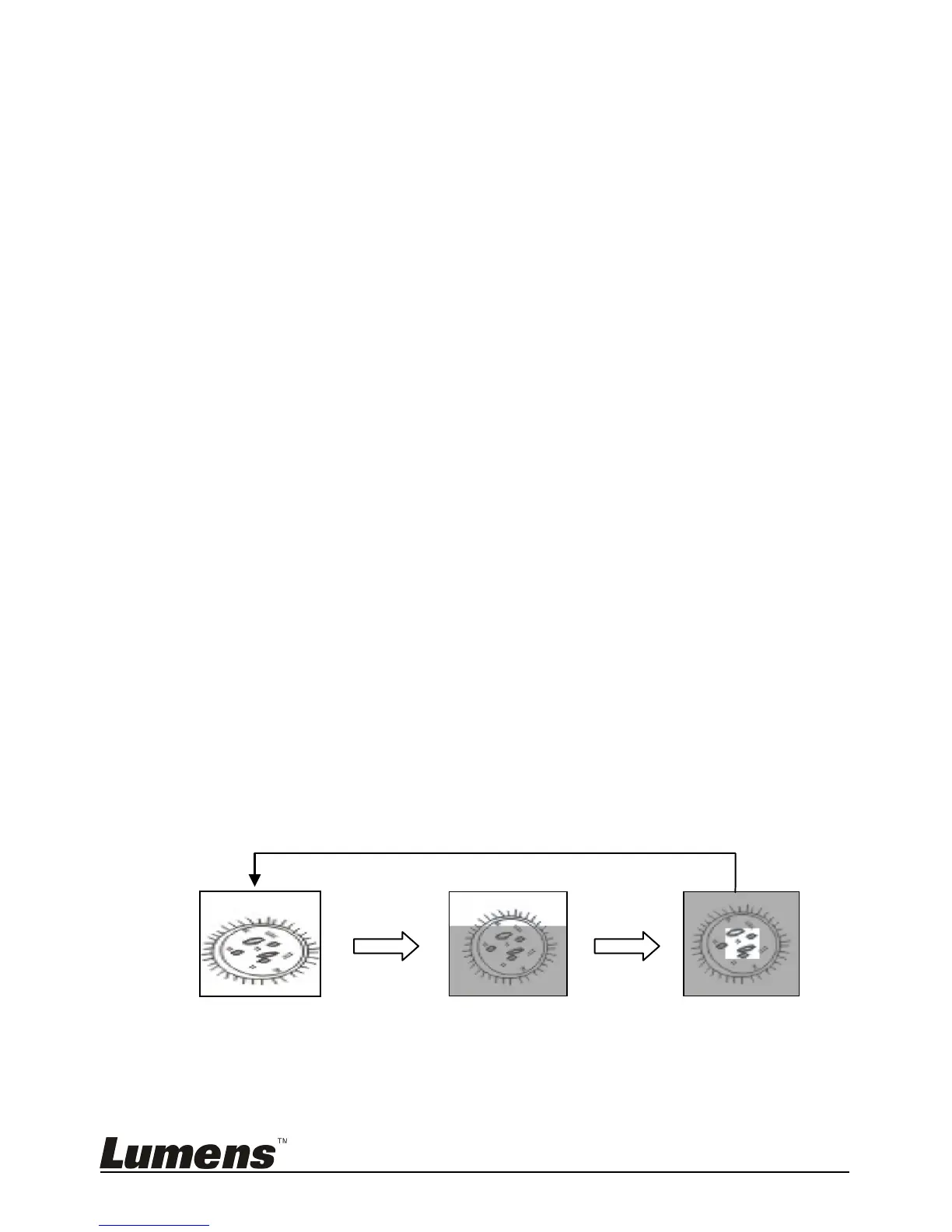
6.13 I would like to use the MASK and Spotlight function
6.13.1 I would like to use the MASK or Spotlight mode
Use Remote control:
1. Press [MASK] to enter the Mask mode, and press [], [] , [], or [] to
move the mask position.
2. Press [MASK] again to enter the Spotlight mode, and press [], [] , [],
or [] to move the zone position.
3. Press [MASK] again to exit and return to the live image screen.
6.13.2 I would like to set the size of Mask/Spotlight function
In Mask/Spotlight mode, use the remote control:
1. Press [MENU] to enter the image OSD menu.


 To Next Page
 Loading...