EasyManua.ls Logo

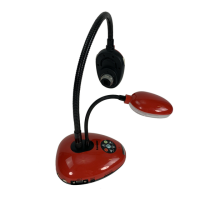
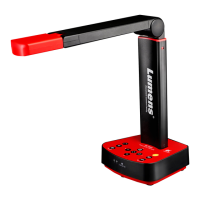
Lumens DC170 - User Manual

Lumens DC170
41 pages
Print Icon
To Next Page IconTo Next Page
Loading...
DC170
Document Camera
[Important]
User Manual - English
To download the latest version of Quick Start
Guide, multilingual user manual, software, or
driver, etc., please visit Lumens
http://www.Mylumens.com/goto.htm

Table of Contents

Other manuals for Lumens DC170

Questions and Answers

  • S
    Sara HinesAug 18, 2025
    What to do if images from Lumens Document Camera DC170 are too bright?
    • P
      Patrick SmithAug 18, 2025
      If the images outputted from your Lumens DC170 Document Camera appear too bright, dark, or vague, press the [AUTO TUNE] button. This will automatically adjust the brightness and focal length to optimal levels.
  • K
    Kristi WrightAug 20, 2025
    Why Lumens Document Camera and Ladibug can't be used simultaneously?
    • S
      Samantha GregoryAug 20, 2025
      If your Lumens Document Camera, Ladibug™, and other applications cannot be used simultaneously, it is because these applications cannot be executed at the same time. Close any currently running applications, and then open the specific application you want to use.
  • A
    Angela DavisAug 22, 2025
    What to do if Lumens DC170 fails to store images?
    • K
      kwalkerAug 23, 2025
      If your Lumens DC170 Document Camera fails to store images or react, there are a couple of things to check: 1. See if the stored data has reached the maximum size of the SD Card (this should be checked first) or the internal memory. 2. Make sure the Capture function is not set to Continuous mode, or that the time for capture is not set to be too long.
  • J
    Jill RamirezAug 25, 2025
    How to unlock Lumens DC170 locked device?
    • E
      Edward MaldonadoAug 26, 2025
      To unlock a locked Lumens Document Camera device: 1. Press [Menu] on the remote control or control panel to enter the setting menu. 2. Press the arrow keys to select [Setting]. 3. Press [ENTER] to enter. 4. Select [Advanced] menu. 5. Go to [Lock Down]. 6. Choose [Off] to deactivate the password setting function.
  • C
    csolisAug 27, 2025
    Why I am unable to record images with Lumens Document Camera?
    • J
      Jonathan RamirezAug 27, 2025
      If you are unable to record images with your Lumens Document Camera, first check if the stored data has reached the maximum size of the SD Card. Also, recording to internal memory is not supported; ensure an SD card is inserted before attempting video recording.
  • D
    Dana JonesAug 30, 2025
    How to fix Lumens Document Camera when unable to focus?
    • J
      Jeff OlsenAug 30, 2025
      If you're experiencing focusing issues with your Lumens Document Camera, it might be because the document is too close to the lens. Try pressing the [ZOOM -] button on the remote or control panel. Alternatively, manually increase the distance between the lens and the document, and then press the [FOCUS] button on the right side of the lens.
  • C
    Christina CarterSep 2, 2025
    What to do if Lumens DC170 SD card cannot be read?
    • J
      jenniferparkerSep 2, 2025
      If the data in the SD card cannot be read by Lumens Document Camera, it is recommended to use an SD card with a capacity of 4 GB or more (up to 32 GB supported). Also, ensure that the file was saved at the specified path: \DCIM\100MEDIA (e.g.: J:\DCIM\100MEDIA) and that the file is named appropriately, such as four English letters followed by four numbers (e.g., LUMN0001.JPG).
  • T
    Tiffany GarciaSep 4, 2025
    What to do if there is no image output from Lumens DC170 Document Camera?
    • T
      Tiffany NobleSep 4, 2025
      If your Lumens DC170 Document Camera isn't showing any image output, ensure the power is on and all cable connections are properly connected. Check the [Source] settings. Also, verify the projector's source settings, referring to its user manual for the correct input selection. Finally, check that the DIP Switch is properly set.
  • T
    Tyler SmithSep 6, 2025
    What to do if Lumens DC170 auxiliary floodlight does not light?
    • K
      kristenandersonSep 7, 2025
      If the unit is turned on, but the auxiliary floodlight on your Lumens Document Camera does not light up, ensure that the arm lamp is set to “OFF”.
  • J
    Julia MorganSep 9, 2025
    Why the operating steps in the manual are not applicable to Lumens Document Camera?
    • V
      Vanessa MasonSep 9, 2025
      If the operating steps in the manual are not applicable to your Lumens Document Camera, it may be due to improvements in functions. Check to see if the Firmware version of your machine is up-to-date.

Summary

Safety Instructions

General Safety Precautions

General warnings to reduce risk of fire or electric shock.

Installation and Connections

Initial Installation and Setup

Steps for initial setup and configuration of the device.

Connecting to Projector or Monitor

Guide for connecting the device to display output.

Connecting to Computer with Lumens Software

How to connect to a PC and utilize the Lumens software.

Simultaneous PC and Display Connection

Instructions for connecting to both PC and display at once.

Connecting to TV

Steps to connect the document camera to a television.

Installing Application Software

Guide for installing the necessary software for device operation.

Getting Started: Initial Usage

Control Panel and Setting Menu Functions

Control Panel and Remote Control Functions

Details the functions of the device's control panel and remote.

Device Setting Menu Overview

Overview of the device's setting menu options.

Main Setting Menu Options

Describes the primary options within the device's setting menu.

Detailed Setup Menu Options

Detailed breakdown of the setup options and their functions.

Major Function Descriptions

Auto Adjust Image Brightness and Focus

How to use the auto-tune feature for optimal image quality.

Zooming In and Out of Images

Instructions for adjusting the image magnification.

Using the Auto Focus Feature

How to engage the auto-focus function for sharp images.

Adjusting Image Brightness

Steps to modify the brightness level of the image.

Freezing Images

Method to freeze the current image displayed on screen.

Rotating the Image

How to rotate the displayed image orientation.

Capturing Images

Steps for capturing still images from the document camera.

Capturing and Saving Images

Detailed process for capturing and storing images.

Recording Videos

Instructions for recording video footage.

Recording Motion Images

Steps to record video clips with sound.

Video Recording Setup

How to configure settings for video recording.

Viewing Captured;Recorded Images

Guide to accessing and viewing stored images and videos.

Connecting to Microscope

DIP Switch Settings

Troubleshooting Common Issues

Lumens DC170 Specifications

General IconGeneral
Image Sensor1/2.5" CMOS
Frame Rate30 fps
LampLED
MicrophoneBuilt-in
Image Rotation0°, 90°, 180°, 270°
VGA OutputYes
HDMI OutputYes
FocusAuto/Manual
CompatibilityWindows, Mac
Light SourceLED
Foldable DesignYes
Max Resolution1920 x 1080
ConnectivityUSB
External MemorySD Card

Related product manuals