EasyManua.ls Logo

Lumens PS752 - User Manual

Lumens PS752
47 pages
Print Icon
To Next Page IconTo Next Page
Loading...
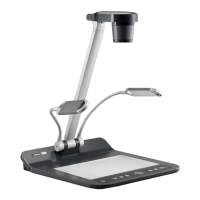
PS752
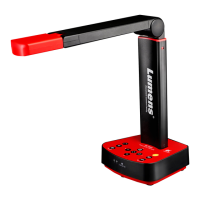
Document Camera
[Important]
User Manual – English
To download the latest version of Quick Start
Guide, multilingual user manual, software, or
driver, etc., please visit Lumens
https://www.MyLumens.com/support

Table of Contents

Questions and Answers

  • C
    Carrie McguireAug 17, 2025
    What to do if images from Lumens Document Camera PS752 are too bright?
    • C
      Crystal DixonAug 17, 2025
      To automatically optimize the image's brightness and focus, press the [AUTO TUNE] button on your Lumens Document Camera PS752. This should help if the images appear too bright, dark, or vague.
  • E
    ericrichardsonAug 20, 2025
    How to fix Lumens Document Camera unable to focus?
    • S
      Steven ClarkeAug 20, 2025
      If your Lumens Document Camera is unable to focus, it might be because the document is too close to the lens. Try pressing the [ZOOM -] button on the remote control or control panel. Alternatively, increase the distance between the document and the lens, and then press [AUTO TUNE] to activate the auto focus feature.
  • M
    Maureen MosleyAug 23, 2025
    What to do if Lumens Document Camera is unable to record images?
    • A
      Amanda MartinezAug 23, 2025
      If your Lumens Document Camera fails to record images, first check if the storage has reached its maximum capacity on the USB disk. Also, remember that the recording function is not supported in the internal memory; ensure a USB disk is inserted for recording.
  • B
    Brandon NelsonAug 26, 2025
    Why are the Lumens Document Camera manual steps not working?
    • J
      Joseph HopkinsAug 26, 2025
      If the operating steps in the manual are not applicable to your Lumens Document Camera, this may be due to improvements in functions. To resolve this, check if the Firmware version of your machine is up-to-date.
  • J
    Jacob McgeeAug 28, 2025
    Why Lumens PS752 cannot read USB flash drive?
    • M
      Michael KellerAug 28, 2025
      If the data in your USB flash drive cannot be read by the Lumens Document Camera, ensure the USB flash drive has a capacity of 4GB or higher (up to 32GB supported). Also, verify that the file was saved at the specified path: \DCIM\100MEDIA (e.g., J:\DCIM\100MEDIA), and that the file is named appropriately, using four English letters followed by four numbers (e.g., LUMN0001.JPG).
  • M
    Melissa CampbellAug 31, 2025
    Why Lumens PS752 Document Camera and Podium View™ cannot be used at the same time?
    • J
      Jose AndersonAug 31, 2025
      If the Lumens Document Camera, Podium View™, and other applications cannot be used simultaneously, it is because only one application can be executed at a time. Please close any currently running applications before starting the application you wish to use.
  • R
    richard74Sep 2, 2025
    How to unlock a locked Lumens PS752 Document Camera?
    • A
      Andrew HansonSep 3, 2025
      To unlock a locked Lumens Document Camera device: 1. Press [MENU] on the remote control or control panel to activate the setting menu. 2. Press the arrow buttons to select [Setting]. 3. Press [ENTER] to activate. 4. Press the arrow buttons to select [Advanced] menu. 5. Press the down arrow to [Lock Down]. 6. Press the arrow buttons to select [Off] to cancel the password setting function.
  • S
    stephen99Sep 5, 2025
    What to do if Lumens Document Camera PS752 fails to store images?
    • T
      Timothy SanchezSep 5, 2025
      If the PS752 fails to store images or react, verify that the stored data has not reached the maximum size of the USB disk or internal memory. Also, check if the capture function is set to continuous mode or if the capture time is set to be too long.
  • S
    Stephen AndersonSep 8, 2025
    What to do if Lumens Document Camera PS752 has no image output?
    • K
      Kathleen GarciaSep 8, 2025
      If there is no image output from the Lumens Document Camera PS752: 1. Check the power. 2. Check all cable connections. 3. Check the [Source]. 4. Check the settings for the source of the projector. 5. Check if DIP switch is properly set.
  • B
    bennettjulieSep 12, 2025
    Why Lumens Document Camera PS752 auxiliary floodlight doesn't light up?
    • M
      Megan LopezSep 12, 2025
      If the Lumens Document Camera's auxiliary floodlight does not light when the PS752 is turned on, ensure that the arm lamp is not set to [Off].

Lumens PS752 Specifications

General IconGeneral
Resolution1920 x 1080
Frame Rate30 fps
LampLED
MicrophoneBuilt-in
USB VersionUSB 2.0
Audio Input3.5mm jack
Audio Output3.5mm jack
Sensor Size1/2.5 inch
FocusAuto/Manual
CompatibilityWindows, Mac
Image SensorCMOS
ConnectivityHDMI, USB
Shooting AreaA3

Related product manuals