EasyManua.ls Logo

Lumens PS760 - User Manual

Lumens PS760
54 pages
Print Icon
To Next Page IconTo Next Page
Loading...
English -
0
PS760
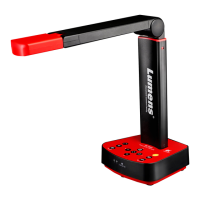
Document Camera
User Manual
[Important]
To download the latest version of Quick Start
Guide, multilingual user manual, software, or
driver, etc., please visit Lumens™
http://www.lumens.com.tw/goto.htm

Table of Contents

Questions and Answers

  • M
    mcmahonangelicaAug 17, 2025
    What to do if the images outputted from PS760 Lumens Document Camera are too bright, dark, or vague?
    • K
      Kimberly JohnsonAug 17, 2025
      If the images appear too bright, dark, or vague, press the [AUTO TUNE] button. This will automatically adjust the brightness and focal length to optimal levels.
  • L
    Lisa SmithAug 19, 2025
    Why is my PS760 Lumens Document Camera failing to store images or react?
    • K
      Kelly JohnsonAug 19, 2025
      There are a couple of reasons why your PS760 might fail to store images or react: * The storage limit may have been reached on the USB device or internal memory. Check the available space. * The Capture function might be set to Continuous mode, or the capture time is set to be too long.
  • M
    markperryAug 22, 2025
    Why can't I focus my Lumens PS760 Document Camera?
    • N
      Nicholas GarciaAug 22, 2025
      If you are unable to focus, the document is probably too close to the lens. Try the following: * Press [ZOOM-] on the remote control or control panel. * Increase the distance between the document and the lens, and then press [AUTO TUNE].
  • J
    Jennifer AyalaAug 26, 2025
    What to do if Lumens Document Camera and other applications cannot be used simultaneously?
    • M
      Michael NewmanAug 26, 2025
      If you are experiencing issues using the Lumens Document Camera alongside other applications, close the applications that are currently running. Then, try to launch the desired application again.
  • R
    Rebecca FarmerAug 28, 2025
    Why am I unable to record images with my Lumens Document Camera?
    • K
      Kyle AdamsAug 28, 2025
      There are a couple of reasons why you might be unable to record images: * The storage limit may have been reached on the USB disk or internal memory. Check the available space. * The image rotation angle may be set to 90° or 270°. Recording may not be possible at these angles.
  • S
    Scott MedinaAug 30, 2025
    How to fix no image output from the PS760 Lumens Document Camera?
    • M
      Marco HicksAug 30, 2025
      If there is no image output from the PS760, please check the following: * Ensure the power is on. * Verify all cable connections are secure. * Confirm the correct source is selected on the projector. Please refer to the projector's user manual for input selection. * Check that the DIP Switch is properly set.
  • S
    stacietranSep 2, 2025
    Why the operating steps in the manual are not applicable to my Lumens PS760?
    • B
      breanna59Sep 2, 2025
      If the operating steps in the manual do not seem applicable to your machine, check if the firmware version of your machine is up-to-date.
  • K
    Kimberly BradySep 5, 2025
    What to do if the image from my Lumens PS760 is incomplete?
    • R
      Robert JacksonSep 5, 2025
      If the image appears incomplete, check the Auto Image setting of your projector.
  • A
    Andrew GrossSep 7, 2025
    How to fix Lumens PS760 boot without power signal?
    • N
      nicholasmorganSep 8, 2025
      If the device doesn't boot and shows no power signal, ensure that the power cord is properly plugged in.
  • P
    Pamela HensonSep 12, 2025
    How to fix when the auxiliary floodlight does not light on Lumens Document Camera?
    • C
      Carmen SkinnerSep 12, 2025
      If the auxiliary floodlight does not turn on when the unit is powered on, make sure the arm lamp is not set to [OFF].

Lumens PS760 Specifications

General IconGeneral
Resolution1920 x 1080 (Full HD)
Frame Rate30 fps
Weight1.5 kg
LampLED
MicrophoneBuilt-in
Audio Output3.5mm jack
FocusAuto/Manual
Light SourceLED
CompatibilityWindows, Mac
ConnectivityHDMI, USB
Shooting AreaA3
Video OutputHDMI

Related product manuals