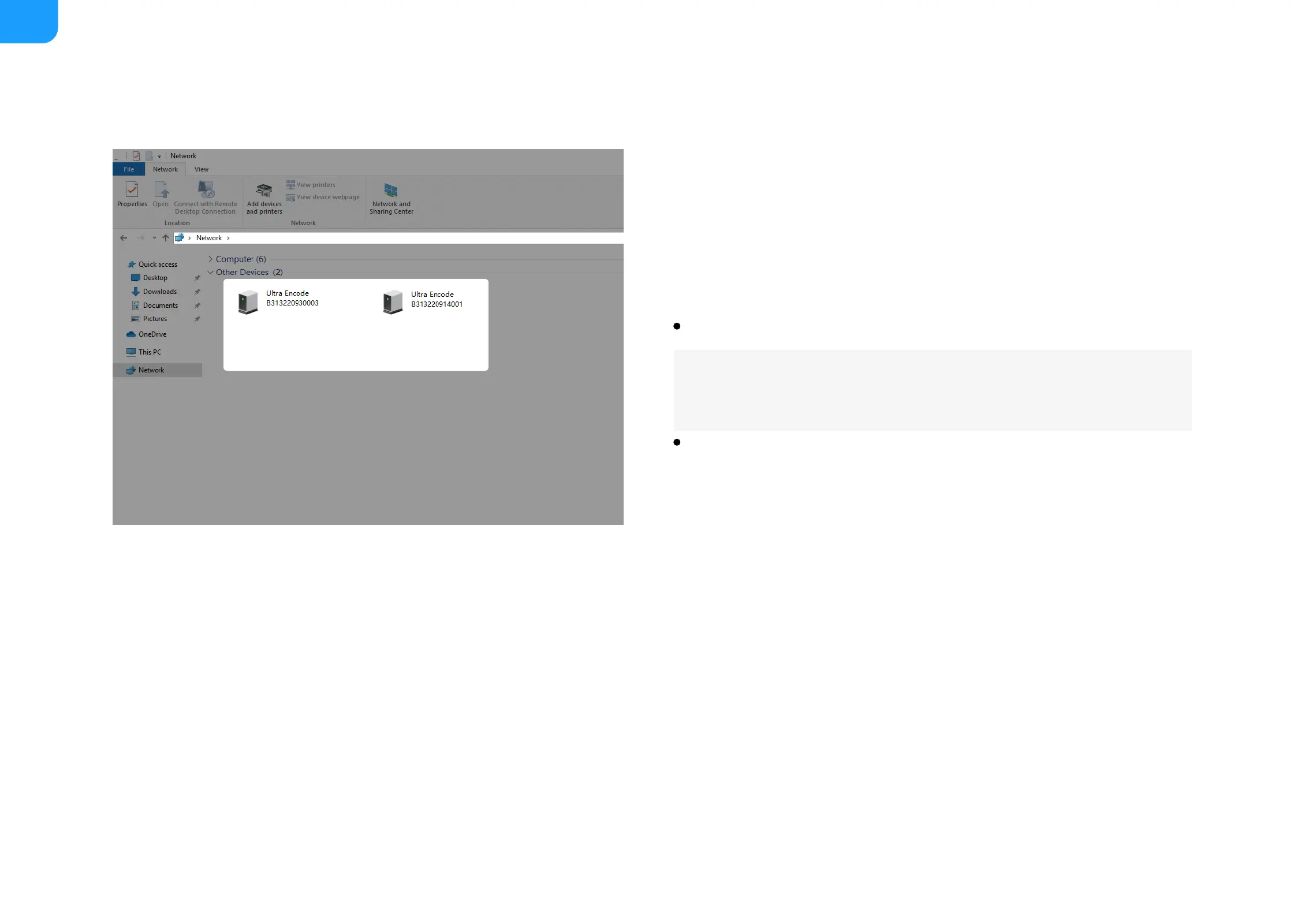
Fig1 Find your device in Windows > Network
Access the Web UI
A free tool, Web UI, is provided to monitor and manage device status and
configuration. If you know your device's IP address, type it into your web
browser to access the Web UI. Alternatively, you can access the Web UI via
wired Ethernet, USB NET, or Wi-Fi following the steps below.
Connect your device to your LAN and power it up.
Access Web UI:
To ensure a smooth video, you are recommended to connect to a
wired network.
Tap on the LCD touch screen of the device front panel until you see a QR
code, scan the QR code, or type the IP address below the QR code into
your web browser.
Scanner (like smartphone) should be connected to the same local network
as your device.
When the IP address shows 192.168.48.1, follow the steps below to join the
device AP and access the Web UI.
1. Plug included Wi-Fi antenna when you want to connect to a wireless
network.
2. In your smartphone/tablet/laptop, turn on WLAN, search for and join
the device AP named Ultra Encode + (Serial number).
The AP names after your gear's Serial number, and the password is
the last 8-number of the serial number by default. For example, a serial
number 313210101001 indicates the initial AP password is 10101001.
■



 To Next Page