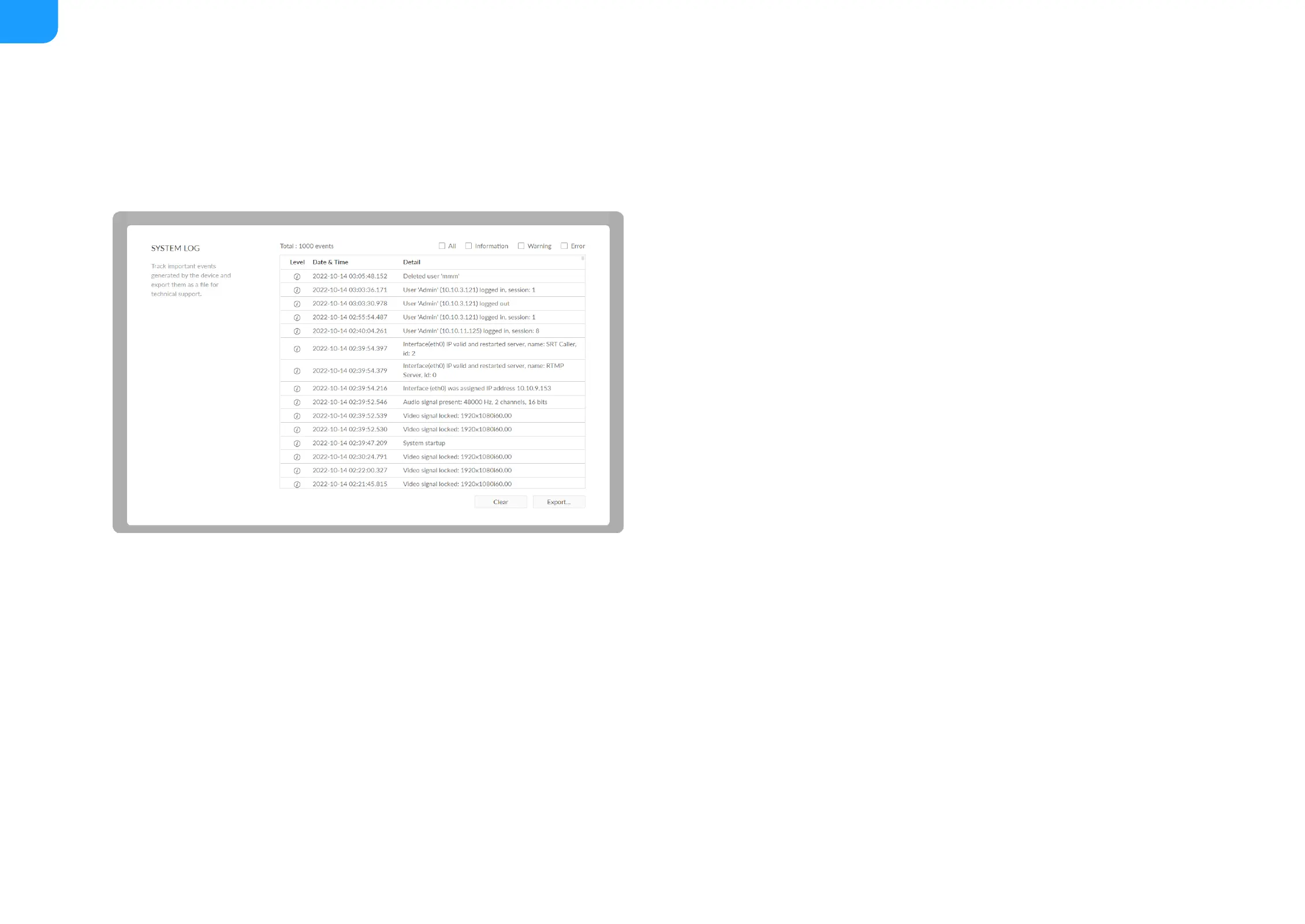
Clear/Export All Logs
1. Access the Web UI and sign in.
2. Click and enter the System tab, then select Log.
3. (Optional) Filter current logs.
By default, all logs are displayed in the table. Log entries can be
categorized as "error", "warning", and "information".
4. (Optional) Click Export... to get a .html file of all logs.
When prompted in the window, click Export.
5. (Optional) Click Clear to delete all logs.
When prompted in the window, click Yes.
Total shows the total number of filtered events.
■
All: Check to show all logs.
The device can store up to 1000 log entries. After 1000 entries have
been recorded, the oldest entry will be deleted before a new one can
be added.
■
Information: Check to show information logs - which record user
actions or significant system events, e.g. login and signal locked.
■
Warning: Check to show warning logs - which mean something has
not worked as it should. e.g. Ethernet is disconnected or signal is
unlocked.
■
Error: Check to show error logs - which mean some serious error has
happened.
■



 To Next Page