VIP User Manual 67
Image Size and Position
As mentioned before, you can change the size of an image by
dragging its corners in the page editor. For more precision, you can
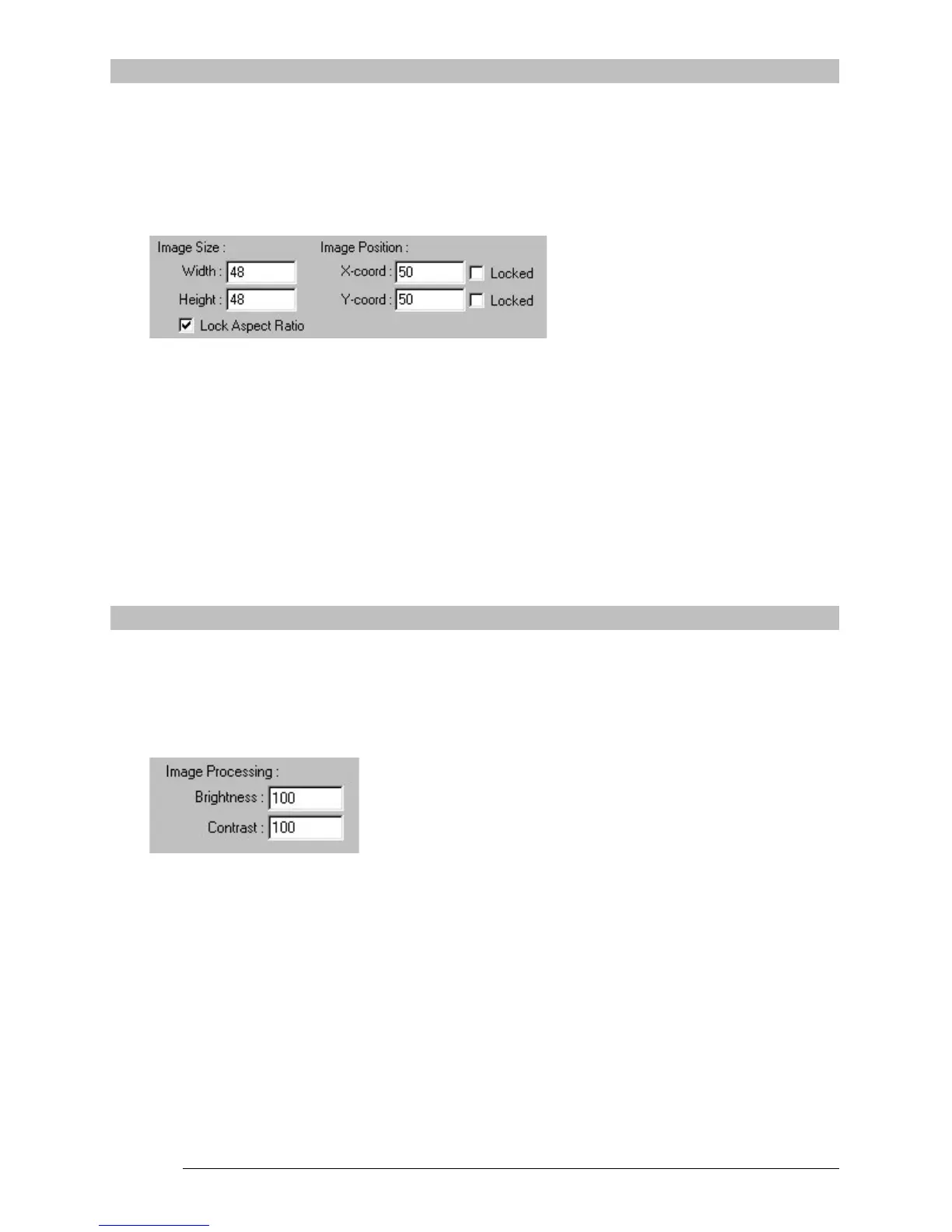
adjust the size and position of an object manually by entering
numbers for its width and height, as well as coordinates for its
position.
To prevent an object from being accidentally moved once you have it
positioned where you want it, you can click on one or both of the “Locked”
checkboxes. Selecting “X-coord Locked” will prevent horizontal movement,
and “Y-coord Locked” will prevent vertical movement.
The “Lock Aspect Ratio” checkbox prevents the overall proportion of
and object from changing. Thus, if you make an object wider, it will
also become taller by the same ratio. If you turn off “Lock Aspect
Ratio”, you can stretch or distort the object horizontally or vertically.
Image Processing
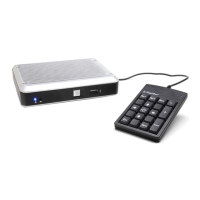
VIP Composer Professional allows to adjust the brightness and contrast of an
image object for optimum results. Simply fill in your desired value in the
“Brightness” and “Contrast” boxes. You will have to click on OK to exist the
Picture Properties dialog in order to see the effect of the values you enter.
The normal range for brightness is 1 to 200, with 100 showing the exact
brightness of the original image. The normal range for contrast is 1 to 200,
with 100 being the original contrast as well. Small changes in these values
can make a big difference – don’t try entering extremes on your first attempt.
Most images look best with values in the range of 80 to 120 for brightness or
contrast.


 To Next Page