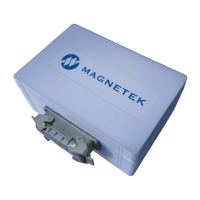
What to do if USB connection on Magnetek inteleSmart2 is not responding?
- MMichael GarciaSep 3, 2025
If there is no response from the USB connection on the Magnetek receiver, replace the USB cable. Also, verify you have the latest version of RCP.
What to do if USB connection on Magnetek inteleSmart2 is not responding?
If there is no response from the USB connection on the Magnetek receiver, replace the USB cable. Also, verify you have the latest version of RCP.
Why does my Magnetek inteleSmart2 display 7 and not communicate?
If the Magnetek Receiver displays '7' on the seven-segment LED and isn't communicating, use RCP to ensure the receiver and transmitter have the same Project ID number.
What does it mean when Magnetek inteleSmart2 Receiver displays 6 and doesn't communicate?
If the Magnetek Receiver displays '6' on the seven-segment LED and isn't communicating, use RCP to ensure the receiver and transmitter have the same access code.
Why is there no response from digital input on my Magnetek Receiver?
If there is no response from a digital input on the Magnetek receiver, using RCP, verify that the digital input is configured for the system. Also, verify that digital input is correct voltage level (either 5 volts or 36 volts), and that RCP has also defined them properly.
What causes no outputs when LED1 is blinking on Magnetek inteleSmart2 Receiver?
If the Magnetek receiver is communicating but no outputs are functioning (LED1 is blinking), and the dot on the seven segment LED is not flashing, a firmware download via RCP might be needed, or return for service. Also, using RCP, verify the relay connections and change as necessary if there is an incorrect relay configuration in receiver.
Why is my Magnetek inteleSmart2 Receiver not communicating, and the LED displays 0?
If your Magnetek Receiver isn't communicating with the transmitter (LED displaying 0), ensure the RF Channel and Access Code settings are correct using RCP or the receiver seven segment LED. Also, using RCP, check that the receiver and transmitter have the same RF modules.
What to do if Magnetek Receiver has intermittent communication?
If the Magnetek Receiver experiences intermittent communication (communication LED3 not lighting up), check for the following: 1. RF Interference: Ensure no other transmitters or communication devices are using the same frequency channel. 2. Transmitter Range: Move the transmitter closer to the receiver. 3. Receiver Antenna: Verify the receiver antenna is attached and properly connected.
Why does the MC Relay on my Magnetek Receiver turn off during normal operation?
If the MC Relay turns off during normal operation of the Magnetek receiver, consider the following: * Extend the inactivity timeout setting for the transmitter, because the transmitter may have powered down due to inactivity. * Replace the transmitter's batteries, because the transmitter may have powered down due to low batteries. * If the COM LED stops blinking for more than 3 seconds, change the system's channel setting due to radio interference. * If the COM LED stopped and the MC Relay turned off together within 1 sec, install snubbers across the coils of all contactors to reduce transient voltages and ensure that the power module has a stable power source, because the CPU module may be resetting.
Provides information on Magnetek's product warranties.
General advice for operating radio-controlled equipment safely and effectively.
Specifies who is permitted to operate radio-controlled equipment.
Details essential knowledge and skills for operators of radio-controlled equipment.
Steps to perform before making lifts with any equipment.
Critical safety warnings related to crane installation and operation.
Essential checks before starting the inteleSmart2 system installation.
Guidelines for selecting the optimal mounting location for the receiver unit.
Recommendations for proper antenna placement for optimal reception.
Important factors for connecting the unit's power input.
Key points to follow for safe and effective wiring of the system.
Details on connecting the receiver to other equipment and relay specifications.
Instructions for securely mounting the receiver unit's enclosure.
Step-by-step guide for installing the inteleSmart2 receiver unit.
Provides mounting dimensions and hardware specifications for the receiver housing.
Ensuring proper installation of alarms, horns, and indicator lights.
Details on configuring the unit's input power source (DC and AC).
Information on relay output commons and user-provided common wiring.
Alternative methods for routing power to functions via Machine Stop relays.
Details on the two redundant machine stop relays and their contacts.
Description of relays on the CPU board and their wiring.
Methods to achieve different levels of electrical isolation in wiring.
Guidelines for connecting output relays to drives, including MOV considerations.
Details on wiring and configuring the analog input for devices like load cells.
Information on connecting and configuring five digital inputs for various devices.
Overview of expansion modules and their capabilities.
Explanation of the status LEDs on the inteleSmart2 receiver.
Meaning of values displayed on the seven segment display for system status.
Describes the information shown on the display during receiver initialization.
Guidelines for placing expansion modules into slots J9 and J10.
Details on the relay expansion module adding eight normally open relays.
Importance of matching access codes between receiver and transmitter for communication.
Procedure and warnings for modifying access codes on the transmitter.
Steps and safety precautions for connecting the receiver to a PC using USB.
Overview of using the RCP software for programming the inteleSmart2.
Instructions for launching and activating the Magnetek Radio Control Programmer.
Guide to starting a new project or retrieving an existing one in RCP.
Procedure for selecting the correct device type in the New Project window.
Explanation of the 'Receive Device Data' checkbox and its importance.
Details on configuring receiver settings, CAN-bus, and general parameters.
Displays the receiver's operating radio frequency, set by the factory.
Allows creating a custom name for the receiver, up to 16 ASCII characters.
The access code acts as the receiver address for transmitter communication.
User selectable RF channels to prevent interference with other radio devices.
Option to select between internal or external antennas.
Read-only field displaying the status of expansion board #1.
Read-only field displaying the status of expansion board #2.
Visual representation of configured connections for outputs and inputs.
Allows modification of CAN-bus network communication settings.
Refer to RCP User's Guide for detailed programming instructions.
Used to download firmware to the board via the bootloader.
Covers saving, downloading, and reading programs and other RCP functions.
Instructions for saving, naming, and managing programming files in RCP.
Procedure for sending programmed settings to the receiver unit.
How to read current programming settings from the receiver unit.
Steps to check the version number of the RCP software.
Procedure to restore the receiver to its original factory settings.
Device compliance statements with FCC rules and RF exposure limits.
Lists available channels and their corresponding frequencies for the 433MHz band.
Channel designators and frequencies for Telemotive Legacy systems in the 433MHz band.
Lists available channels and their corresponding frequencies for the 900MHz band.
Lists available channels and their corresponding frequencies for the 419MHz band.
Explanation of the Frequency Hopping Spread Spectrum protocol for 2.4 GHz.
A guide to common problems, their possible reasons, and suggested solutions.
Technical specifications for the receiver housing, operating temperature, and range.
Information regarding assembly procedures and available replacement parts.