Operation Manual easyTone
5.9.8 Upload Screening List to Tablet
NOTE: Make sure the Screening List in the easyTone App on the tablet is empty before
importing or creating a new list from the easyTone Companion Software.
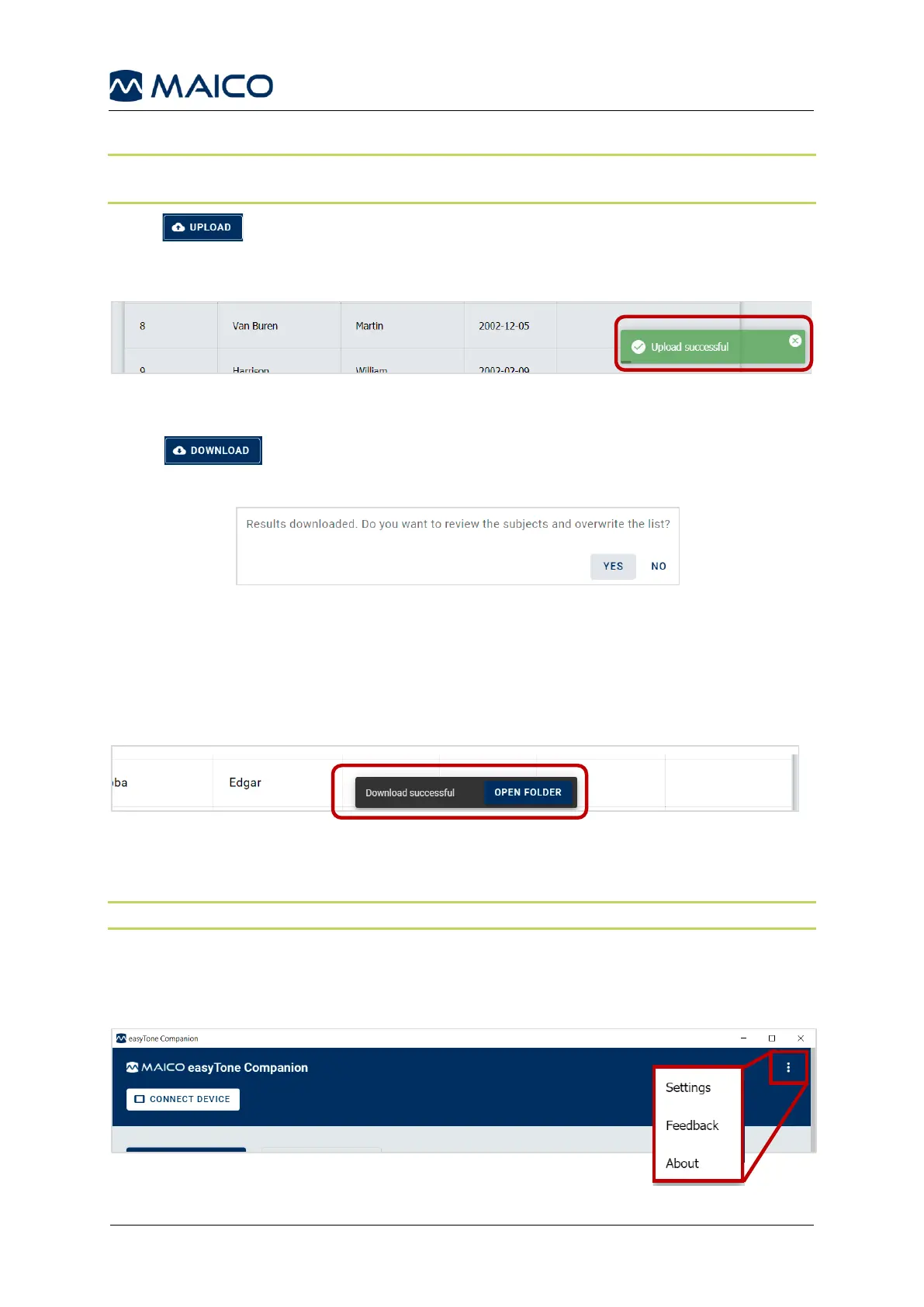
Press to upload the Screening List from the easyTone Companion Software
on the PC or Mac to the easyTone App on the tablet. Successful update is confirmed
in the bottom right corner of the easyTone Companion Software (Figure 46).
Figure 46
5.9.9 Download Screening List to the easyTone Companion Software
Press to download the Screening List from the easyTone App to the
easyTone Companion Software (Figure 47).
Press Yes to overwrite the existing Screening List.
Press No to keep the existing Screening List and only save results to the directory.
After successful download a Quick Link is displayed at the bottom center to open the
location (Figure 48).
Figure 48
Press OPEN FOLDER to open the Download folder with the date of download. The
folder contains the results in .xlsx and .csv format.
NOTE: The Screening List in the easyTone App is empty after successful download.
5.9.10 easyTone Companion Software – Settings, Feedback and About
Click on the ellipsis in the right upper corner to access the Settings, Feedback and
About menu (Figure 49).
Figure 49


 To Next Page