39
Selecting a listening mode
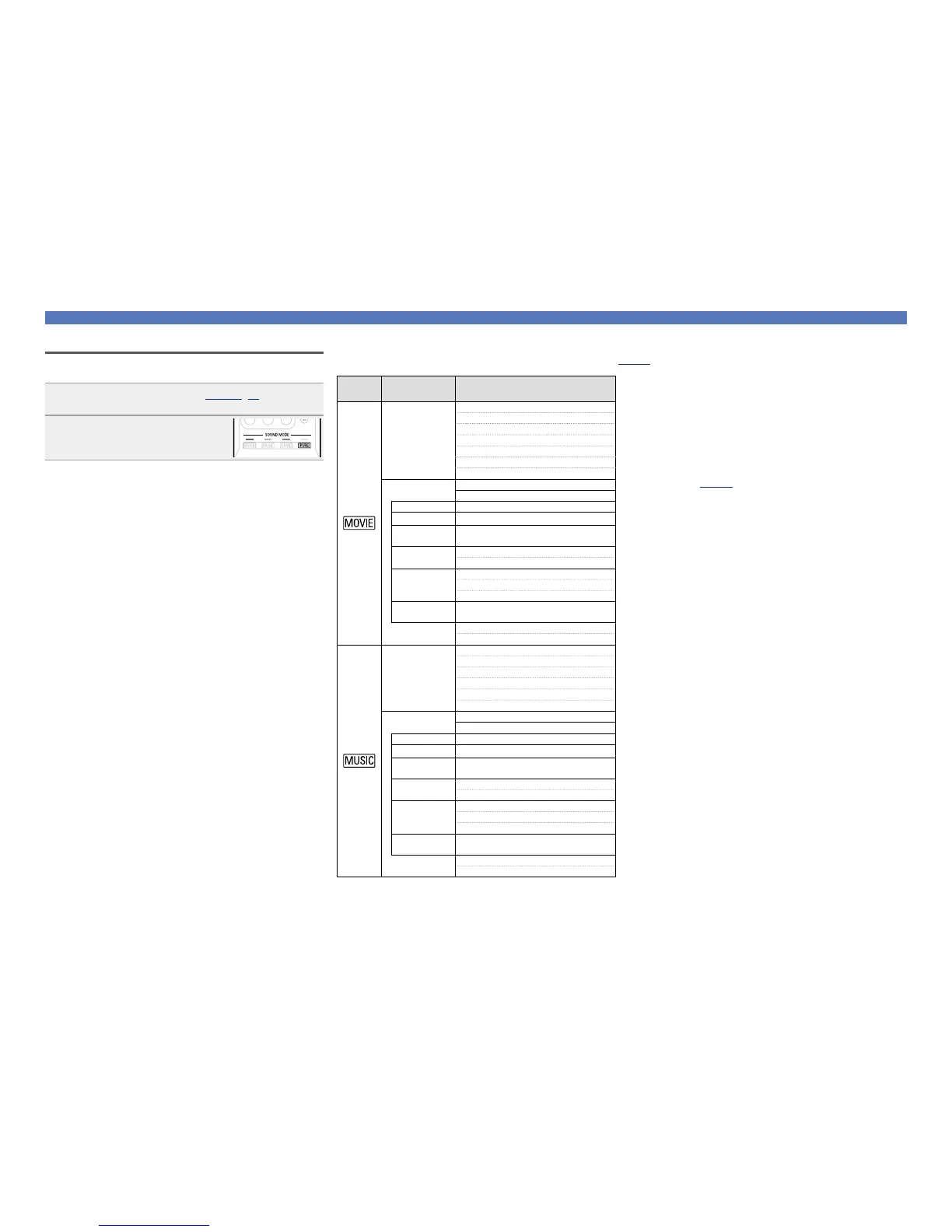
n Listening mode
•The following listening modes can be selected using the MOVIE, MUSIC, GAME, and PURE buttons.
•Adjust the sound field effect with the menu “Surr.Parameter” (vpage59) to enjoy your favorite sound mode.
Operation
button
Input signal Listening mode
2-channel
z1
STEREO
AUTO
z2
DOLBY PLg Movie
z3
DOLBY Pro Logic
z3
DTS NEO:6 Cinema
z3
MULTI CH STEREO
VIRTUAL
Multi-channel
z4
STEREO
AUTO
z2
Dolby Digital DOLBY DIGITAL
Dolby TrueHD DOLBY TrueHD
Dolby Digital
Plus
DOLBY DIGITAL Plus
DTS
DTS SURROUND
DTS 96/24
DTS-HD /
DTS Express
DTS-HD HI RES
DTS-HD MSTR
DTS Express
PCM multi-
channel
MULTI CH IN
MULTI CH STEREO
VIRTUAL
2-channel
z1
STEREO
AUTO
z2
DOLBY PLg Music
z3
DTS NEO:6 Music
z3
MULTI CH STEREO
VIRTUAL
Multi-channel
z4
STEREO
AUTO
z2
Dolby Digital DOLBY DIGITAL
Dolby TrueHD DOLBY TrueHD
Dolby Digital
Plus
DOLBY DIGITAL Plus
DTS
DTS SURROUND
DTS 96/24
DTS-HD /
DTS Express
DTS-HD HI RES
DTS-HD MSTR
DTS Express
PCM multi-
channel
MULTI CH IN
MULTI CH STEREO
VIRTUAL
z1 2-channel also includes analog input.
z2 When AUTO mode is selected, the sound mode that is compatible
with the input signal is used for playback.
z3 This mode plays back 2-channel source in 5.1-channel playback.
It cannot be selected when headphones are used, or when only
front speakers are used.
z4 Some listening modes cannot be selected, depending on the
audio format or number of channels of the input signal. For
details, see “Types of input signals, and corresponding sound
modes” (vpage87).
Auto surround playback
This mode detects the type of input digital signal, and automatically
selects the corresponding mode for playback.
1
Play the selected device (vpage 29, 30).
2
Press PURE to select “AUTO”.
Auto surround playback begins.


 To Next Page