48
8. Main menu
Starting on the home screen, swipe from right to left on the display to open the
main menu.
Within the main menu, swipe upwards or downwards on the display to scroll
through the menu items.
Tap on the required menu item to access the associated submenu.
In the submenu, swipe from left to right on the display to return to the menu
item above.
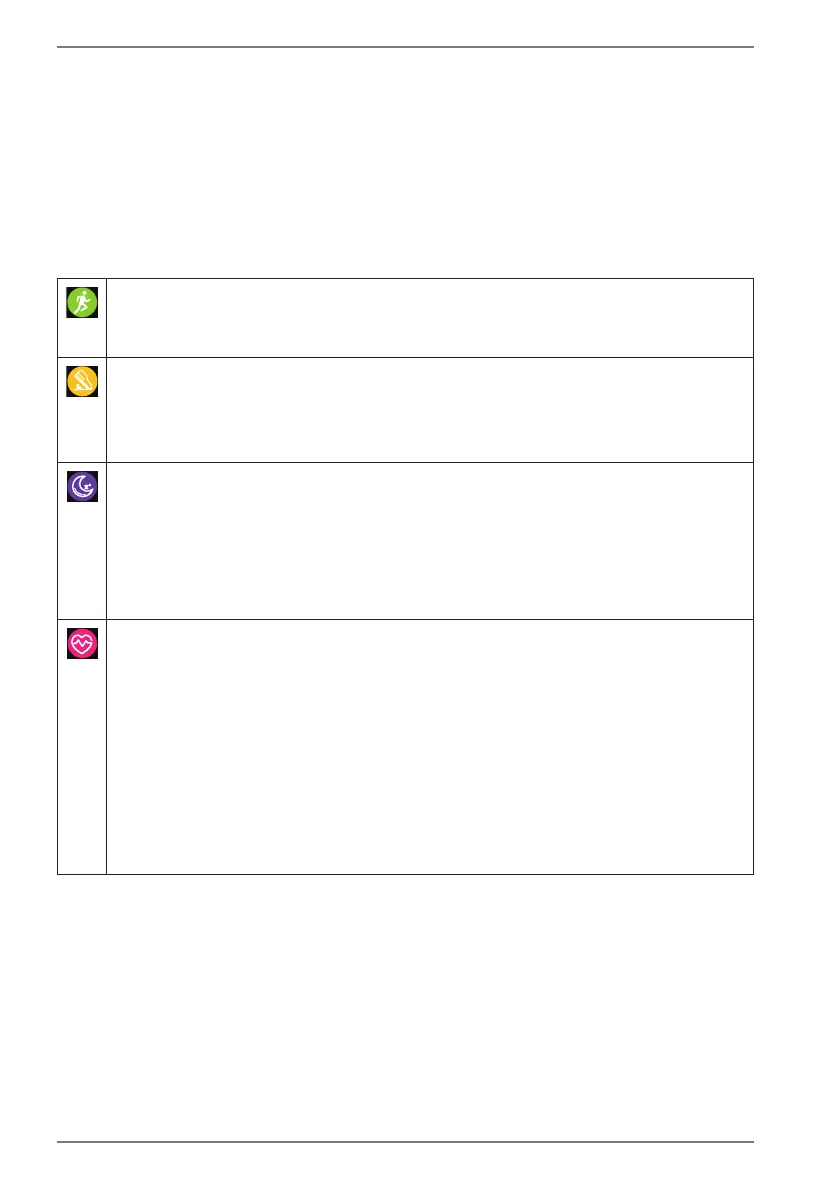
Tap this menu item to select a sport type or to define a training goal
and to start an Activity recording (see “9.1. Activity recording” on page
51).
Tap this menu item to view your Step count data. Alternatively, starting
on the home screen swipe upwards on the display once to access the
step count view.
Tap the data view to display the daily diagram view.
Tap this menu item to view your Sleep data.
Alternatively, starting on the home screen swipe upwards on the display
four times to access the sleep data view.
The total sleep duration and the duration of deep and light sleep phases is
displayed.
Tap the data view to display the weekly diagram view.
Tap this menu item to open the Heart rate view. Alternatively, starting
on the home screen swipe upwards on the display three times to access
the heart rate view.
A current heart rate measurement starts automatically. The pulsing heart
displays the current measuring process.
The most recent measured value including the date and time of the
measurement are displayed beneath the current measurement.
Once the measurement has finished, the calculated value is shown
automatically.
Tap the view to display the last 7 measurements in the diagram view.


 To Next Page