50
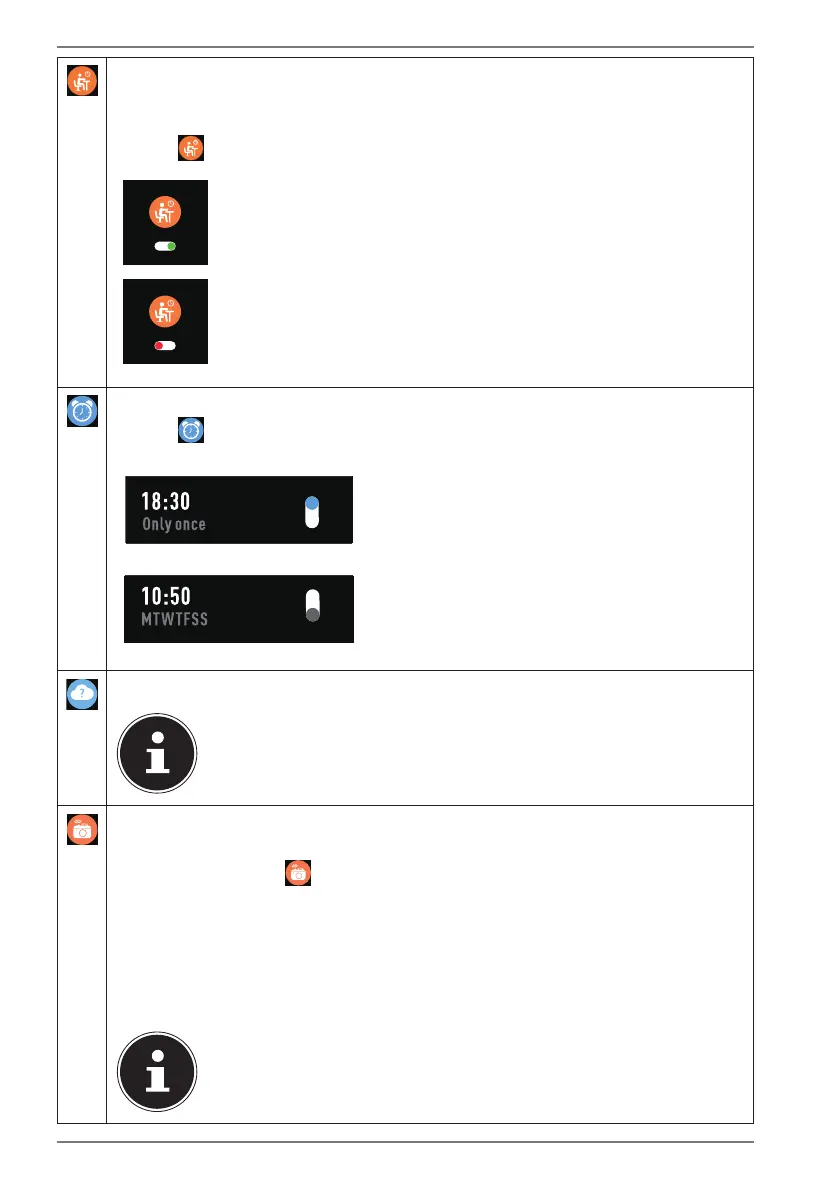
To receive a reminder to take a short break during longer periods of
inactivity, for example, you can set a Movement reminder using the
MEDION® Fitness app:
Tap
to view the status of a movement reminder set using the app:
Movement reminder enabled
Movement reminder disabled
You can set one or more Alarms using the MEDION® Fitness app.
Tap to view and switch on/off alarms set using the app.
Alarm switched on
Alarm switched off
Tap here to display current weather data on the fitness watch.
An active Bluetooth connection with the app and an active
internet connection on your smartphone/tablet PC is required
in order to use this function.
You can control the release of your smartphone or tablet camera using your
fitness watch using the camera Remote release function.
In the menu, tap to open the remote release function on the fitness
watch.
The camera menu on your smartphone/tablet now opens automatically.
Point the camera lens at the desired subject.
On the fitness watch, tap the camera symbol to take a photograph on
the smartphone/tablet.
The fitness watch and the smartphone/tablet PC or the MEDION
Fitness app must be connected via Bluetooth to be able to use
this function. In addition, you must first grant the app the
required permissions for access to the camera and media files.


 To Next Page