MegaPoints servo controller Revision 24 April 2016
www.loolee.org Page: 10
Switch connection
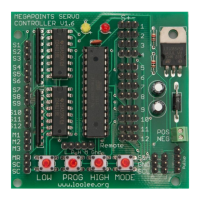
Connect a single wire from a toggle switch or lever to the single connector posts on the left side of
the board (labelled 1 – 12).
Connect a common connection to the SC connector on the lower left of the board.
When the switch cable is pulled low to the supply voltage the servo will move to the opposite end of
its motion. Disconnecting or breaking the connection will cause the servo to move back.
Using the memory function
Before storing a memory, set your points into the position you want to memorise.
1. Press and hold down a memory button (M1 – M3) for two seconds (you’ll see the red light
flash on the MegaPoints Servo Controller board to indicate the memory has been stored).
2. Move the points into a different position using the switch panel.
3. Momentarily press the memory button and observe the points take up the pre-set position.
4. While a memory is active, the RED light will illuminate continuously on the MegaPoints
controller board.
5. To deactivate a memory and go back to normal switches on the panel, momentarily press
the MR button. The RED led will extinguish.
6. To overwrite a memory, repeat the procedure above.
Input selection
This section explains how to change from switch input to network input and back. Only one mode
can be active at a time.
Setting up a master (switches)
Master mode is the default mode and will read the inputs from the switches connected to the S1 –
S12 connectors. This mode should be selected when the MegaPoints Servo Controller operates
standalone.
To configure a MegaPoints Servo Controller as a master unit, press and hold the HIGH button while
turning the power on. The RED led will flash five times to indicate it is in master mode. This is the
default mode.
Setting up a slave (network)
Slave mode should be selected when the MegaPoints Servo Controller receives commands via the
network connector such as when connecting to a DCC module or MultiPanel.
To configure a MegaPoints Servo Controller as a slave unit, press and hold the LOW button while
turning the power on. Both LEDs will flash against each other for a few seconds when the controller
is powered on to indicate the unit is in slave mode.
Clearing slave mode
Hold the HIGH button during power on to return the unit to master mode.


 To Next Page