currently displayed distribution board.
4. Select the required circuit number by pressing the
RCL
up or down keys. The circuit numbers are shown in
numerical order. Hold a key down to auto-repeat. A long
bleep is sounded when the end of the list is reached.
5. Press the
EXIT key to return to the distribution board
selection screen, or press the
DISPLAY key to show the
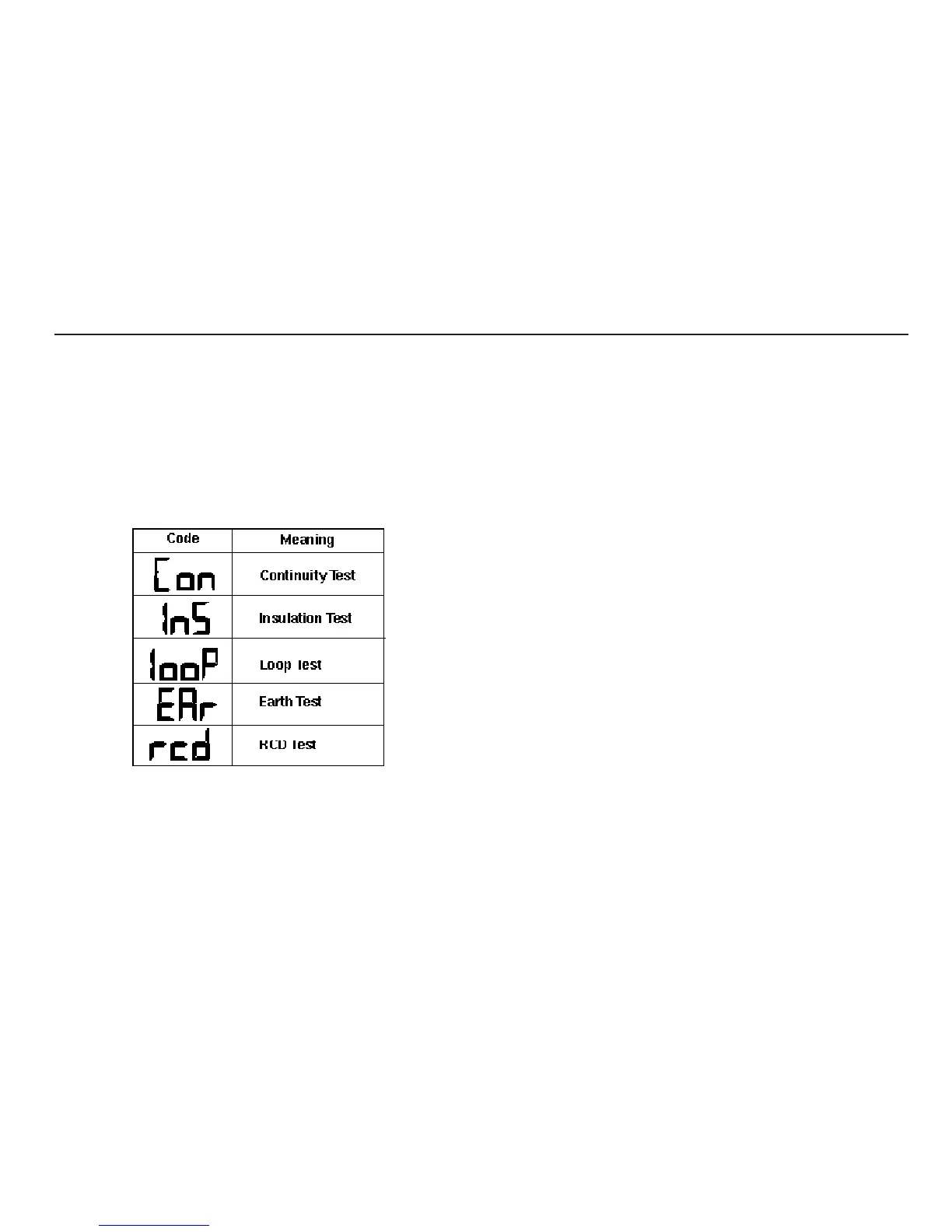
stored test codes.The following codes are used to identify
test results:-
6. Select the required test by pressing the
RCL up or down
keys. The tests are shown in the above order. Hold a key
down to auto-repeat. A long bleep is sounded when the end
of the list is reached.
7. Press the
EXIT key to return to the circuit number selection
screen, or press the
DISPLAY key to scroll through the
stored test results, together with any additional connection
information.
Download to PC
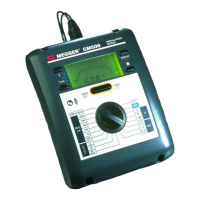
The CM500 has been designed to be used with AVO
PowerSuite for Windows which will accept the test results and
enable the production of various certificates, including
Periodic,
Inspection, and Completion.
The
CM500 Setup disk supplied with the instrument also
contains the
cm500dld program.This enables stored results to
be downloaded, the creation of simple test reports, and to import
data into
PowerSuite at a later time.
To use the disk program:-
1. Connect the
CM500 to the PC by serial lead.
2. Copy the file
cm500dld.exe onto the PC hard disk.
3. Run the program and follow the on-screen instructions.
29


 To Next Page