EasyManua.ls Logo

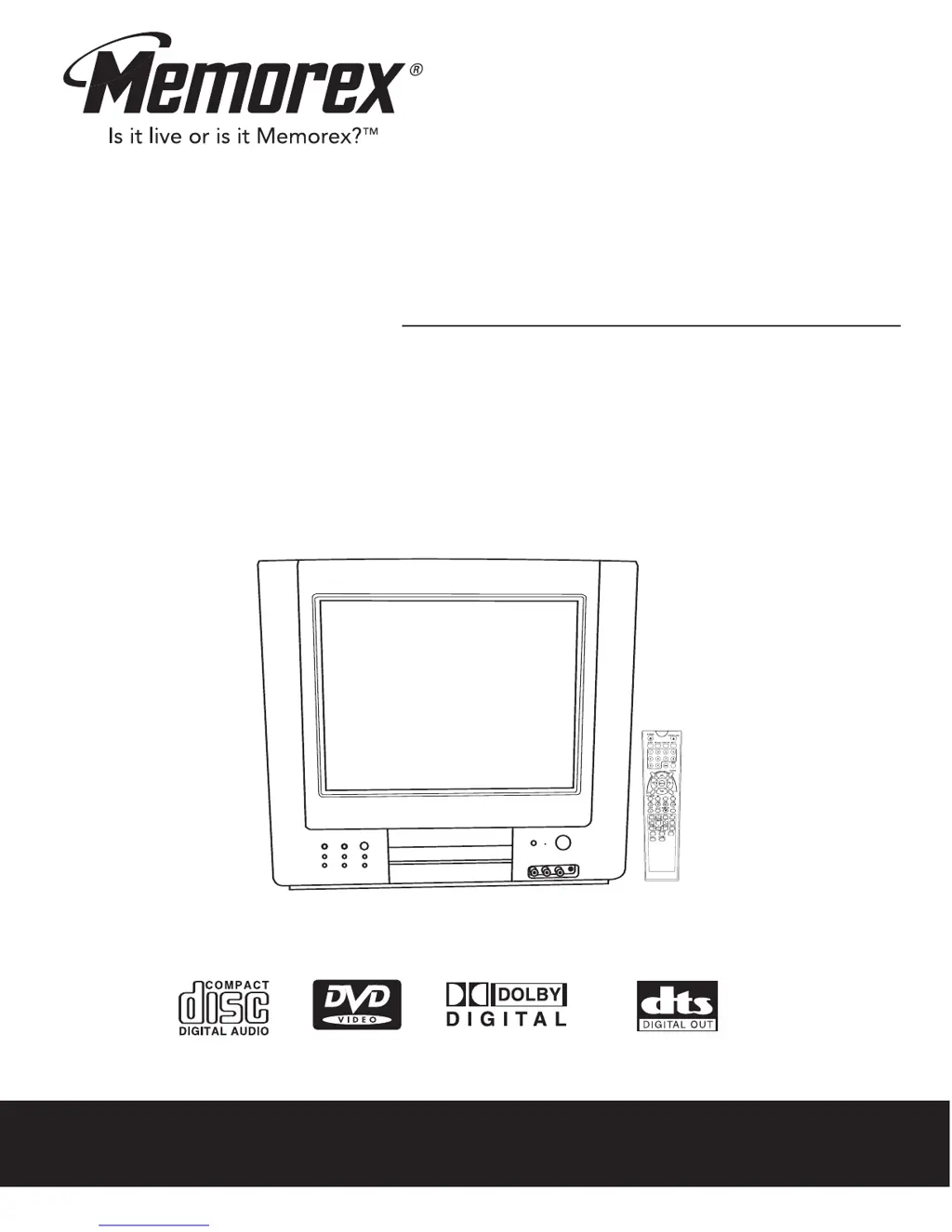
Memorex MVD1402 - User Manual

Memorex MVD1402
54 pages
Print Icon
To Next Page IconTo Next Page
Loading...
Before operating this product,
please read these instructions completely.
User’s Guide
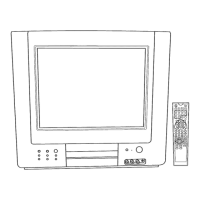
14" COLOR TV WITH DVD PLAYER
MVD1402

Table of Contents

Other manuals for Memorex MVD1402

Questions and Answers

  • S
    steinjeremyAug 20, 2025
    Why is my Memorex TV DVD Combo remote control not working?
    • J
      John HardyAug 20, 2025
      There are several reasons why the remote control might not be working: * The batteries may be weak or dead: Install fresh batteries. * The batteries may not be installed properly: Install batteries according to the diagram. * The remote may not be aimed at the sensor: Aim the remote at the sensor. * The distance may be too far or there is too much light in the room: Operate within 20ft, or reduce the light in the room. * There may be an obstacle in the path of the beam: Move the obstacle.
  • D
    David RomeroAug 22, 2025
    What to do if there is no picture on my Memorex MVD1402 TV DVD Combo?
    • J
      Jason BennettAug 22, 2025
      If there's no picture on your Memorex TV DVD Combo, consider these potential causes: * The equipment is not connected properly: Connect the equipment according to the instructions. * The INPUT of the TV is not set to receive the DVD signal output: Press the TV/DVD button to select TV, then press the TV/AV button to select DVD. * The video cables (if using an external unit) are not securely connected: Connect the video cables securely. * The connected external TV power is off: Turn the TV on.
  • S
    Sara SanchezAug 25, 2025
    Why is there no sound coming from my Memorex MVD1402 TV DVD Combo?
    • A
      Angel RodriguezAug 25, 2025
      If you're experiencing a lack of sound, here are a few things to check: * The equipment is not connected properly: Connect the equipment according to the instructions. * The external equipment connected with the audio cable is not set to receive the DVD signal input: Select the appropriate audio input mode. * The audio cables (if using an external unit) are not securely connected: Connect the audio cables securely. * The connected receiver’s power is off: Turn the audio receiver on.
  • D
    David TownsendAug 26, 2025
    How to fix a Memorex MVD1402 that has no power?
    • B
      brownmckenzieAug 26, 2025
      If your Memorex TV DVD Combo has no power, the AC cord might be unplugged. Plug the AC cord into an AC outlet.
  • S
    Stephen DuarteAug 28, 2025
    What to do if my Memorex MVD1402 does not start playback?
    • C
      Christopher WebbAug 28, 2025
      If your Memorex TV DVD Combo doesn't start playback, consider the following: * The rating level may be set to block the DVD: Enter your password, and/or change the rating level. * The DVD may not be inserted, or inserted upside-down: Insert DVD correctly. * DVD is not selected: Press the TV/DVD button to select the DVD mode. * The disc is not placed in the guide: Place the disc on the disc tray correctly inside the guide. * The disc is dirty: Clean the disc.
  • S
    Steven GonzalezAug 30, 2025
    What to do if my Memorex MVD1402 power is on, but the unit is not functioning properly?
    • F
      fjohnsonAug 30, 2025
      If your Memorex TV DVD Combo is powered on but not functioning correctly, here are some possible solutions: * Condensation has formed: Unplug the unit and wait about one to two hours to allow the player to dry. * Wrong type of disc inserted: This unit cannot play discs other than DVD, VCD, or standard CDs. * Unit needs to be reset: Press the POWER button, then unplug the AC cord. Wait one minute and then plug the unit back in. * The disc is dirty or inserted incorrectly: Clean disc and insert label side-up. * Some features and functions are not available on all discs: This is normal; try another function.
  • X
    Xavier BuckleySep 1, 2025
    How do I adjust the picture size on my Memorex MVD1402?
    • E
      elizabeth52Sep 1, 2025
      If the picture isn't fitting properly on your Memorex TV DVD Combo, the wrong menu option might be selected in the General Setup Menu. Select the TV type (4:3PS, 4:3LB, 16:9) which matches the external TV used.
  • D
    Dustin JonesSep 3, 2025
    How do I fix a rolling playback picture on my Memorex TV DVD Combo?
    • S
      Sarah WoodsSep 3, 2025
      If the playback picture rolls on your Memorex TV DVD Combo, the unit may need to be reset to NTSC. Set the menu option to NTSC.
  • N
    nathan08Sep 5, 2025
    Why are subtitles not working on my Memorex MVD1402?
    • P
      parksshaneSep 5, 2025
      If subtitles are not working properly on your Memorex TV DVD Combo: * Subtitles appear only when the discs contain them: This is normal; try another disc. * Subtitles not turned on: Turn the subtitles on.
  • F
    Felicia JohnsonSep 7, 2025
    Why is the playback picture quality poor on my Memorex MVD1402 TV DVD Combo?
    • D
      Daniel DavisSep 7, 2025
      If the playback picture quality is poor on your Memorex TV DVD Combo, the disc might be dirty. Clean the disc.

Summary

Important Safety Instructions

Electrical Safety and Warnings

Cautions regarding electric shock, opening the enclosure, and voltage hazards.

Laser System and Environmental Safety

Warnings about laser exposure and protecting the unit from moisture.

FCC Compliance and Warnings

Notices related to radio frequency energy and interference regulations.

General Operating and Safety Guidelines

Instruction Adherence and Cleaning

Following instructions, safe cleaning methods, and using approved attachments.

Ventilation and Power Sources

Ensuring proper airflow and operating from the correct power supply.

Grounding, Polarization, and Protection

Safety features like polarized plugs, cord protection, and lightning protection.

General Operating and Safety Guidelines (Continued)

Outdoor Antenna Grounding

Guidelines for grounding antenna systems to prevent surge damage.

Servicing, Parts, and Damage

Instructions for service, replacement parts, safety checks, and damage assessment.

Heat and Cable System Notes

Placement away from heat sources and notes for CATV system installers.

Precautions and Power

Handling and Placement Precautions

Offers guidance on handling, locating, cleaning, and managing moisture for optimal product performance.

Power Source Connection

Details on connecting the unit to a 120V, 60Hz AC outlet.

Location of Controls

Front Panel Controls

Identification and function of controls on the front of the unit.

Rear Panel Connections

Identification of input/output jacks on the rear of the unit.

Remote Control Functions

Remote Button Identification

Explains the purpose of each button on the remote control.

Remote Control Setup and Use

Battery Installation and Precautions

Guidance on installing batteries and precautions for their use.

Remote Transmitter Range and Conditions

Factors affecting remote control operation distance and stability.

External Unit Connections

Antenna and Front A;V Connections

Connecting outdoor antennas and front A/V sources like camcorders.

External Unit Connections (Continued)

Cable and Satellite Connections

Connecting cable TV or satellite services with/without a converter.

External Unit Connections (Continued)

Coaxial Cable Connection

Connecting external units using a 75 ohm coaxial cable.

Audio;Video Cables Connection

Connecting external units using audio and video cables.

External Unit Connections (Continued)

Component Y;CB;CR Jacks Connection

Connecting component video sources to the unit.

Audio;Video Out Jacks Connection

Connecting the unit's audio/video outputs to external speakers.

External Unit Connections (Continued)

Coaxial Jack Audio Output Setup

Connecting to an external audio system via coaxial jack for surround sound.

About Discs

Playable Disc Types and Formats

Information on compatible disc formats like DVD, Audio CD, and Kodak Picture CD.

Disc Information and Copyright

Copyright and Region Management

Legal notes on copyright and DVD region code restrictions.

TV Menu Settings

Video and Audio Setup

Adjusting picture and sound settings via the TV menu.

TV Menu Settings (Continued)

Clock and Timer Settings

Setting the current time and configuring timers for power on/off.

TV Menu Settings (Continued)

On Timer and Off Timer Setup

Specific setup for setting the unit to turn on or off at a scheduled time.

TV Menu Settings (Continued)

Sleep and Remind Timer Setup

Configuring sleep timer for automatic shut-off and remind timer for channel changes.

TV Menu Settings (Continued)

System Setup: Language and Display

Configuring language, background, VNR, captions, and demo mode.

TV Menu Settings (Continued)

Video Noise Reduction and Fade Settings

Adjusting VNR for picture quality and Fade for display behavior.

TV Menu Settings (Continued)

Closed Captions and Demo Mode

Enabling closed captions and activating the product demonstration mode.

TV Menu Settings (Continued)

Channel Setup and Tuning

Setting channel system, fine-tuning, and auto-programming channels.

TV Menu Settings (Continued)

Channel Memory Management

Programming channels into memory for quick access and skipping.

TV Menu Settings (Continued)

Adding and Deleting Channels

Managing programmed channels by adding or skipping them.

TV Menu Settings (Continued)

Calendar Setup Menu

Setting the date and time for the unit's calendar function.

TV Parental Control

Parental Control Setup

Initial setup for V-Chip and entering the parental password.

TV Parental Control (Continued)

TV Rating Adjustment

Blocking content based on TV program ratings and criteria.

TV Parental Control (Continued)

MPAA Rating Adjustment

Blocking content based on movie ratings (MPAA) and content descriptors.

TV Parental Control (Continued)

Lock Menu Options

Locking AV inputs or specific channels for parental control.

DVD Menu Settings

General DVD Setup

Configuring display, language, sound output, captions, and screen saver.

DVD Menu Settings (Continued)

DVD Parental Control Setup

Setting parental restrictions for DVD playback based on ratings.

DVD Menu Settings (Continued)

DVD Parental Control Password and Defaults

Changing the parental control password and resetting DVD defaults.

Basic Operation - TV

Display, Mute, and Mode Selection

Using display, mute, switching between TV/AV/DVD modes.

Volume Control and Picture Settings

Adjusting volume and selecting picture standards.

Basic Operation - TV (Continued)

Calendar and Time Settings

Accessing calendar and time settings, noting DVD mode limitations.

Volume Adjustment

Adjusting the sound level using the volume buttons.

TV Basic Operation

Power On and TV Mode Selection

Turning the unit on and switching to TV mode.

Volume and Channel Control

Adjusting volume and selecting channels via buttons or direct input.

TV Basic Operation (Continued)

Scan and Recall Functions

Scanning for channels and switching between current and previous channels.

Closed Captions

Understanding and Viewing Captions

How closed captions work, display modes, and troubleshooting caption display.

DVD Basic Operation - General

Audio Mode and DVD Call Button

Cycling through audio languages and displaying disc playback information.

Mute Function

Temporarily silencing the audio output of the unit.

DVD Basic Operation - General (Continued)

DVD Playback Controls

Starting, stopping, resuming, and navigating DVD playback.

DVD Basic Operation - General (Continued)

Skip, Fast Search, and Slow Motion

Navigating chapters, fast-forwarding, rewinding, and slow-motion playback.

Pause and Step Functions

Pausing playback and advancing frame-by-frame.

DVD Basic Operation - General (Continued)

Title;Chapter;Time Search

Directly accessing specific titles, chapters, or time points on a DVD.

Repeat Playback Modes

Repeating a single track, title, folder, or the entire disc.

DVD Basic Operation - General (Continued)

Audio Language and Subtitle Menu

Selecting audio tracks and subtitle languages available on the DVD.

DVD Menu Navigation

Accessing and navigating the main and title menus of a DVD.

Zoom and Angle Functions

Magnifying the picture and selecting different camera angles.

DVD Basic Operation - General (Continued)

Programmed Playback

Creating custom playback sequences of chapters or titles.

CD;VCD Basic Operation

Playback and Track Selection

Playing CDs/VCDs and selecting tracks using skip, numbers, or navigation.

CD;VCD Basic Operation (Continued)

Forward;Reverse Search

Fast-forwarding and rewinding through tracks.

Single Track and Repeat Play

Playing a single track or repeating tracks/folders/discs.

Repeat A-B Playback

Setting specific start and end points for continuous playback.

PBC Function and Audio Modes

Understanding VCD PBC and cycling through audio modes.

CD;VCD Basic Operation (Continued)

Programmed Playback (VCD Only)

Creating custom playback sequences for VCDs.

Picture CD Basic Operation

Picture CD Playback and Navigation

Loading and navigating Picture CDs, selecting and playing photos.

Troubleshooting Guide

General Troubleshooting

Solutions for common issues like no power, no picture, or no sound.

Troubleshooting Guide (Continued)

DVD and VCD Troubleshooting

Solutions for DVD playback issues, language, subtitles, and VCD playback.

Care and Maintenance

Disc Handling and Cleaning

Proper methods for handling, cleaning, and storing discs.

Cleaning the Unit

Guidelines for cleaning the exterior of the television and DVD player.

Specifications

Memorex MVD1402 Specifications

General IconGeneral
Aspect Ratio4:3
InputsComposite Video
OutputsComposite Video, Headphone
Power SourceAC 120V, 60 Hz
Screen Size14 inches
Weight13.2 lbs
Remote ControlIncluded
Supported DVD FormatsCD, CD-R

Related product manuals