EasyManua.ls Logo

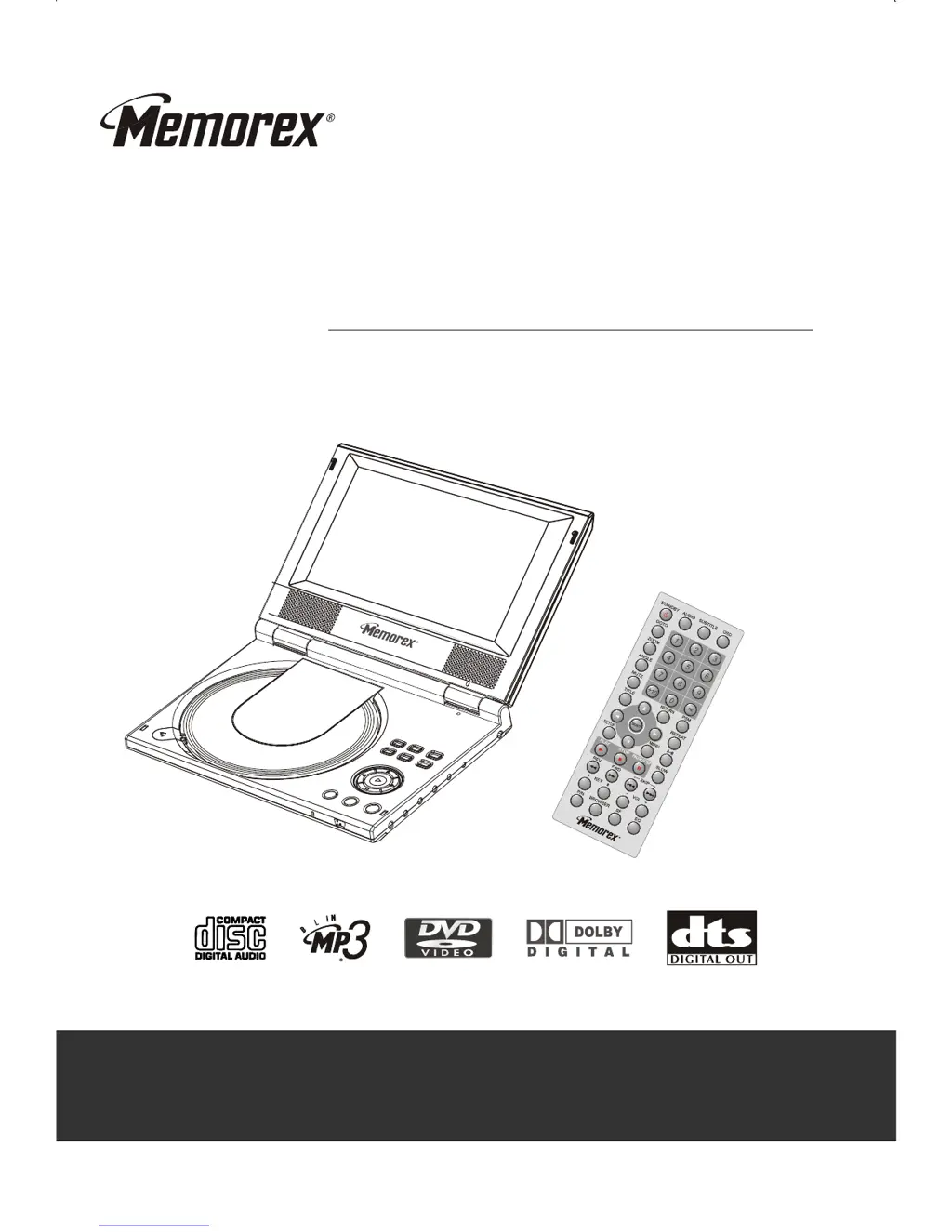
Memorex MVDP1072 - User Manual

Memorex MVDP1072
52 pages
Print Icon
To Next Page IconTo Next Page
Loading...
Is it live or is it Memorex?
TM
MVDP1072
User’s Guide
PORTABLE DVD/VCD/MP3/PHOTO CD Player
D
E
C
O
D
E
R
U
I
T
-
Before operating this product,
please read these instructions completely.

Questions and Answers

  • K
    Kevin BentonAug 12, 2025
    Why is there no sound on my Memorex MVDP1072 Portable DVD Player?
    • J
      John McintoshAug 12, 2025
      There could be several reasons for the lack of sound. First, ensure the signal is securely connected. If that's not the issue, the disc might be warped or dirty, so try cleaning it. Also, check if the player is muted and, if so, press the MUTE button again.
  • C
    courtney93Aug 15, 2025
    What to do if my Memorex MVDP1072 Portable DVD Player has no picture?
    • R
      Ronald CostaAug 16, 2025
      If you're not getting any picture, start by checking that the signal is securely connected. If the connection is good, verify that your TV is set to the correct AV/TV status.
  • J
    Joshua VillegasAug 19, 2025
    Why is my Memorex MVDP1072 Portable DVD Player not reading the disc?
    • D
      Daniel MarshallAug 20, 2025
      If your player isn't reading discs, first make sure a disc is actually loaded. If it is, try reloading the disc with the label side facing up. If it still doesn't work, there might be condensation on the laser head. In that case, turn on the player, unload the disc, and leave it on for about an hour.
  • D
    deckertylerAug 23, 2025
    Why is there no color on my Memorex Portable DVD Player?
    • V
      Vanessa EvansAug 23, 2025
      If you're experiencing a lack of color, it might be due to the TV system not being correctly set. Try pressing the P/N button on the remote control to set the system. Alternatively, the color settings on your TV might need adjustment; readjust the color on your TV set.
  • M
    morandavidAug 27, 2025
    What to do if Memorex MVDP1072 Portable DVD Player remote control failure?
    • S
      shanehicksAug 27, 2025
      If the remote control isn't working, ensure that it's pointed directly at the sensor window on the player and that you are using the remote control properly. Also, make sure you're within 8 meters of the player. If the issue persists, try replacing the remote's batteries.
  • J
    jerrycohenAug 31, 2025
    Why does my Memorex MVDP1072 Portable DVD Player have too much interference strips on image?
    • D
      Donna BlankenshipAug 31, 2025
      Too much interference strips on the image may appear when the rechargeable battery is low, so you should recharge the battery. Also you can use the power adapter.
  • M
    Michael KochSep 4, 2025
    What to do if my Memorex MVDP1072 Portable DVD Player has temporary function failure?
    • M
      Mark West MDSep 4, 2025
      If you're experiencing a temporary function failure, it could be due to a mal-fabricated disc. Wait for 5 to 10 seconds, and the player should restore normal functions. It could also be due to pressing the wrong buttons, so try pressing other buttons. Finally, foreign static electricity leaks inside the enclosure can cause this problem. Restart the player after powering it off for 1 to 2 minutes.
  • B
    Brittany SimmonsSep 7, 2025
    Why is the picture rolling on my Memorex MVDP1072?
    • Y
      yhenrySep 8, 2025
      If the picture is rolling, it's likely that your TV set system is not properly adjusted. Try readjusting the system on your TV set.

Summary

Important Safety Instructions

Safety Guidelines

Provides essential guidelines for safe operation and handling of the product to prevent hazards.

DVD Introduction

DVD Overview

Explains the benefits and features of DVD technology for audio-visual products.

Cautions and Handling

Unit Operation Cautions

Important precautions for operating the player, including placement, cleaning, and power.

TFT Display Precautions

Guidelines for protecting the TFT LCD screen from damage and proper usage.

Battery Pack Precautions

Safety advice regarding the rechargeable battery pack's use, charging, and disposal.

Product Features

Audio;Video Capabilities

Details the audio and video output capabilities, including LCD display and connection types.

High-Quality Digital Audio Output

Highlights the digital audio output options for connecting to advanced audio systems.

Convenient Functions

Lists extra features like screen saver, anti-shock, GUI, and parental controls.

Compatible Disc Types

Supported Disc Formats

Lists the types of discs (DVD, SVCD, VCD, CD, MP3) supported by the player.

Control Button Locations

Player Unit Controls

Identifies and explains the function of buttons and indicators on the main DVD player unit.

External Connections

Player Ports and Jacks

Details the various ports and jacks available on the player for audio and video connections.

Remote Control Functions

Remote Control Buttons

Explains the function of each button on the remote control for operating the player.

Remote Control Usage

Battery Installation and Operation

Instructions on installing the remote battery and guidelines for effective operation and range.

Power Supply and Battery

Connecting to AC Power Source

Guide on how to connect the player to a standard AC power source using the adapter.

Battery Pack Installation and Charging

Steps for installing the battery pack and indicators for charging status.

System Connections

Connecting to a TV Set

Illustrates how to connect the DVD player to a television for video and audio output.

Connecting to an Ordinary Audio System

Shows how to connect the player to an ordinary audio system or amplifier.

Connecting to Amplifier with Dolby Digital Decoder

Details connections for Dolby Digital surround sound systems.

Connecting to Amplifier with DTS Digital Decoder

Details connections for DTS digital surround sound systems.

Audio;Video Input (AUX IN)

Explains how to use the AUX IN jacks to connect external audio/video sources.

Basic Operation

Playback Control

Instructions on how to play, stop, and pause discs, including handling MP3 discs.

TV System Selection (NTSC;PAL)

Guide to setting the correct video output system (NTSC, PAL, AUTO) for your TV.

Pause and Step Playback

How to pause playback and advance frame by frame for DVDs.

On Screen Display (OSD)

How to display disc information (title, chapter, track) on the TV screen.

Volume and Key Controls

Adjusting volume and using player keys for audio control and pitch adjustment.

DVD Menu Navigation

How to navigate and select options from DVD menus using the remote.

PBC Playback Control

Using PBC functions for SVCD and VCD discs to navigate menus and tracks.

Direct Selection Playback

Selecting specific tracks or chapters using number buttons on DVDs, VCDs, and CDs.

Language and Audio Channel Selection

Choosing preferred audio languages and channels for multi-language discs.

Mute Function

How to turn the audio output on and off temporarily.

Play Operation

Fast Playback Modes

Using FWD and REV buttons for fast forward and reverse playback speeds.

Slow Playback Modes

How to achieve slow motion playback at various speeds for DVDs and VCDs.

Repeat Playback Functions

Repeating entire discs, chapters, tracks, or specific sections (A-B repeat).

Repeat Selected Section

Using the A-B function to repeat a specific segment of playback.

Subtitle Selection

Choosing desired subtitle languages from multi-language DVD discs.

Angle Selection

Switching between different camera angles recorded on DVD discs.

Playback from a Desired Point

Directly accessing specific titles, chapters, or time points for playback.

Power Spectrum Meter (PSM)

Activating and viewing the PSM graphic equalizer display.

Zooming the Displayed Frame

Magnifying or reducing the video playback frame for closer viewing.

Picture Quality Setting

Adjusting brightness, contrast, hue, and saturation for optimal picture display.

Virtual Keyboard

Using an on-screen virtual keyboard for player operations without the remote.

Browser Interface

Navigating disc content (titles, chapters, audio, subtitles) using the browser interface.

MP3 and JPEG File Playing

Playing audio files (MP3) and image files (JPEG) from discs.

Other Operating Means

JPEG File Functions

Exploring different display modes, zooming, and rotating JPEG images.

Function Setup

General Settings

Configuring TV display aspect ratio, OSD language, and screen saver.

Video Setup

Adjusting video output parameters like sharpness, brightness, contrast, hue, and saturation.

Audio Setup

Configuring audio output modes, EQ types, sound fields, and digital audio settings.

Initial Setup

Setting up TV type, PBC status, preferred audio, subtitle, and menu languages.

Parental Controls and Password

Setting parental control ratings and managing the access password.

Troubleshooting Guide

Common Issues and Solutions

Table of common problems (no sound, no picture, etc.) with their causes and corrections.

Technical Specifications

Disc and Output Specifications

Details supported disc types, audio/video output formats, and characteristics.

General and Environmental Specifications

Provides power supply, dimensions, mass, operating temperature, and humidity.

Glossary of Terms

Technical Term Definitions

Explains various technical terms related to video, audio, and disc formats.

Language Code List

Language Code Reference

A comprehensive list of codes corresponding to various languages for disc menus and audio.

Memorex MVDP1072 Specifications

General IconGeneral
BrandMemorex
ModelMVDP1072
CategoryPortable DVD Player
LanguageEnglish

Related product manuals