58
1
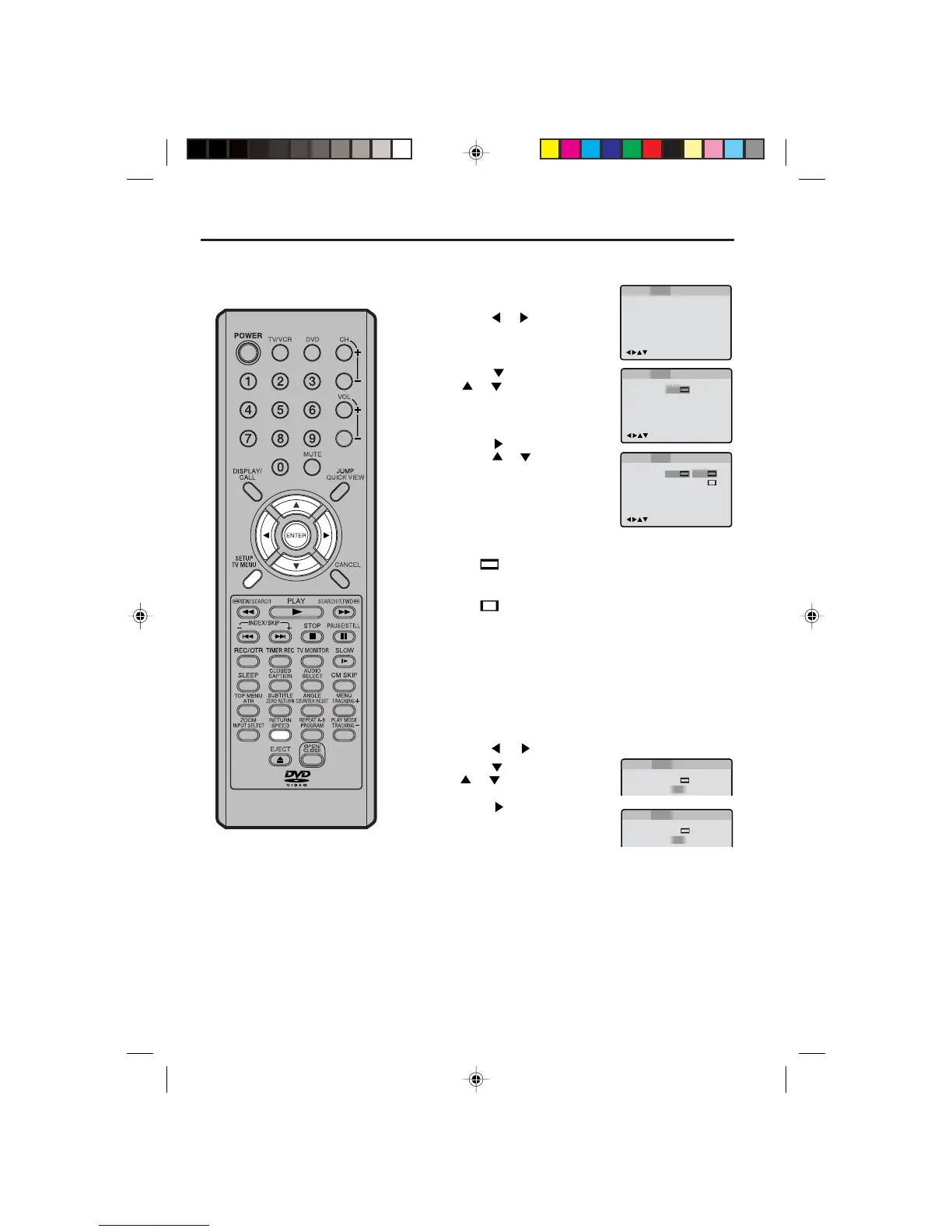
Press SETUP in the stop mode
or No Disc.
Press
or to select “Picture”.
2
Press or ENTER, then press
or to select “Tv Screen”.
3
Press or ENTER.
Press
or to select your de-
sired screen type, then press
ENTER.
You have the following screen sizes to choose from:
4:3
Letter box
When playing back a wide screen-DVD disc, it displays the
wide picture with black bands at the top and bottom of screen.
4:3 Pans can
It displays the wide picture on the whole screen with left
and right edges automatically cut off.
4
Press SETUP or RETURN to remove the Menu screen.
Setting the aspect ratio of TV screen/Setting on screen display
NOTE:
If the DVD disc is not formatted in the pan
& scan style, it displays 4:3 style.
Setting the aspect ratio of TV screen
You can select the aspect ratio of the picture.
1
Press SETUP in the stop mode or No Disc.
Press
or to select “Picture”.
2
Press or ENTER, then press
or to select “Display”.
3
Press or ENTER to select
“On” or “Off”.
On: On screen displays
appear when you press the buttons (factory setting).
Off: On screen displays do not appear when you press
any buttons except SETUP, SEARCH MODE, PLAY
MODE and DISPLAY.
4
Press SETUP or RETURN to remove the MENU screen.
Status on screen display
On screen display can be switched on or off when you press
the DISPLAY button.
/Enter/Setup/Return
Language Picture ParentalSound Other
Tv Screen
Display
JPEG interval
Select Files
On
4:3
4:3
4:3
/Enter/Setup/Return
Language Picture ParentalSound Other
Off
All
Tv Screen
Display
Language Picture Parental Other
Language Picture ParentalSound Other
4:3
Off
Tv Screen
Display
On
4:3
Language Picture Parental Other
Language Picture ParentalSound Other
5Q00401AE(58-65) 26/5/04, 10:4858


 To Next Page