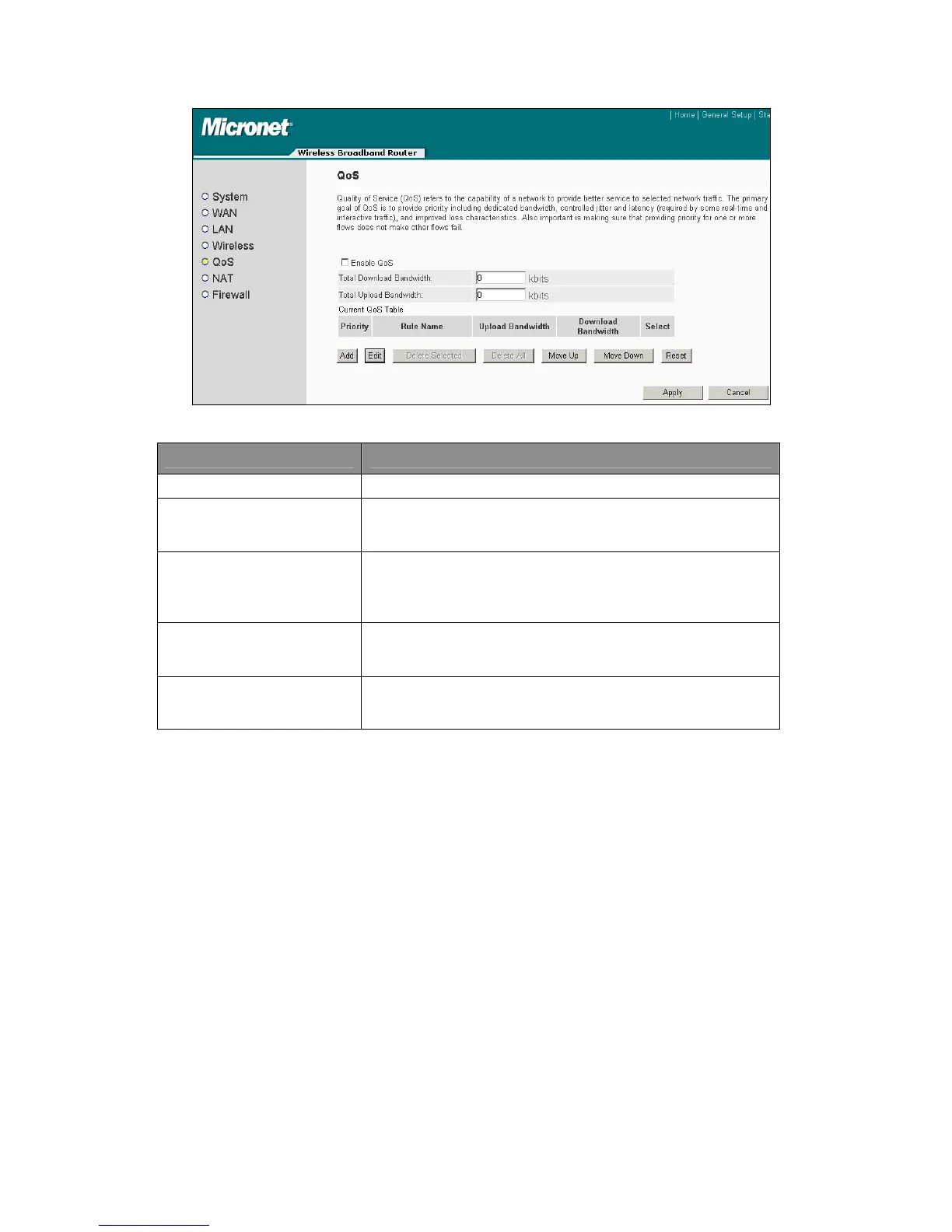
Parameter Description
Enable/Disable QoS Allow enable or disable of QoS function.
Add a QoS rule into
the table
Click <Add> to enter the form page for the QoS rule. Click
<Apply> after filling out the form and the rule will be added
into the table.
Remove QoS rules
from the table
If users want to remove a QoS rules from the table, select the
QoS rules and click <Delete Selected>. To remove all QoS
rules from the table, click <Delete All> button. Click <Reset>
will clear the current selections.
Edit a QoS rule
Select the rule to edit and click <Edit>, then it will enter the
detail form of the QoS rule. Click <Apply> after editing the
form and the rule will be saved.
Adjust QoS rule
priority
Users can select the rule and click <Move Up> to make the
priority higher. Select the rule and click <Move Down> to
make the priority lower.
4.2.5.1 Edit QoS Rule
Users can assign packet classification criteria by its local IP range, remote IP range,
traffic type, protocol, local port range and remote port range parameters. The
parameters that users leave as blank will be ignored. The priority of this rule will be
applied to packets that match classification criteria of this rule. It can limit bandwidth
consumed by packets that match this rule or guarantee bandwidth required by
packets that match this rule.
48



 To Next Page