Using Quick Calibration
Camera Calibration
3
v4.1.3, April 2012 Visionscape FrontRunner™ User’s Manual 3-11
9. Under “Select the Camera to Calibrate,” highlight (to select) a
camera.
10. Click Next.
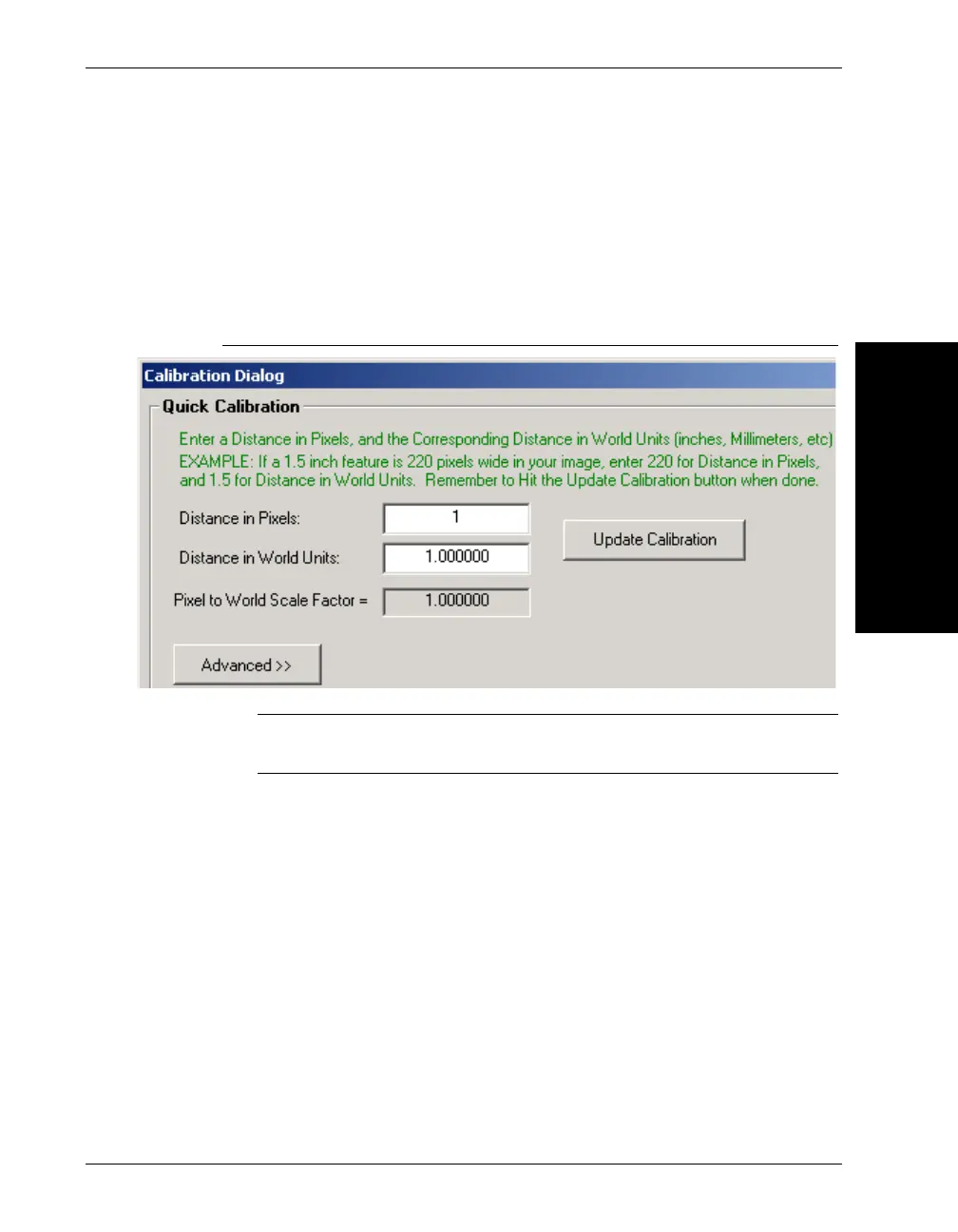
FrontRunner™ displays the screen shown in Figure 3–8.
FIGURE 3–8. Quick Calibration
Note: For information about the Advanced button, see “Advanced
Options” on page 3-13.
11. Manually enter in the scale factors that you wish to use for calibration.
As the instructions at the top of the page indicate, simply enter a
distance in pixels, and then a corresponding distance in world units
(inches, millimeters, etc.) and click Update Calibration. For example,
say you've taken a picture of the part that you wish to inspect, and
you know that this part is 2 inches wide. By positioning an ROI over
that part, or by using the mouse, you might determine that the part is
240 pixels wide in your image. So, you would enter “240” in the
“Distance in Pixels” text box, and you would enter “2” in the “Distance
in World Units” text box. After clicking Update Calibration, the “Pixel
to World Scale Factor” is updated to show you the scale factor that is
used to convert pixel values to world values. This scale factor is



 To Next Page