Chapter 2 FrontRunner™
2-46 Visionscape FrontRunner™ User’s Manual v4.1.3, April 2012
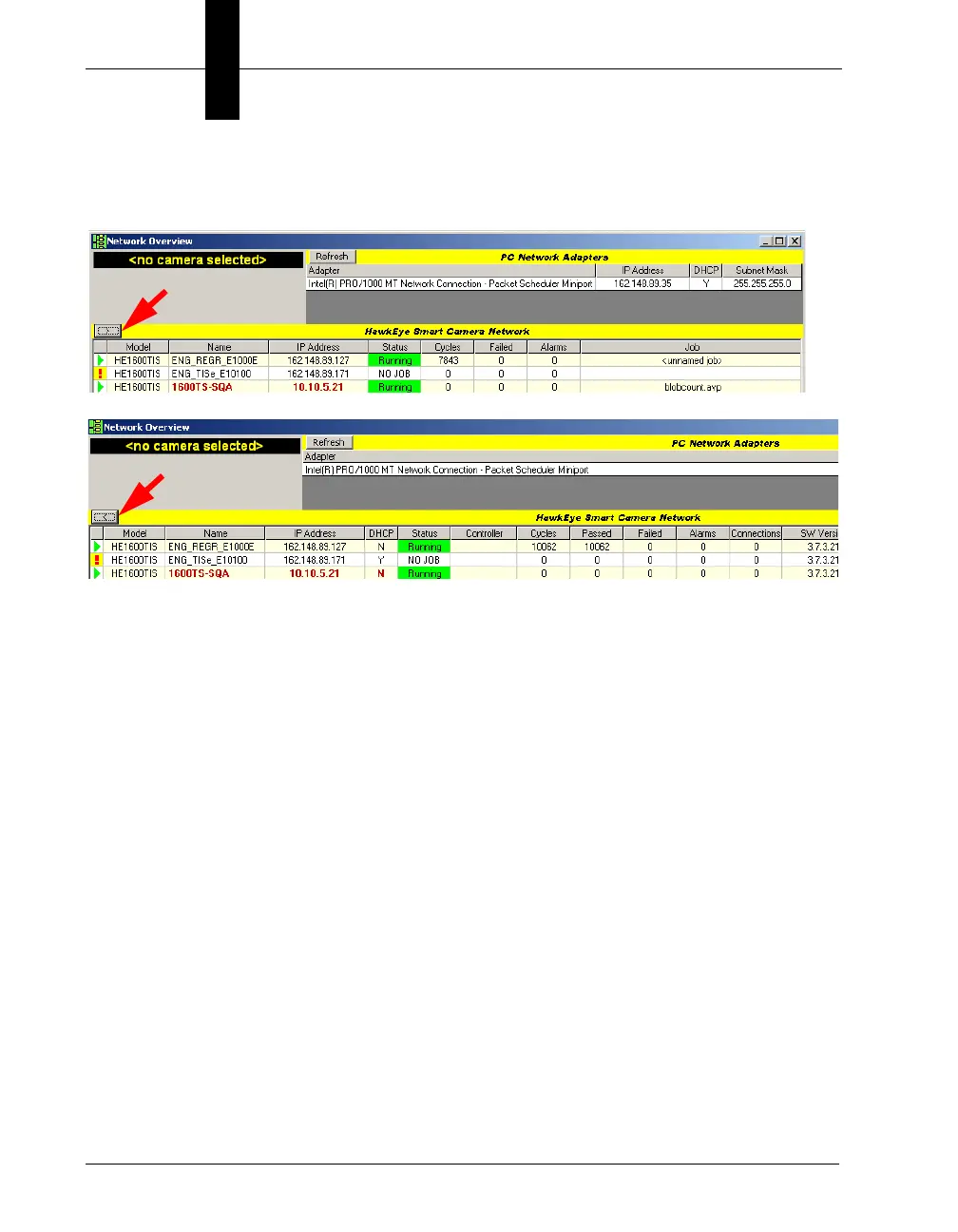
• From the deskstop, select Start > Programs > Microscan Visionscape
> Tools > Visionscape Network Browser.
The Network Overview window lists PC adapters and Smart Cameras on
the network that the client PC can reach.
• Black text in the Name indicates that the client PC can reach a Smart
Camera and connect to it.
• Red text in the Name indicates that the client PC can reach a Smart
Camera but cannot connect to it. Such a device is on the same
physical network as the client but its IP settings ( IP address and
network mask) are incompatible with the client PC, preventing any
point-to-point TCP communication link.
• You can adjust the width of columns (one at a time).
• Your can sort data by clicking on a column heading.
The Network Overview window displays information about GigE Cameras
and Smart Cameras on the network (notice the < and >):
• Model — Is one of the following:
– VS-1 Smart Camera (can only monitor; Jobs cannot be
downloaded using Visionscape
®
V4.1.)
– VS-1 Smart Camera standard resolution
Click to display
more info
Click to display
less info



 To Next Page