Note:
1) The time of each task cannot be overlapped. Up to 10 tasks can be configured for each day.
2) The Scheduled Tasks function is prior to Auto Home function. When these two functions are
set at the same time, only the Scheduled Tasks function takes effect.
3) You can click button to select or close all schedule of different kinds of tasks.
Auto Tracking
PTZ series cameras support to track the moving objects automatically after you configure this
function.
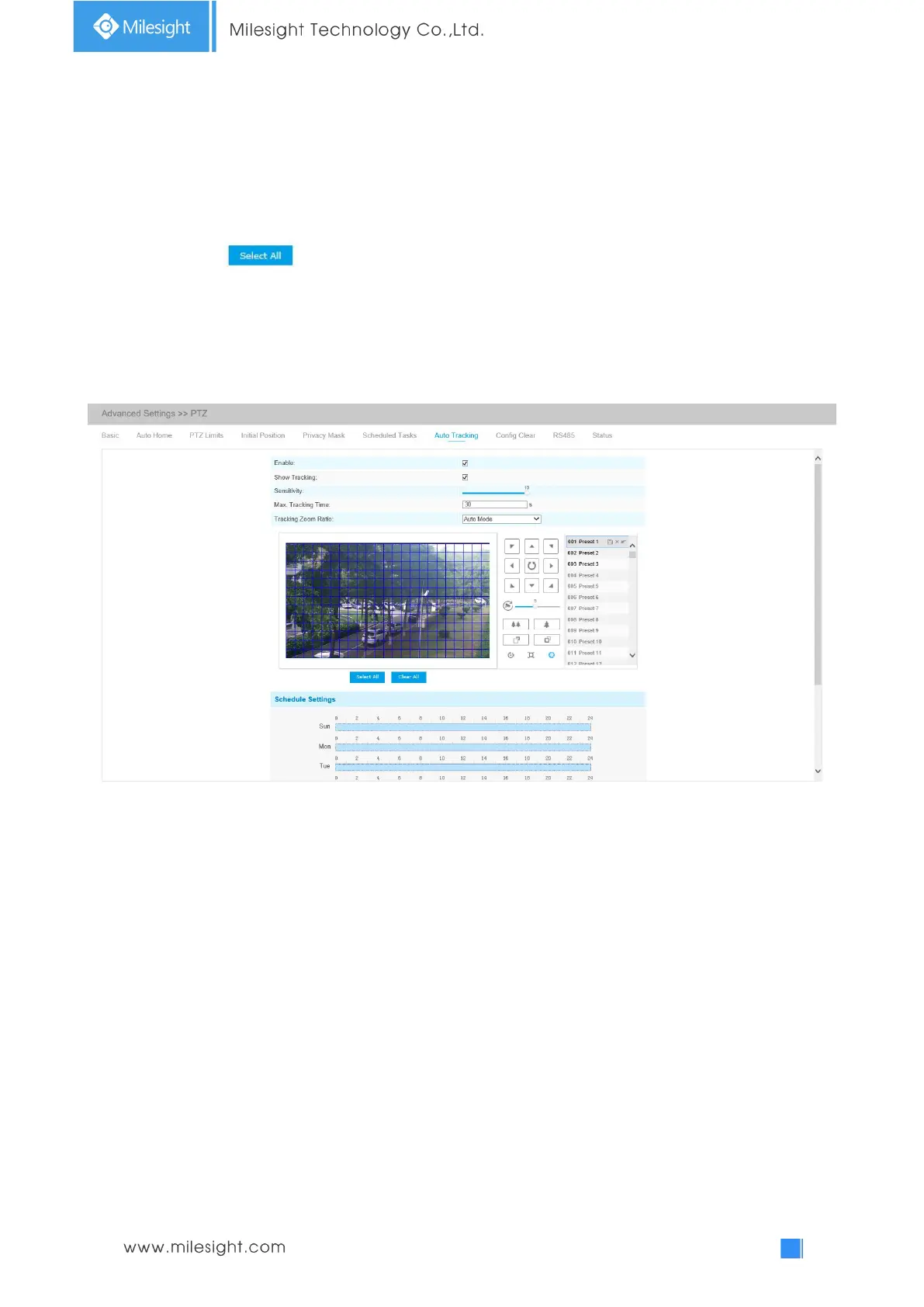
Step1: Check the checkbox to enable Auto Tracking;
Step2: Enable “Show Tracking” to show tracking in Auto Tracking function.
Step3: Set detecting sensitivity;
Step4: Set Max. Tracking Time which must be between 5~300s. The camera will stop tracking when
the tracking time is used up.
Step5: Set Tracking Zoom Ratio including Auto Mode and Customize. The camera will automatically
adjust tracking zoom ratio when Auto Mode is chosen. When Customize is chosen, user needs to
set the tracking zoom ratio first by adjusting zoom button, then camera will automatically track the
moving objects according to customized tracking zoom ratio and the object's proportion in the
picture at the moment. At the same time, the object will always keep the same proportion in the
picture during the tracking process.
Step6: Set Auto Tracking schedule.
Step7: Draw the screen to set the detection region.
Step8: Set Auto Tracking Schedule.
Note: Please turn off Auto Home before using Auto Tracking.



 To Next Page