Step3: Set entrance detection region. If you choose Normal Mode, it supports configuring the
detection region for the current area. If you choose Advanced Mode (Only for PTZ series), it
supports configuring the detection region for different PTZ presets (Only support Preset 1~4 so
far);
Step4: Set object size limits;
Table 4-6-5 Description of the button
Draw the screen or input pixel number to set the minimum size of the
detected object. When the object is smaller than this size, it will not be
detected. The default minimum size is 3*3.
Draw the screen or input pixel number to set the maximum size of the
detected object. When the object is larger than this size, it will not be
detected. The default maximum size is 320*240.
Step5: Set Entrance Detection;
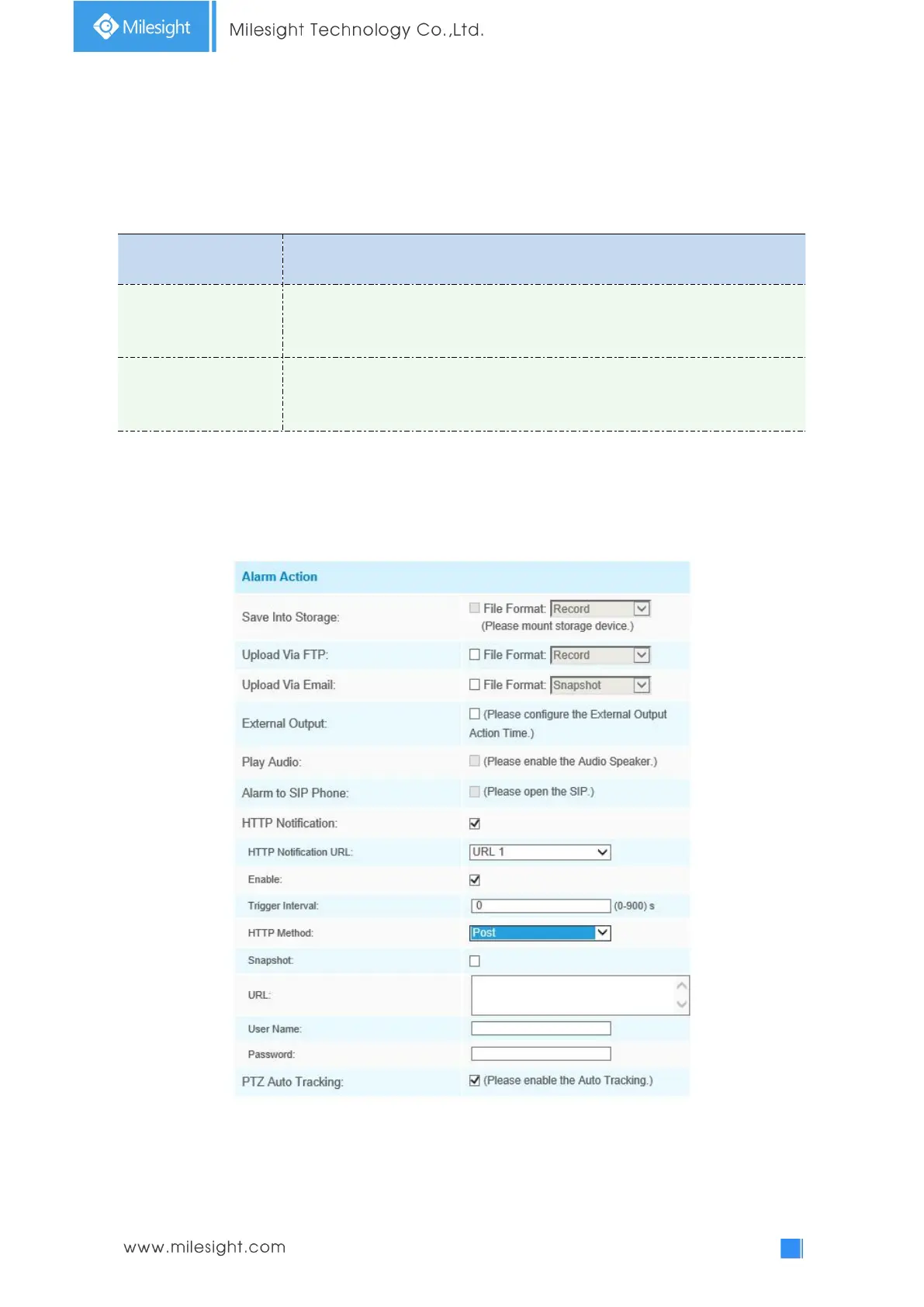
Step6: Set alarm action. When enabling PTZ Auto Tracking and Region Entrance Detection, camera
will automatically track objects and trigger an alarm if objects enter the selected regions;
Step7: Set alarm settings. If you enable External Output and choose Constant External Output
Action Time, when objects enter the selected regions, External Output Action alarm time will be
always constant till the alarm is released.



 To Next Page