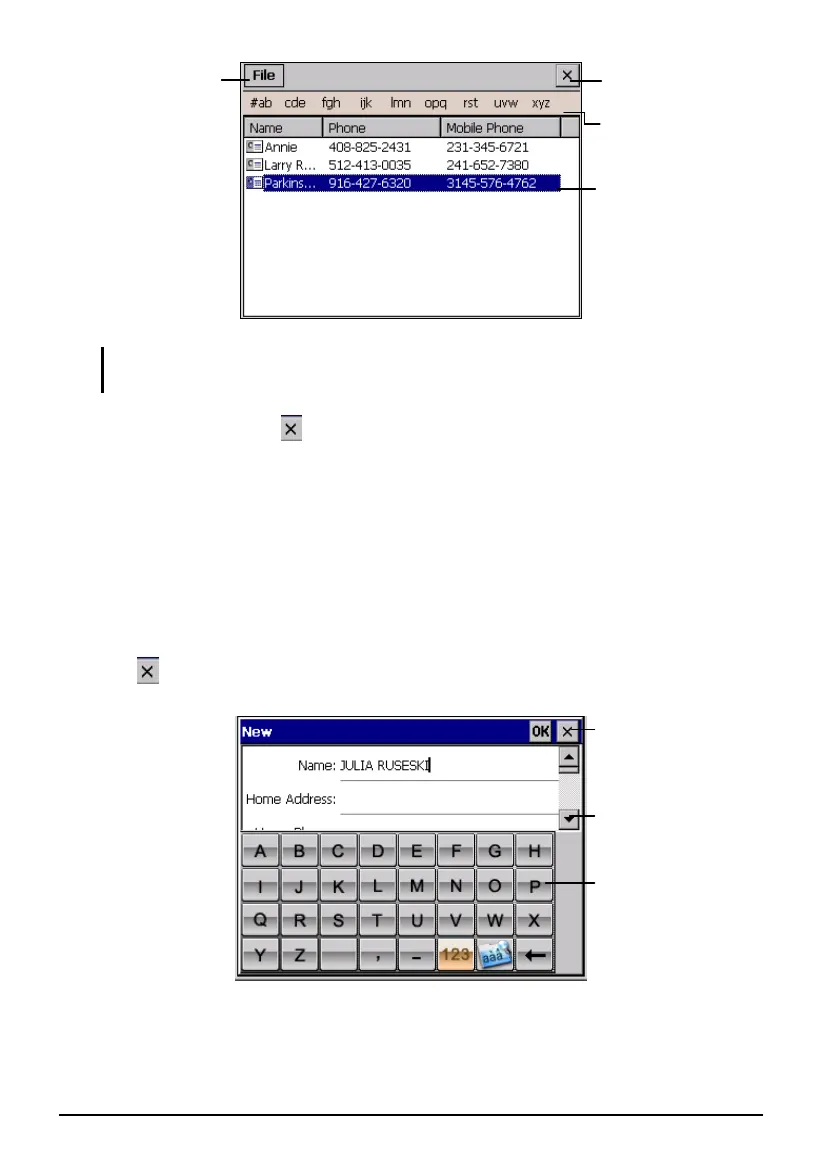
Tap one of the alphabet
sets to quickly find your
contacts.
Tap to display a
summary screen of a
contact.
Tap and hold to display a
pop-up menu of actions.
Tap to return to the Home
screen.
NOTE: To display the summary screen of a contact, you can also tap File (top toolbar)
Open.
To exit the program, tap
on the top right corner of the screen or tap File (top
toolbar)
Exit.
6.3 Creating a Contact
1. After starting Contacts, tap File (top toolbar) New.
2. Use the Input panel to enter the name and other contact information. You
will need to scroll down to see all available fields.
3. Tap
on the top right corner of the screen to return to the contact list.
Scroll to see more fields.
Tap the Input Panel
buttons to enter text and
numbers.
Tap to return to the
contact list (the contact is
saved automatically).
45


 To Next Page