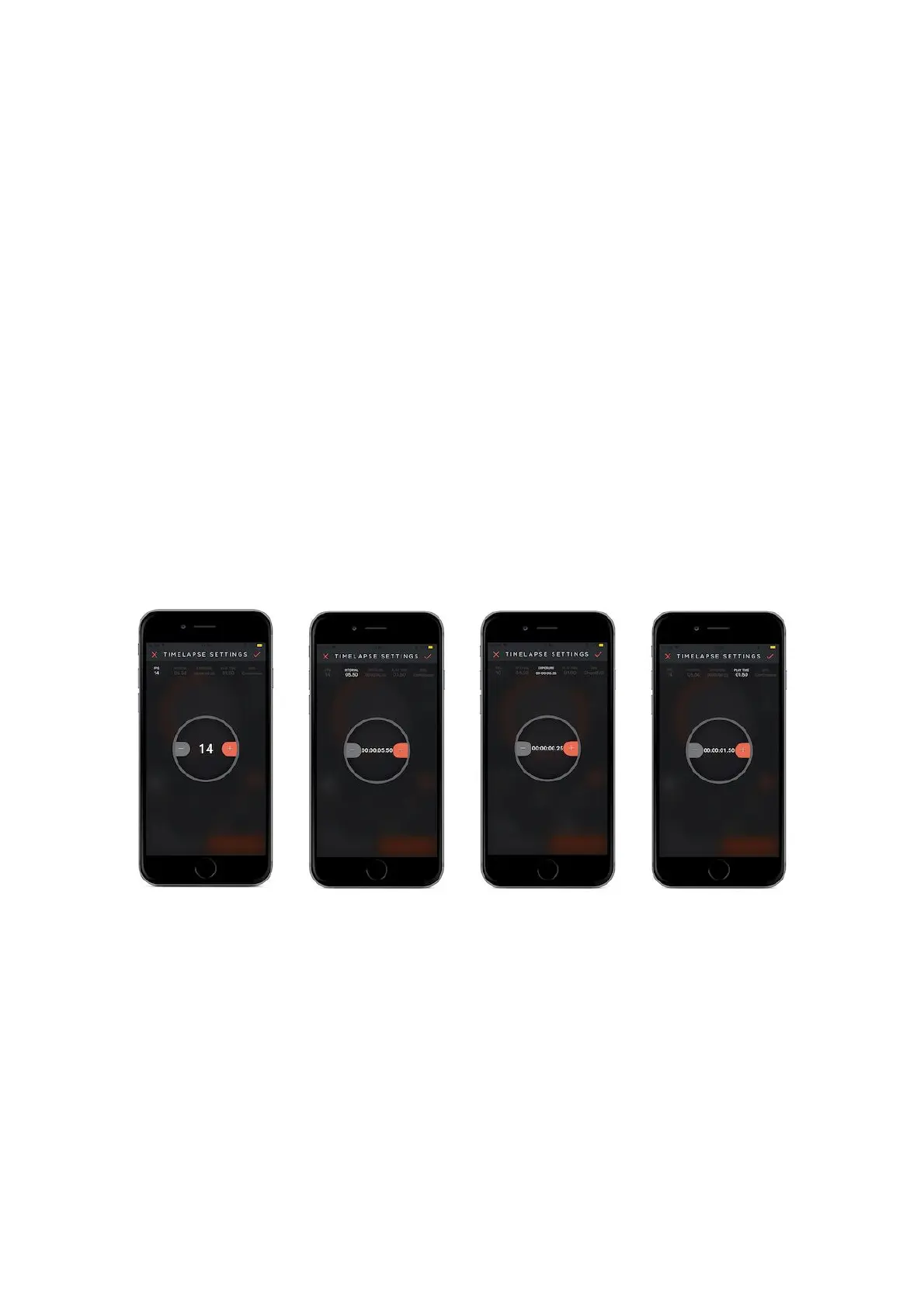
can have a value from 13 milliseconds up to 100 hours.
Exposure : This value defines the exposure value for each photo. You can set a
custom exposure up to 100 hours in milliseconds.
Frames Per Second (FPS) : This parameter defines how many pictures are to be
taken in one second. If you set the frame number to 0, this will mean that the
time-lapse will continue until you stop it.
Play time : Enter the total time value of final video which you want to create.
Mode : There are two shooting mode which you prefer such as “Shot move to
shot” and “Continuous” mode.
Shot move to shot mode
When Capsule360 is turning around it pauses to take a shot. After the camera takes
the shot Capsule 360 starts turning again.
Continuous mode
Capsule360 can take a shot when it is moving.
How does it work?
Once you start the mode, you can see the progress on the status screen. The circle
on the top will show the PAN value. After you adjust the all parameters, touch the
start button which is on the bottom right-hand corner, your camera will start
moving. When your camera starts moving, you can observe it on the app screen as
the orange area around the circle runs out. At the same time, the interval period is
over and the camera will take shots in numbers that you specified beforehand in
the settings of FPS (Frames Per Second). On the bottom right-hand corner, you will


 To Next Page