7. Firmware Upgrade
Capsule360 has the capability of updating its firmware without needing any cable
connection to a computer. You can use the Capsule360 mobile app to check for
new firmware version and then update the device with a single click.
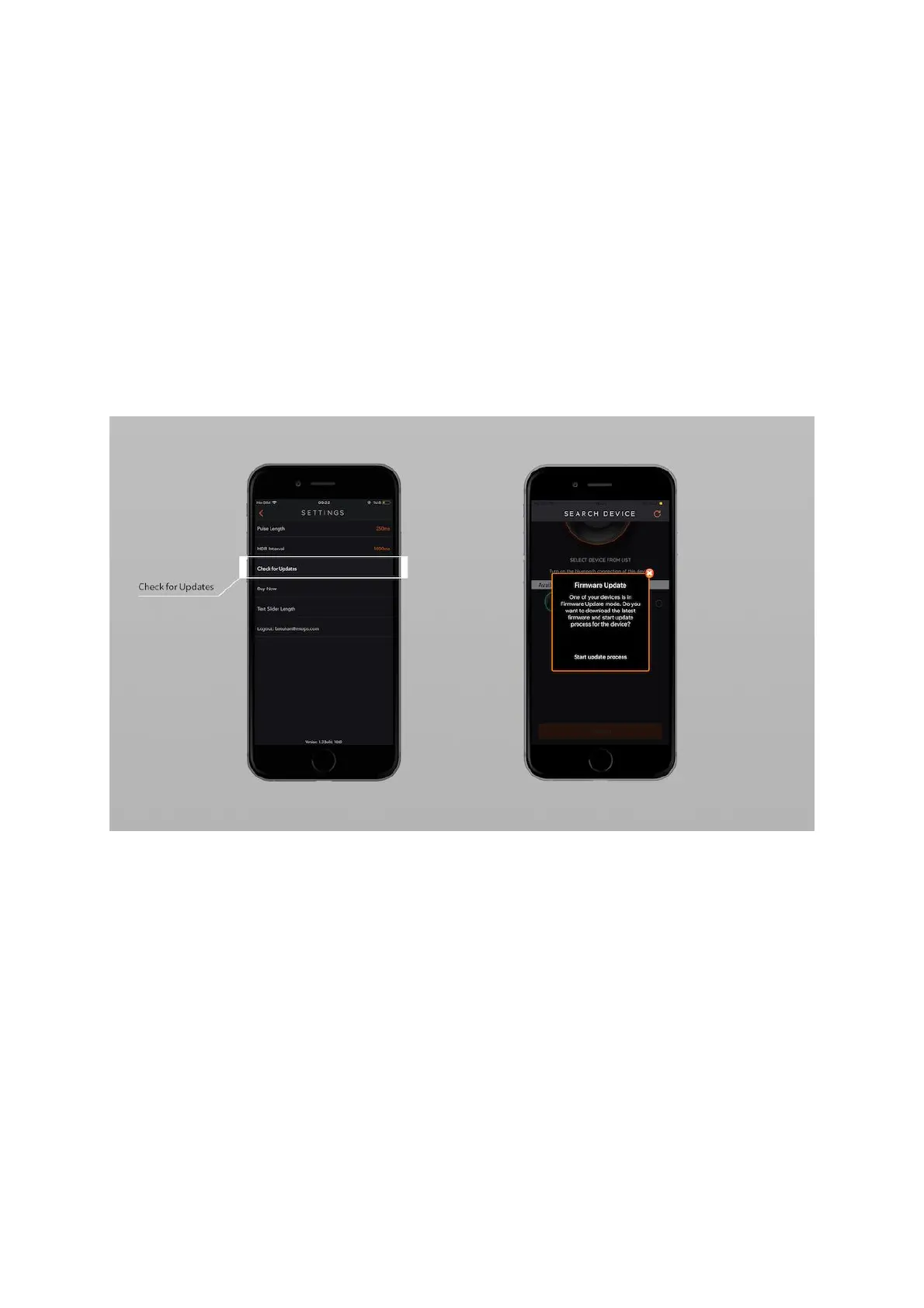
When you connect your device through Capsule360 mobile app, it automatically
checks your device's firmware version and prompts a pop-up message if a new
firmware is available.
If you want to check it manually, go to the settings by the settings icon at the top-
right hand side of the app screen. Go to “Check for Updates”.
The app automatically lists the firmware updates. Check the status, if it is not “up
to date” then select your Capsule360. When you select your device, “update” icon
will turn orange at the bottom of the screen. Click “update” the firmware upgrade
process will start immediately.


 To Next Page