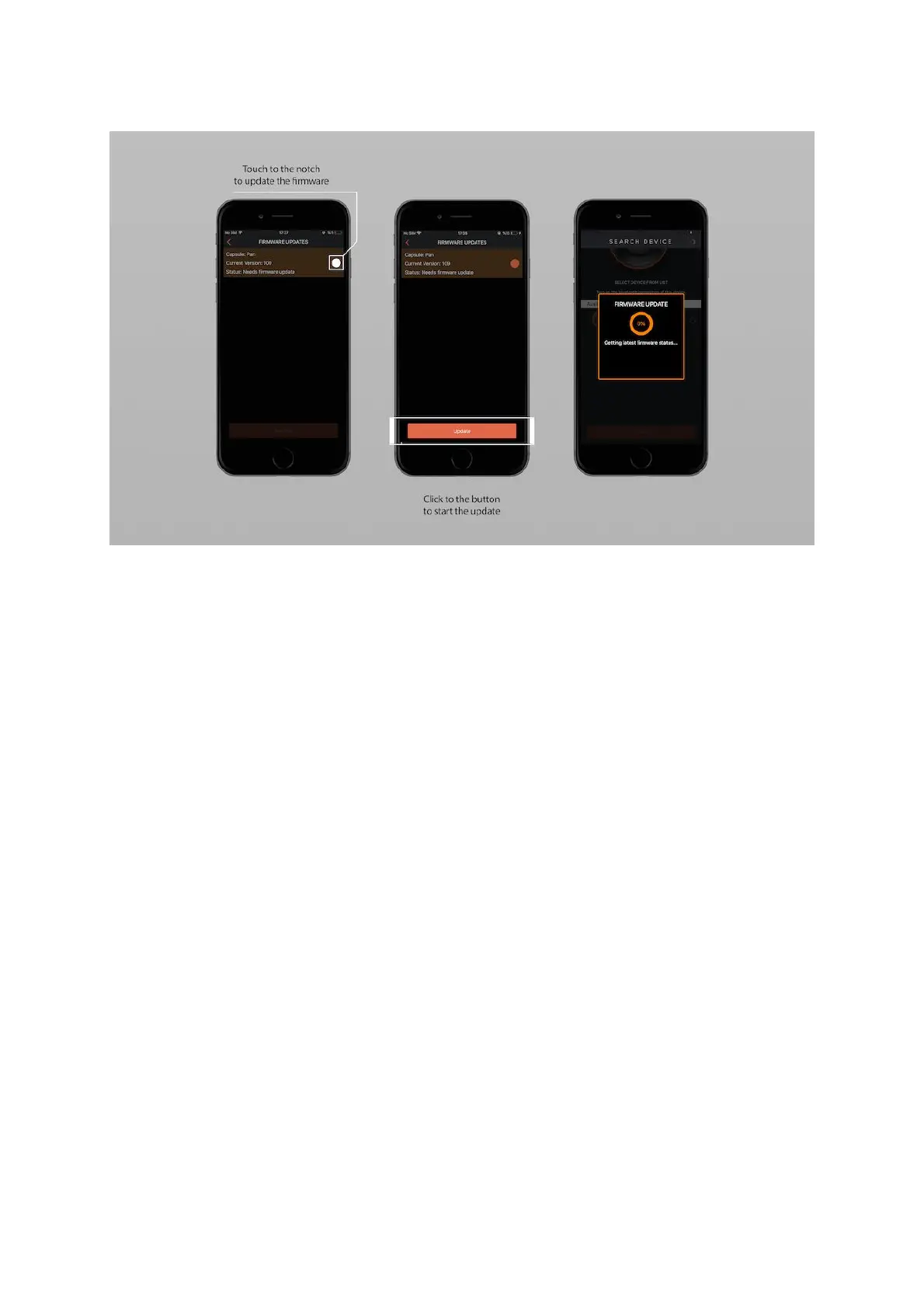
7.1 Log-in & Create an Account
After you connect to your device, you will see the “check for updates” option on
the list when you touch to the settings icon on the top right-hand side of the
screen.
When you touch the "Check for Updates " option, Log-in screen will be opened
automatically. If you already have an account you can log in or if you do not have,
you can sign in and then login with a new account.
8. Using the Mobile Application
When you turn your Capsule360 and Capsule360 Mobile App on first thing you will
need to do is to connect your Capsule360 to your smartphone. For that, you will
see a “renew” icon at the top-right hand of the app screen. Renew the device
search by touching the icon. All the available devices will be listed.
As you can connect multiple Capsule360 devices at the same time, choose the
device/devices that you want to connect. You will notice that when you choose the
device/devices, an orange “connect” button will appear at the bottom of the app
screen. You can easily connect to the device by touching the button.
After you connect to the device, you will be directed to the “Auto Setup” menu. If
you want to connect to “PAN” mode just touch the button to connect. When you
are in the “Auto Setup” menu but you want to use the other modes, notice the
“Manual Setup” icon at the bottom of the app screen. Touch “Manual Setup” and
you will be directed to the “Manual Setup” menu. You can choose
between “PAN”, “TILT” or “SLIDE” modes.


 To Next Page